
Your help center is a team effort. The User Management page lets you invite colleagues, assign roles that match their responsibilities, and keep track of who has access to your help center.
This guide walks you through everything you need to know — from inviting your first team member to understanding what each role can do.
Getting to User Management
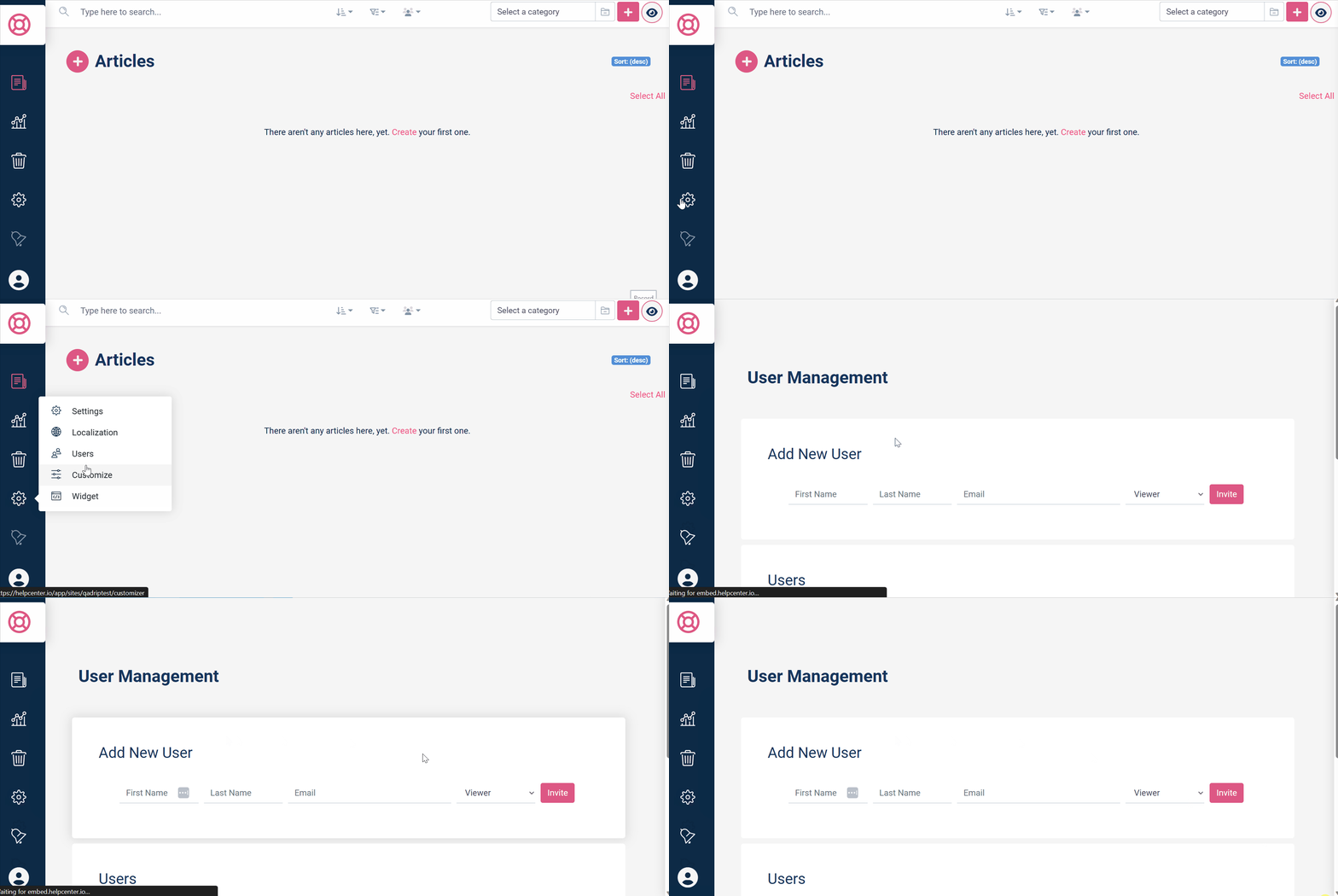
From your HelpCenter.io dashboard, click on the Settings icon in the left-hand navigation menu, then from the drop-right menu that would appear, pick Users. You'll land on a page with three sections: the invitation form at the top, your current users list in the middle, and any pending invitations at the bottom.
Inviting a New User
To add someone to your help center:
Open the User Management page from the dashboard sidebar.
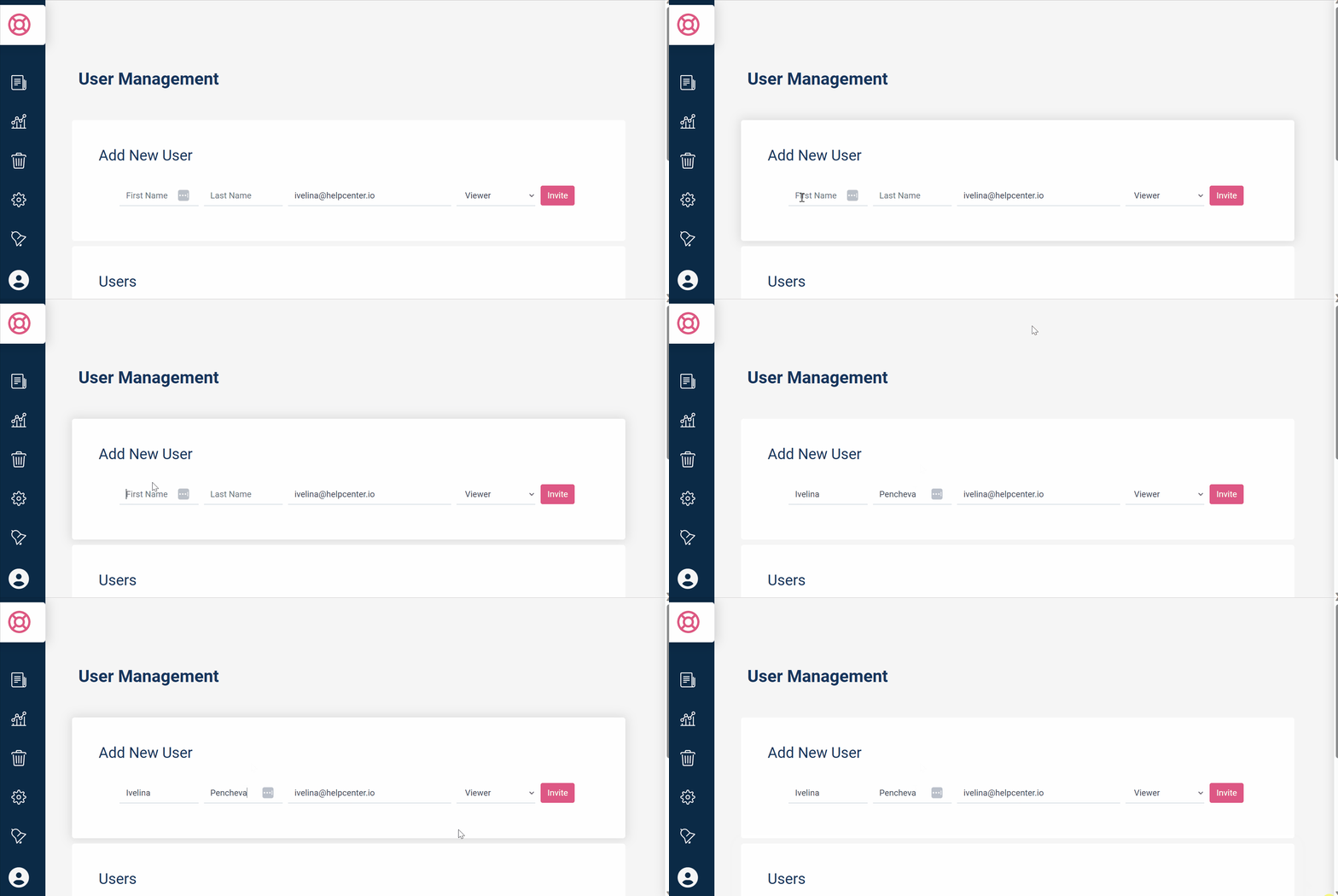
In the Add New User section at the top of the page, fill in the person's First Name, Last Name, and Emailaddress.
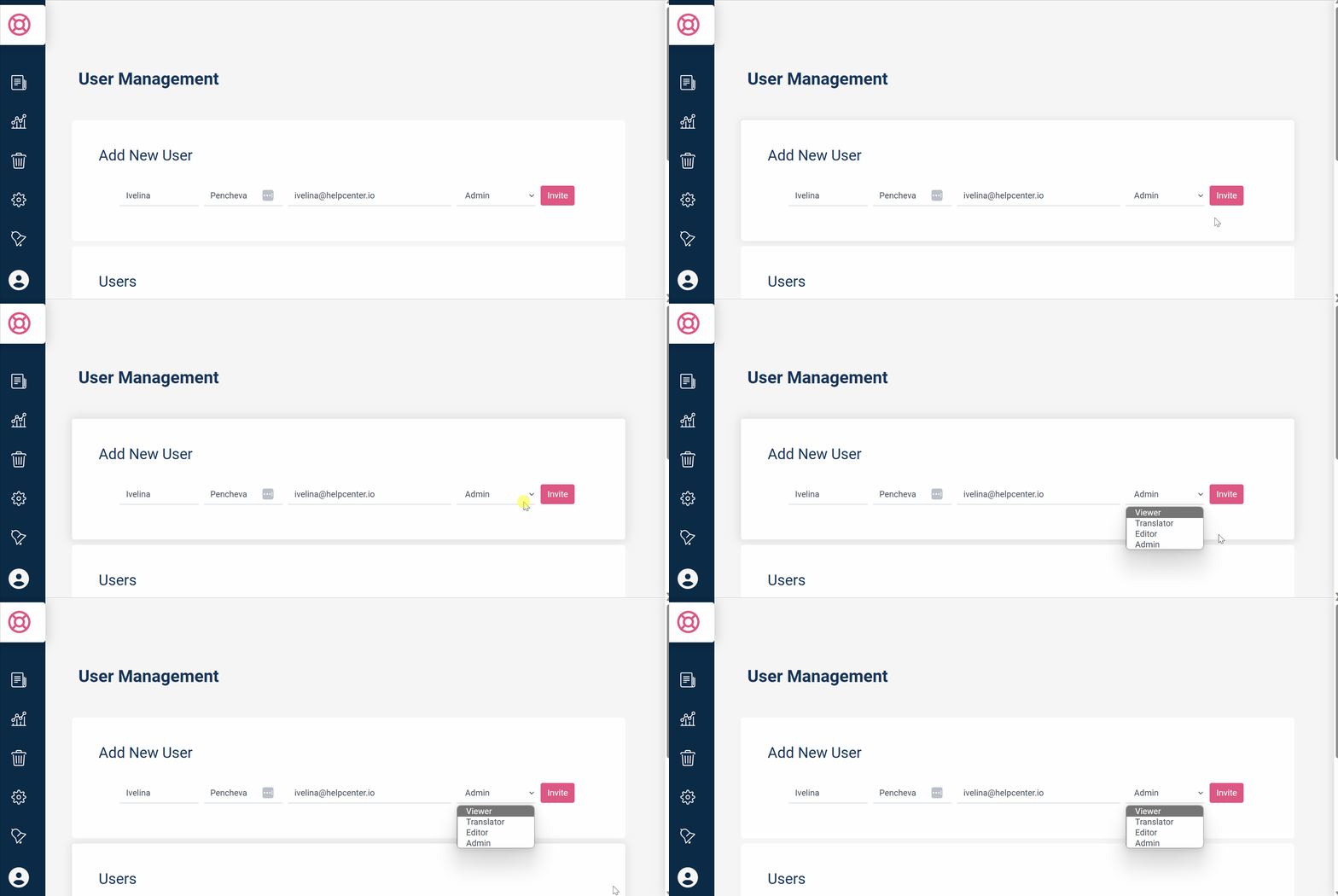
Choose a role from the dropdown menu. The available roles are Viewer, Translator, Editor, and Admin (more on what each role means below).
Click the Invite button.
The invited person will receive an email with instructions to join your help center. Until they accept, their invitation will appear in the Invited section at the bottom of the page.
Tip: Double-check the email address before sending the invite. If you need to cancel a pending invitation, you can do so from the Invited section.
Understanding User Roles
Choosing the right role ensures people have the access they need without giving them more control than necessary. Here's what each role can do:
Viewer
Best for stakeholders or team members who need to see content but shouldn't make changes. Viewers can browse articles and categories within the dashboard but cannot create or edit content.Translator
Designed for team members who handle multilingual content. Translators can view existing articles and add or edit translations, making this the ideal role for localization teams.Editor
The go-to role for content creators. Editors can write, edit, and manage help center articles and categories. They're the people actively building and maintaining your knowledge base.Admin
Admins have full control over the help center, including managing users, configuring settings, and editing all content. Assign this role to team leads or project managers who need oversight over the entire help center.Owner
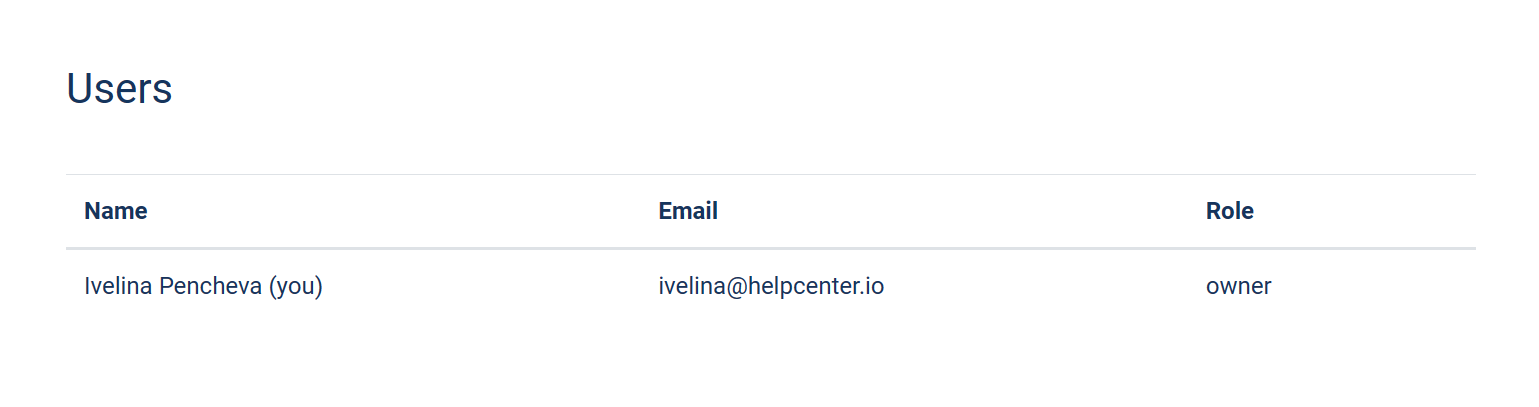
The Owner role is automatically assigned to the person who created the help center. Owners have all Admin capabilities and are the primary account holder. This role cannot be assigned through the invitation form.
Managing Existing Users
The Users section displays a table of everyone who currently has access to your help center. For each user, you can see their name, email address, and assigned role.
From this list you can:
Review who has access — quickly see all active team members and their permission levels at a glance.
Update roles — change a user's role if their responsibilities shift (for example, promoting an Editor to Admin).
Remove users — revoke access for team members who no longer need it.
Tracking Pending Invitations
The Invited section at the bottom of the page shows any invitations that haven't been accepted yet. This helps you keep track of who still needs to join and follow up if needed.
If an invitation was sent to the wrong email or is no longer needed, you can cancel it directly from this section.
Best Practices
Start with the least access needed. Assign users the most restrictive role that still lets them do their job. You can always upgrade permissions later — it's harder to undo accidental changes from an overly permissive role.
Keep your user list tidy. Periodically review the Users section and remove anyone who no longer needs access. This is especially important when team members change projects or leave the organization.
Use descriptive names when inviting. Filling in both the first and last name fields makes it much easier to identify team members in the user list, particularly as your team grows.
Frequently Asked Questions
Can I invite someone who doesn't have a HelpCenter.io account yet?
Yes. When you send an invitation, the recipient will be guided through creating an account if they don't already have one.
How many users can I invite?
The number of users depends on your plan. Check your account settings or billing page for details on your current plan's user limits.
Can I change someone's role after they've joined?
Yes. You can update any user's role from the Users table on the User Management page.
What happens when I remove a user?
They immediately lose access to the help center. Any content they created remains in the help center — removing a user does not delete their contributions.