

Template Editor v2 lets you design your help center while watching the result in a live preview. You can update your brand, choose a starter theme, arrange every page, add components, manage navigation, and test different screen sizes before publishing.
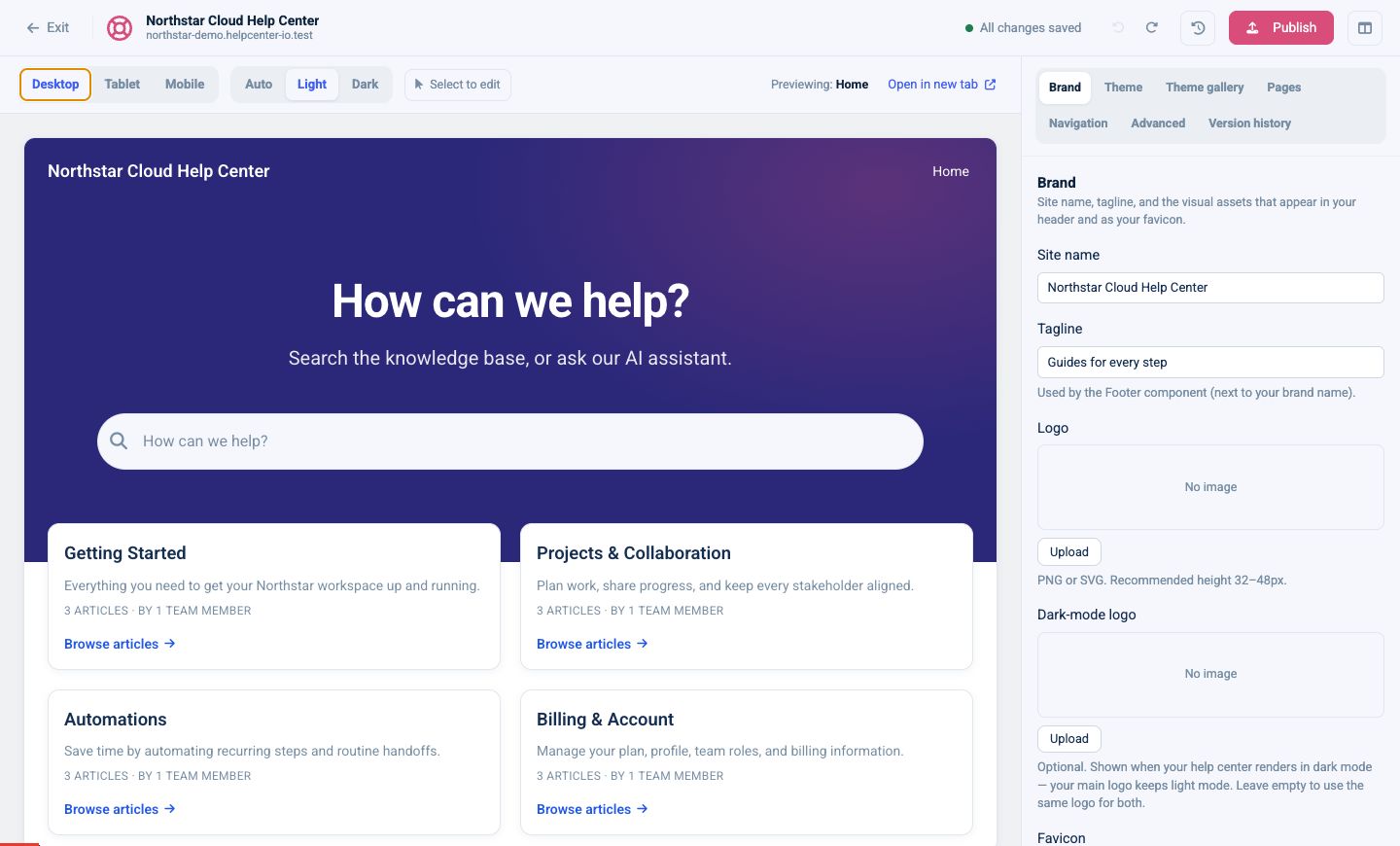
Open the Template Editor
Sign in toHelpCenter.ioand select your help center.
SelectTemplate Editorfrom the dashboard navigation.
If your help center still uses the classic editor, selectTry the new editorfrom the customization page. Your live site remains on the classic design until you publish from v2.
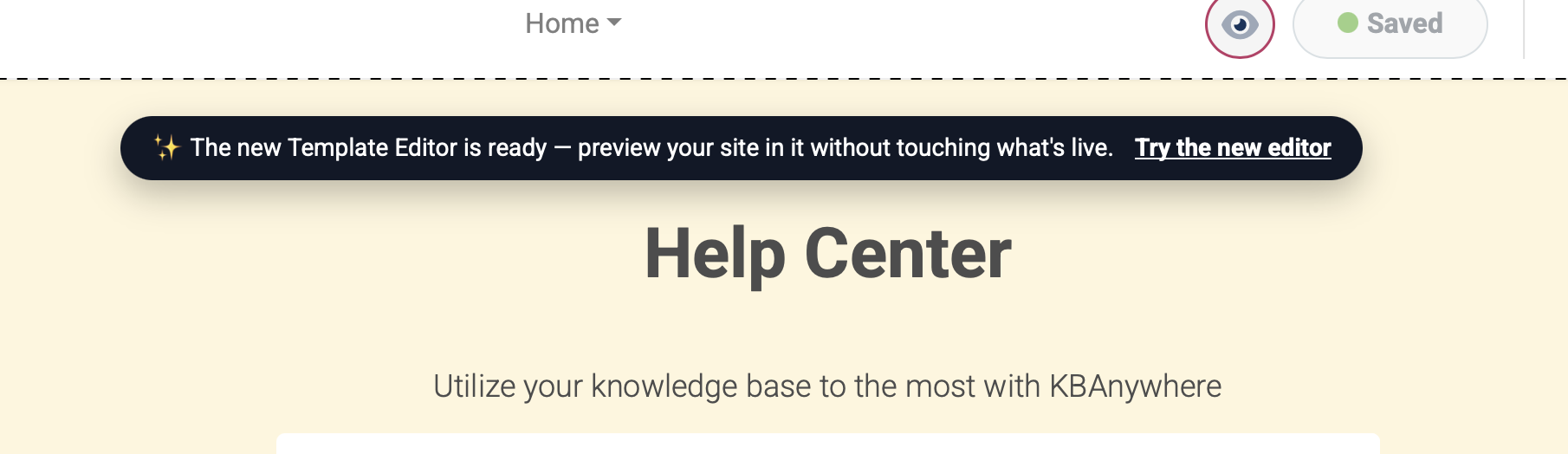
If your live help center is currently using the template from the now legacy template editor, switching to v2 would't automatically change your live help center. You can safely preview the changes and adjust the looks in Template Editor v2 and the new template will go live only once you click on the "Publish" button. Until then, you will also be able to get back to the legacy template editor at any time.
Find your way around
The editor has three main areas:
Toolbar:leave the editor, check the save status, undo or redo changes, reset the draft, publish, or hide the settings panel.

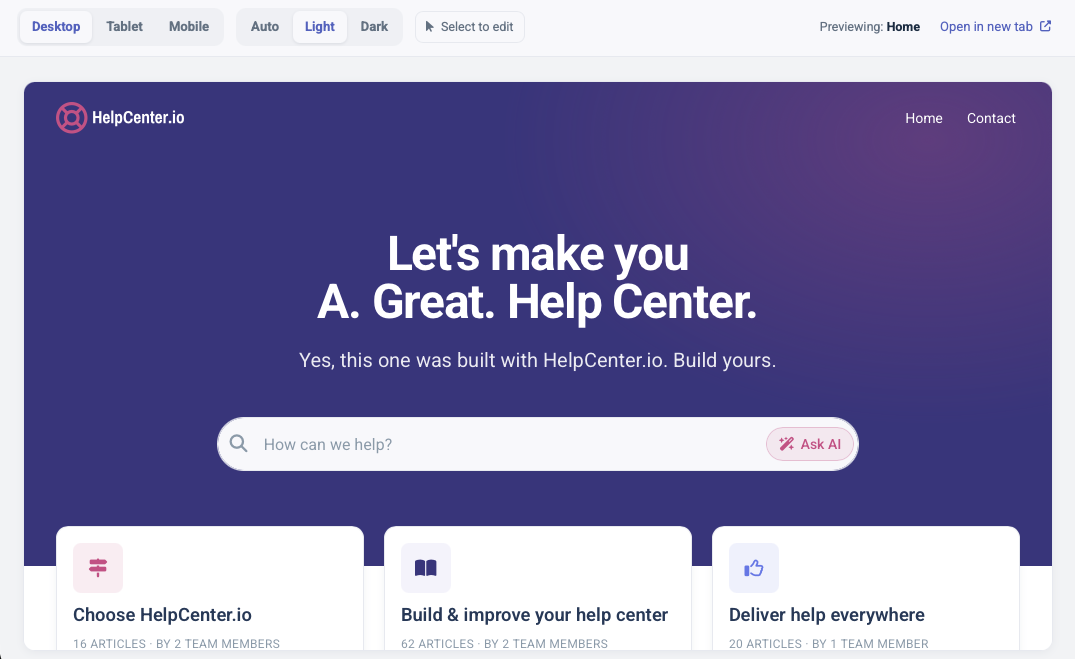
The Template Editor v2 Toolbar Live preview:see the page your visitors will get. Use the controls above it to switch device size and color mode.
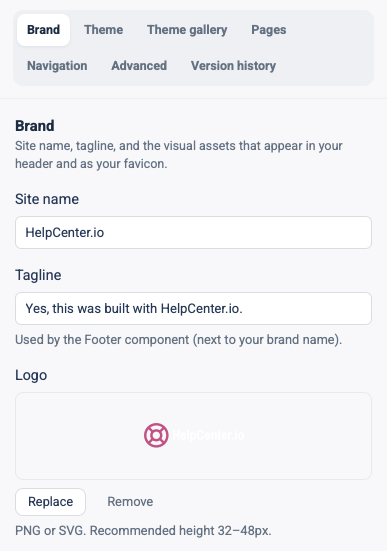
Settings panel:move between Brand, Theme, Theme gallery, Pages, Navigation, Advanced, and Version history.
Understand drafts and publishing
Changes are saved automatically to a private draft. The save status in the toolbar changes while the editor is saving and returns toAll changes savedwhen it is safe to leave.
Your visitors do not see the draft. SelectPublishwhen you are ready to replace the live design with the current preview.
Every publish creates a restore point, so you can return to an earlier design fromVersion history.
A good first setup
For a new help center, work through the editor in this order:
Add the site name, tagline, logo, and favicon inBrand.
Choose a starting point inTheme gallery.
Fine-tune light and dark colors, fonts, and spacing inTheme.
Arrange the Home, Category, Article, Search, Contact, and 404 pages inPages.
Add the links visitors need inNavigation.
Test Desktop, Tablet, Mobile, Light, and Dark previews.
Publish with a short version note.
Useful safety controls
UseUndoandRedofor recent edits.
UseReset draftto discard all unpublished changes and return the draft to the live version.
UseOpen in new tabfor a larger preview.
UseVersion historyto restore a previously published design.