

Existing help centers can try Template Editor v2 without changing what visitors see. The editor creates a v2 draft from your current design while the live help center continues using the classic theme.
Start the preview
Open your help center dashboard.
Go to the customization page.
Select Try the new editor.
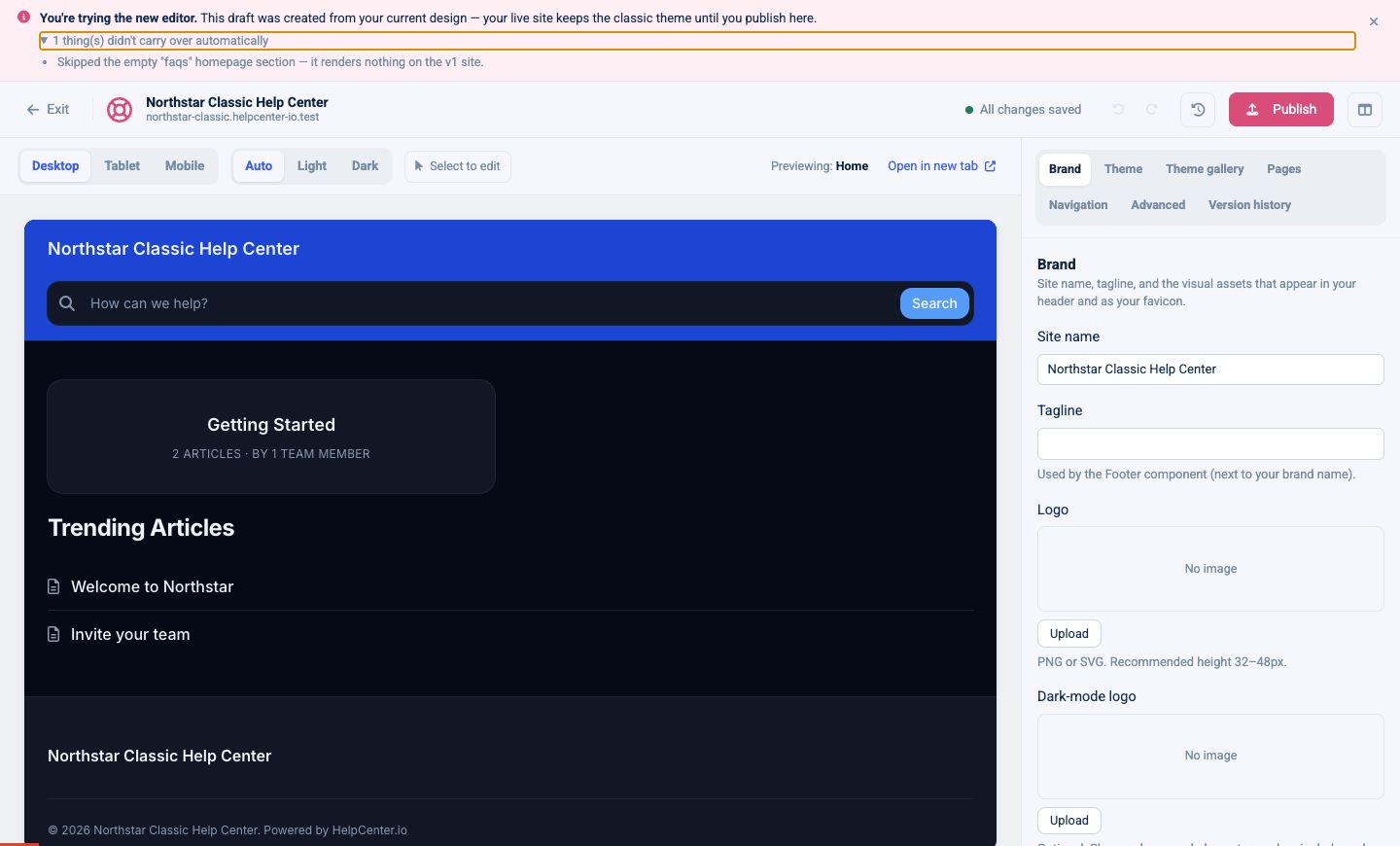
A banner at the top confirms that you are trying the new editor. You can edit and autosave the v2 draft, close the editor, and return later without affecting the live site.
Review anything that did not carry over
Most classic settings are converted automatically. If the editor reports that something did not carry over:
Expand the warning in the trial banner.
Review each item.
Use the live preview and the relevant settings panel to recreate anything you still need.
Some warnings are informational. For example, an empty classic section may be skipped because it produced no visible content.
Check the important pages
Before switching, preview at least:
Home
A category with several articles
An article with headings, lists, images, or tables
Search results
Contact
Not found (404)
Also check Desktop, Tablet, Mobile, Light, and Dark modes.
What happens on the first publish
Your first v2 publish switches the live help center from the classic template engine to the design shown in the preview. The publish dialog calls this out before you confirm.
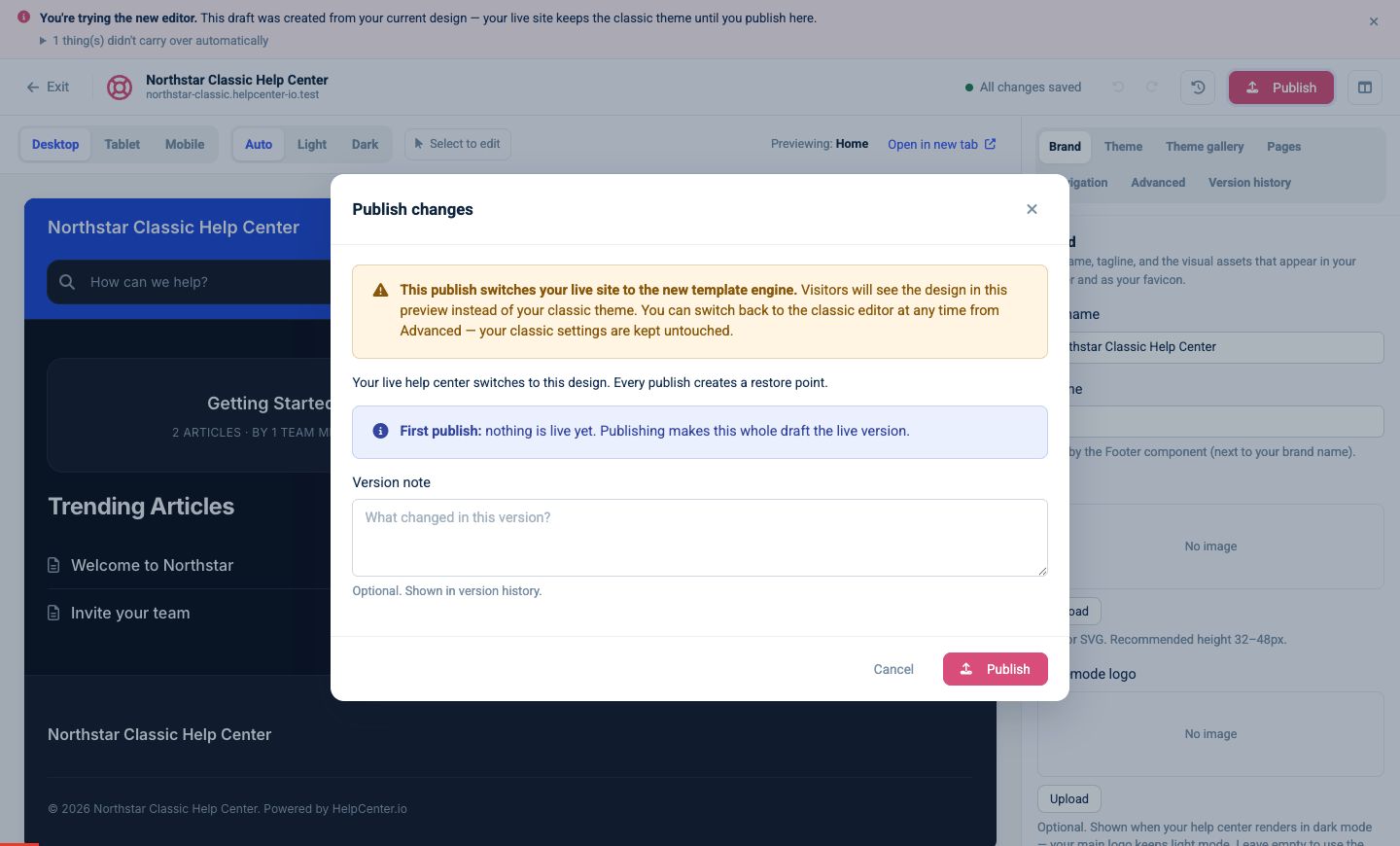
The switch does not delete or overwrite your classic settings. After publishing:
Visitors see the v2 design.
Your classic settings stay stored.
Your v2 design gets its first restore point.
You can switch the live site back to the classic editor from Advanced.
Switch back if you need more time
Open Advanced and select Switch back to the classic editor. The classic design becomes live again immediately, while your v2 draft and published versions remain available for a later retry.
Recommended migration checklist
Resolve or accept every carry-over warning.
Confirm the logo, favicon, colors, and fonts.
Verify navigation and external links.
Check page components and article readability.
Test the contact form and any injected scripts.
Add a clear version note to the first publish.
Keep the classic settings until your team has reviewed the live v2 site.