

Use Advanced for changes that go beyond the visual controls. Custom code can break the layout or third-party integrations, so test it in the preview and publish one focused change at a time.
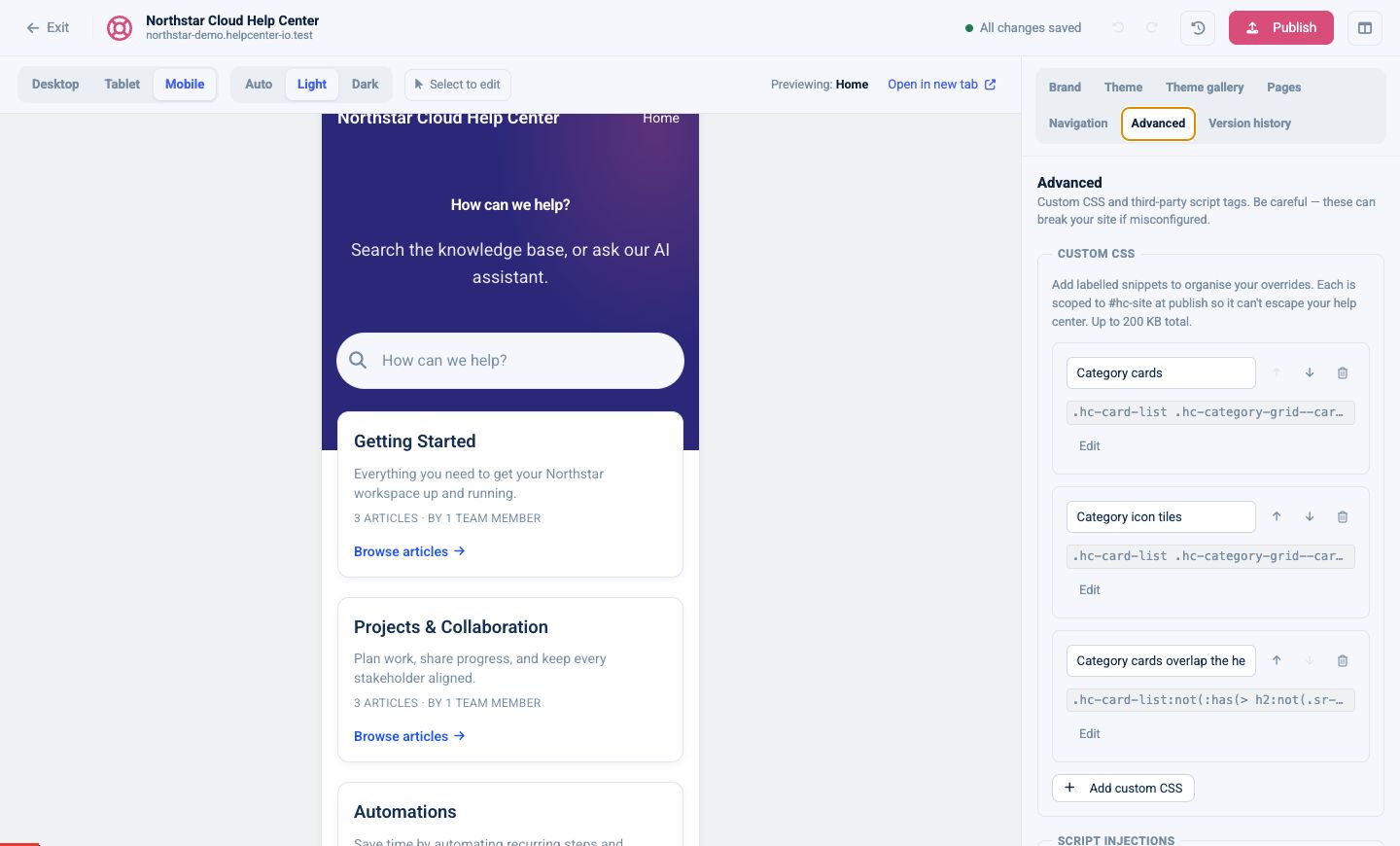
Add custom CSS
Custom CSS is organized into labelled snippets.
- Open Advanced.
- Select Add custom CSS.
- Give the snippet a clear label.
- Add the CSS.
- Check the affected pages and color modes.
You can reorder, edit, or remove snippets. The combined custom CSS limit is 200 KB.
At publish time, selectors are scoped to #hc-site so they cannot style the surrounding HelpCenter.io dashboard. Use classes shown in the rendered help center or classes you add to navigation links.
Keep each snippet focused, for example:
- Header spacing
- Category-card borders
- Support call-to-action link
Add scripts or HTML
The Script injections area supports:
- External script: load a script from a URL.
- Inline script: run JavaScript you provide.
- HTML snippet: insert raw HTML, such as a verification meta tag.
Use these for analytics, chat widgets, or site verification. Restrict an injection to specific pages when it does not need to run everywhere.
Only add code from a source you trust. A failing script can slow down the help center or interfere with navigation and forms.
Custom HTML component versus HTML injection
Use the Custom HTML page component when the content belongs in a visible page region.
Use an HTML snippet under Script injections for document-level integration code, such as a verification tag.
Test advanced changes
Before publishing:
- Check Home, Category, Article, Search, Contact, and 404 pages.
- Test Desktop, Tablet, and Mobile.
- Test Light and Dark modes.
- Open the preview in a new tab.
- Confirm forms, search, and navigation still work.
- Publish with a version note describing the code change.
Switch back to the classic editor
If your help center previously used the classic editor, Advanced includes Switch back to the classic editor.
Switching back:
- Makes the stored classic design live immediately.
- Does not delete v2 drafts or versions.
- Lets you return to v2 later by opening the new editor and publishing again.
During the initial v2 trial, selecting this option simply returns you to the classic editor because your live site has not switched yet.