

Template Editor v2 separates your private draft from the design visitors see. This lets you make and review a group of changes before publishing them together.
Autosave
Edits are saved automatically. Watch the toolbar status:
- A saving state means the draft is still being updated.
- All changes saved means the latest draft is stored.
You can also use the save shortcut shown in the toolbar. Autosaving does not publish the draft.
Undo and redo
Use Undo and Redo in the toolbar for recent changes in the current editing session.
For a complete return to the live design, use Reset draft instead.
Reset the draft
Resetting discards all unpublished template changes and recreates the draft from the current live version.
Use it when:
- A theme experiment did not work.
- You want to abandon several changes at once.
- You need a clean starting point from the published design.
Reset does not delete published versions.
Publish
- Wait for All changes saved.
- Select Publish.
- Review the changed sections.
- Add an optional Version note.
- Select Publish in the dialog.
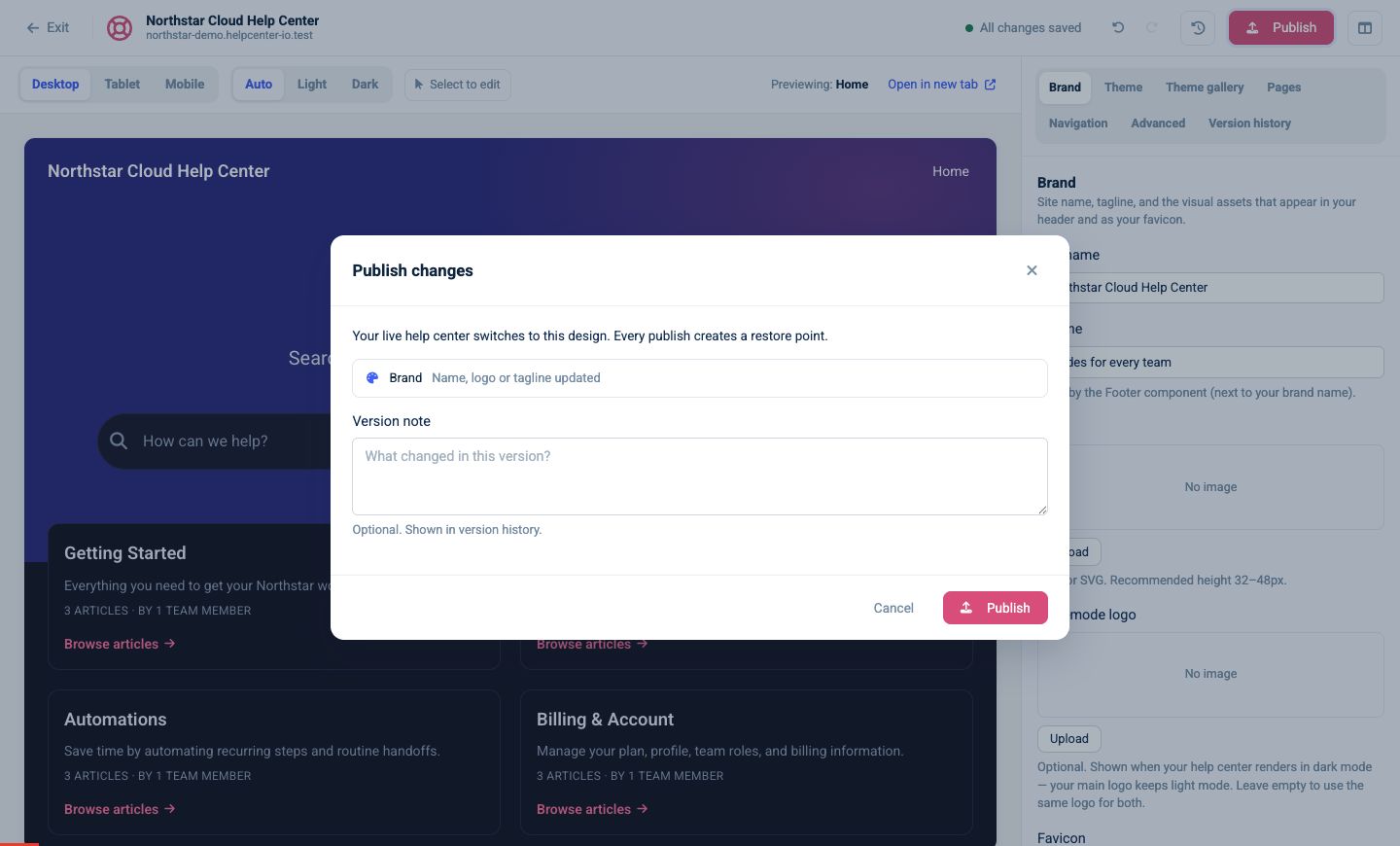
The live help center switches to this design. Use a version note such as “Updated mobile navigation and article layout” so teammates can understand the history later.
If you are moving from the classic editor, the first-publish dialog also warns that publishing switches the live template engine.
Restore an earlier version
Every publish creates a restore point.
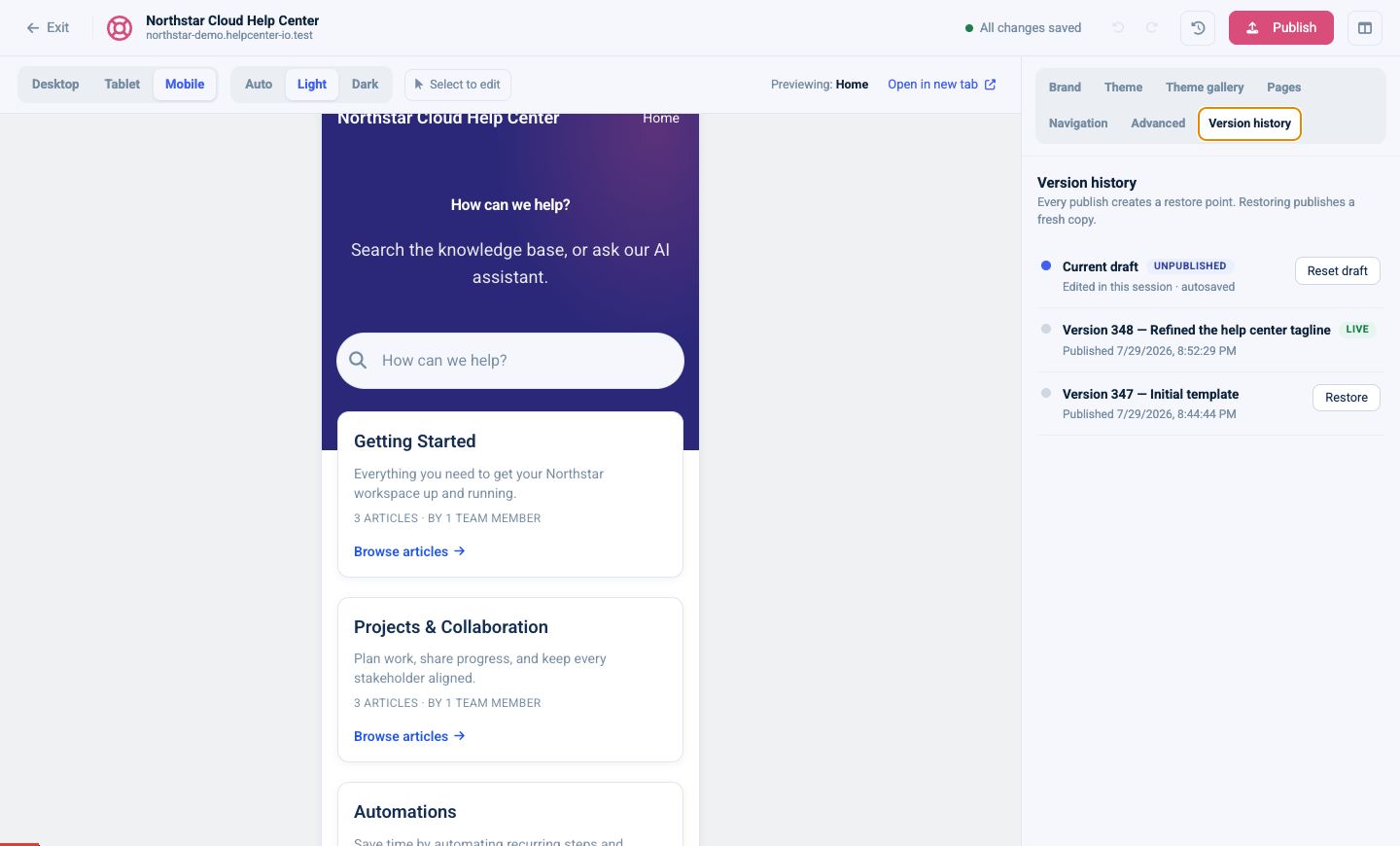
To restore:
- Open Version history.
- Find the version you want.
- Select Restore.
- Review and confirm.
Restoring publishes a fresh copy of the selected version. It does not erase the versions that came after it, so the history remains auditable.
Draft versus live
If the Version history panel shows Current draft — Unpublished, your draft differs from the live version. Publishing promotes the draft. Resetting replaces it with the live version.