

The Article page combines the article itself with navigation, context, engagement, and follow-up components. Its Main region is divided into placement zones so supporting content appears in the right part of the reading flow.
Understand Article page zones
Open Pages, choose Article, then select the Main region.
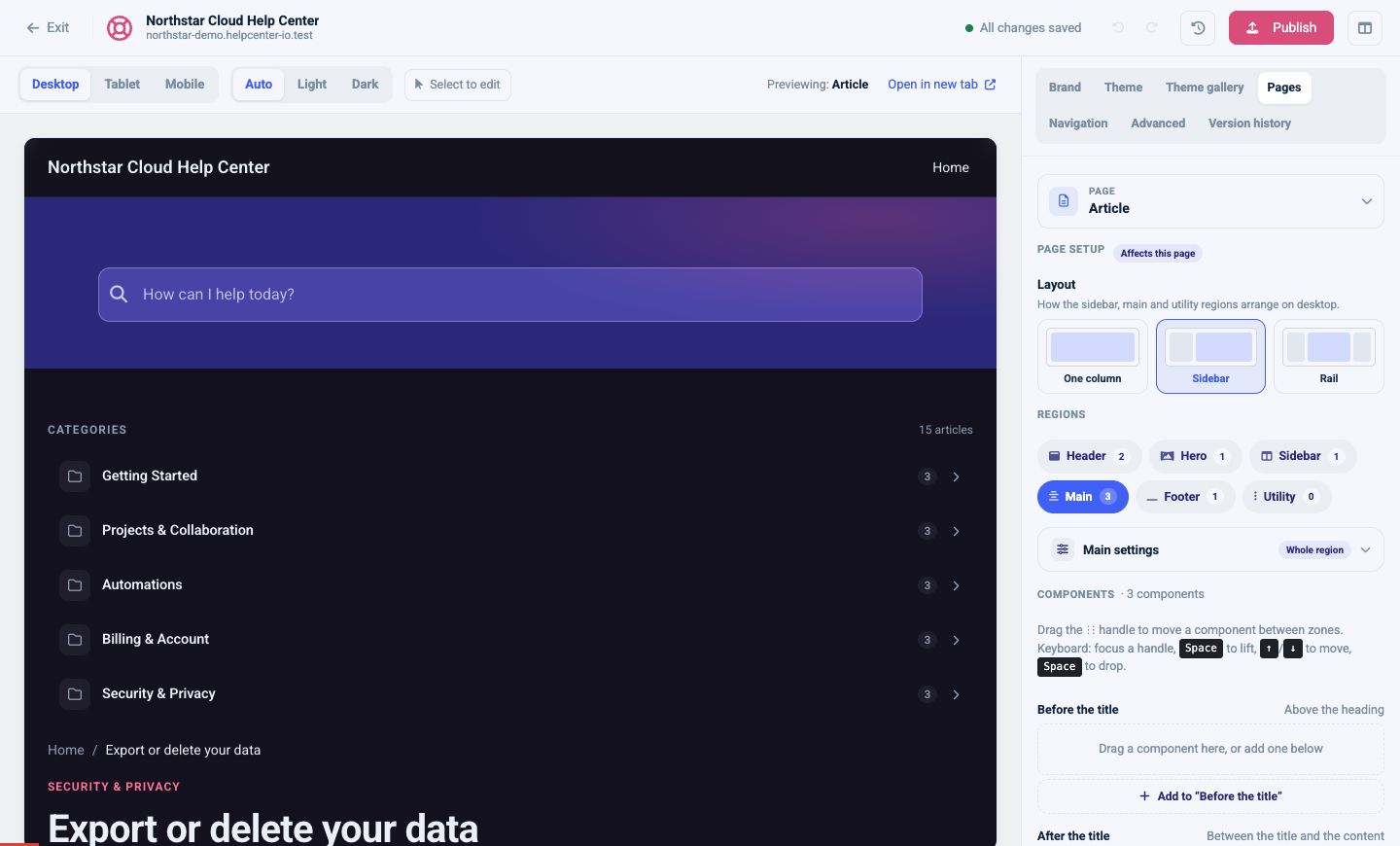
The zones are:
- Before the title: above the article heading
- After the title: between the heading and article content
- After the article: below the article body
Select the Add button for the destination zone. Drag a component by its handle to move it within or between zones. For keyboard movement, focus the handle, press Space to lift it, use the arrow keys to move it, then press Space to drop it.
Choose from Article page components
The available library changes according to the selected region and zone.
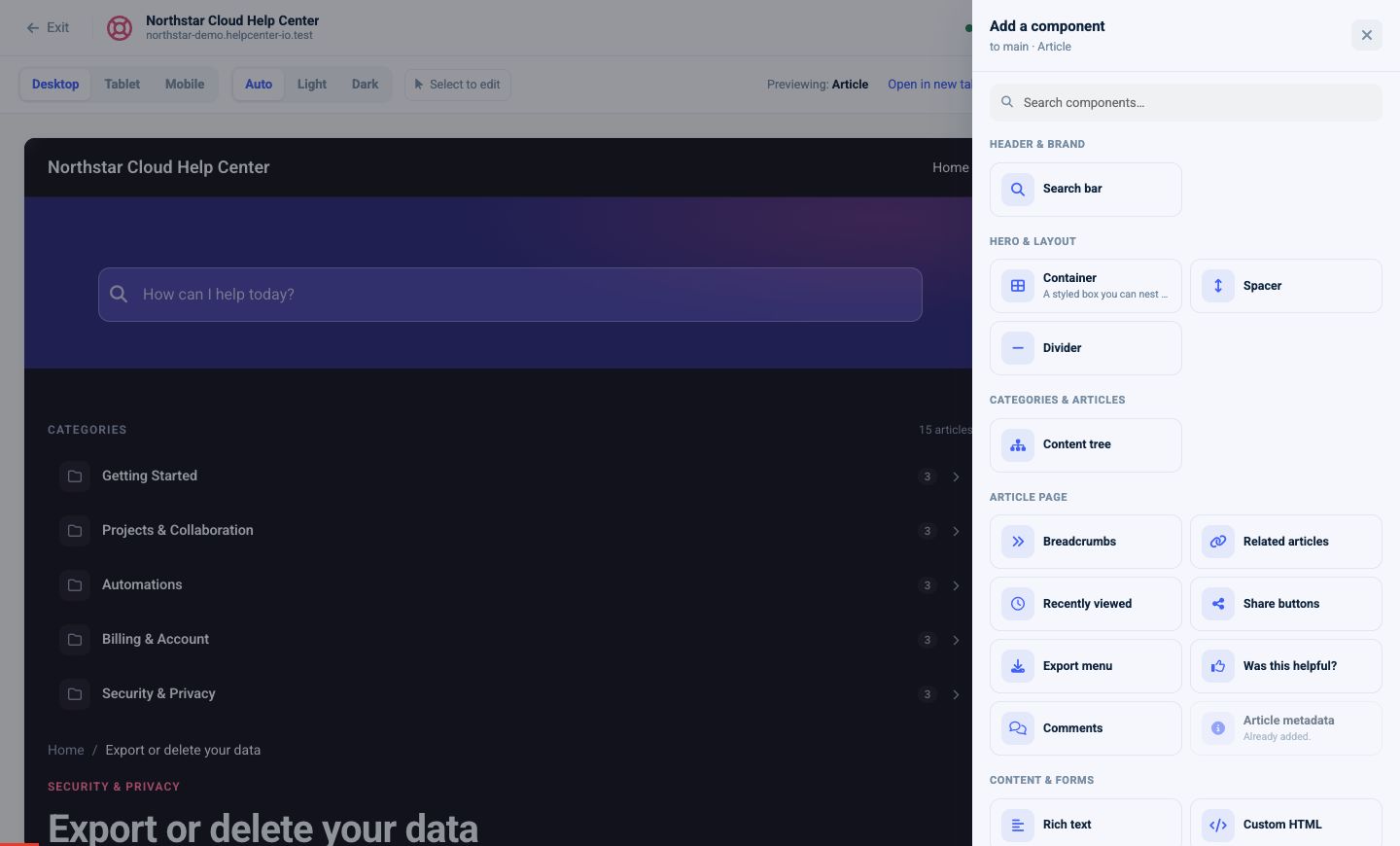
Article-focused options include:
- Article metadata
- Breadcrumbs
- Table of contents
- Related articles
- Recently viewed
- Share buttons
- Export menu
- Was this helpful?
- Comments
General components such as Search bar, Container, Spacer, Divider, Content tree, Rich text, and Custom HTML can also be available where they fit.
Components that can appear only once are disabled after they have been added.
Add context around the title
Article metadata is usually best in After the title. Choose Full or Half width and show any combination of:
- Author
- Last updated
- Reading time
Use Breadcrumbs before the title or near the start of Main when visitors need a clear path back to the category. Breadcrumbs have no content options; their value comes from placement.
Help readers navigate
Use Table of contents to link to headings within the current article. Set the maximum heading depth and enable Sticky behavior when the selected Sidebar or Utility layout has enough vertical space.
Use Content tree when readers need to navigate the wider help center, not just headings in the current article. It can show categories, articles, counts, icons, and the current item.
These components solve different problems and can be used together: Table of contents for the current article, Content tree for the knowledge base.
Suggest the next useful article
Related articles supports:
- Custom heading
- Full or Half width
- A limit of 3, 6, 9, or a custom number
- Matching by default relevance, the same category, or most recent content
Recently viewed helps returning visitors retrace their path. Use it when support journeys often involve several related guides.
Place both after the article so they do not interrupt reading. If the page feels long, use one component with the strongest purpose instead of both.
Add sharing and export actions
Share buttons can include Twitter, LinkedIn, Facebook, Email, and Copy link. Choose a horizontal or vertical layout and add a heading if the purpose is not obvious.
Export menu can offer Print, PDF, and Markdown. It is a single-instance component. Place it near the top when exporting is a core workflow, or in Sidebar/Utility when it is secondary.
Collect article feedback
Use Was this helpful? below the article.
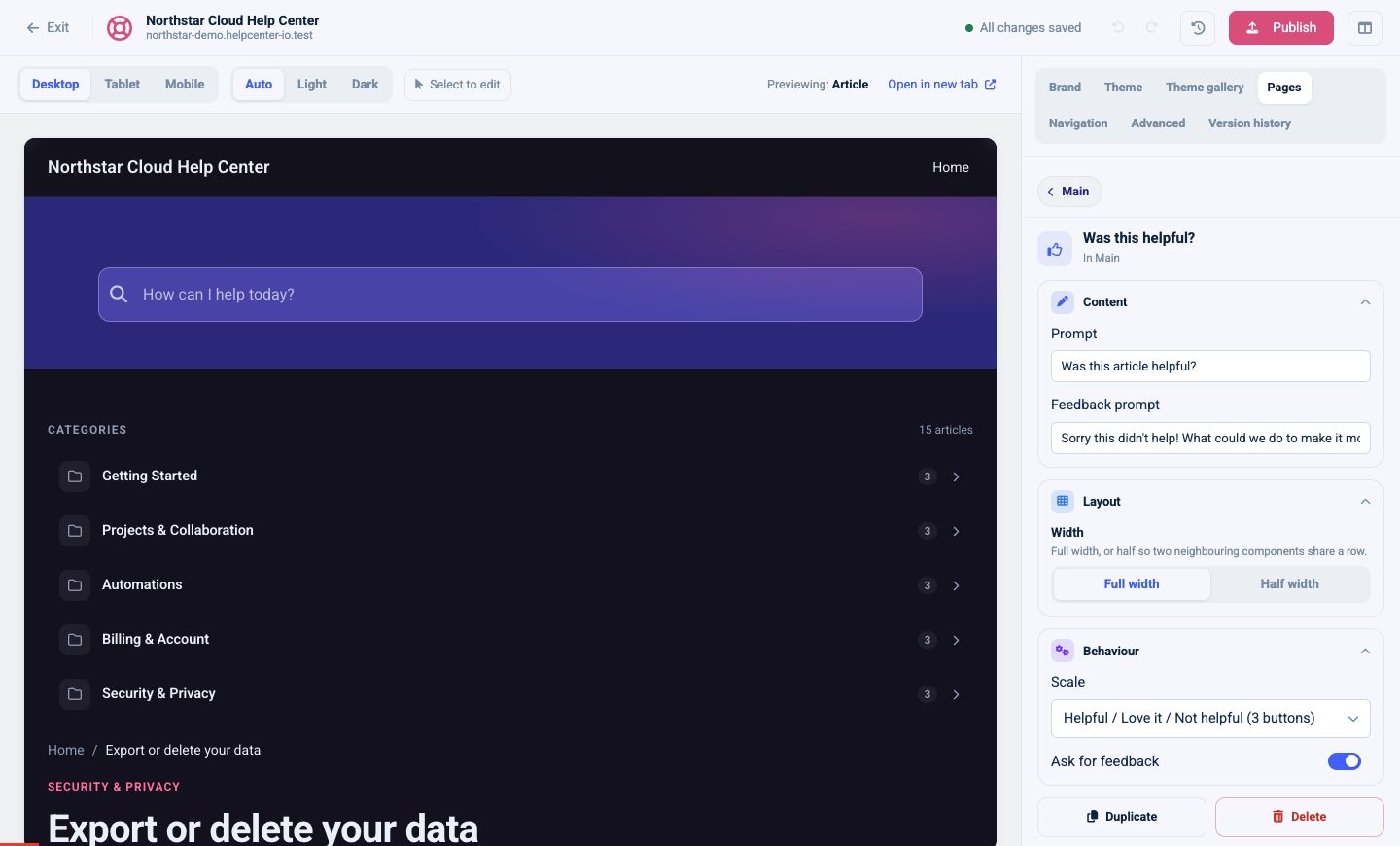
Set:
- The initial prompt
- The feedback prompt
- Full or Half width
- Helpful / Love it / Not helpful with three buttons, or Thumbs up/down with two
- Ask for feedback to collect a written explanation
Choose the three-button scale when you want more nuance. Choose thumbs up/down for the fastest response. If written feedback is enabled, keep the follow-up prompt specific enough to produce actionable comments.
Enable comments
The Comments component supports:
- Heading
- Showing comments below the form
- Requiring approval before comments appear
- Comment notifications
- Notification email
Use moderation when comments are visible publicly. Set the notification address to a monitored inbox so questions do not go unanswered.
A practical default Article layout
- Put Breadcrumbs before the title.
- Put Article metadata after the title.
- Use Table of contents in Sidebar for long, structured articles.
- Put Was this helpful? after the article.
- Follow it with Related articles.
- Add Comments only when your team has a moderation and response process.
- Preview a short article and a long article before publishing.