

Use Pages to control the structure of each help-center page. Every page has a layout, a set of regions, and the components placed inside those regions.
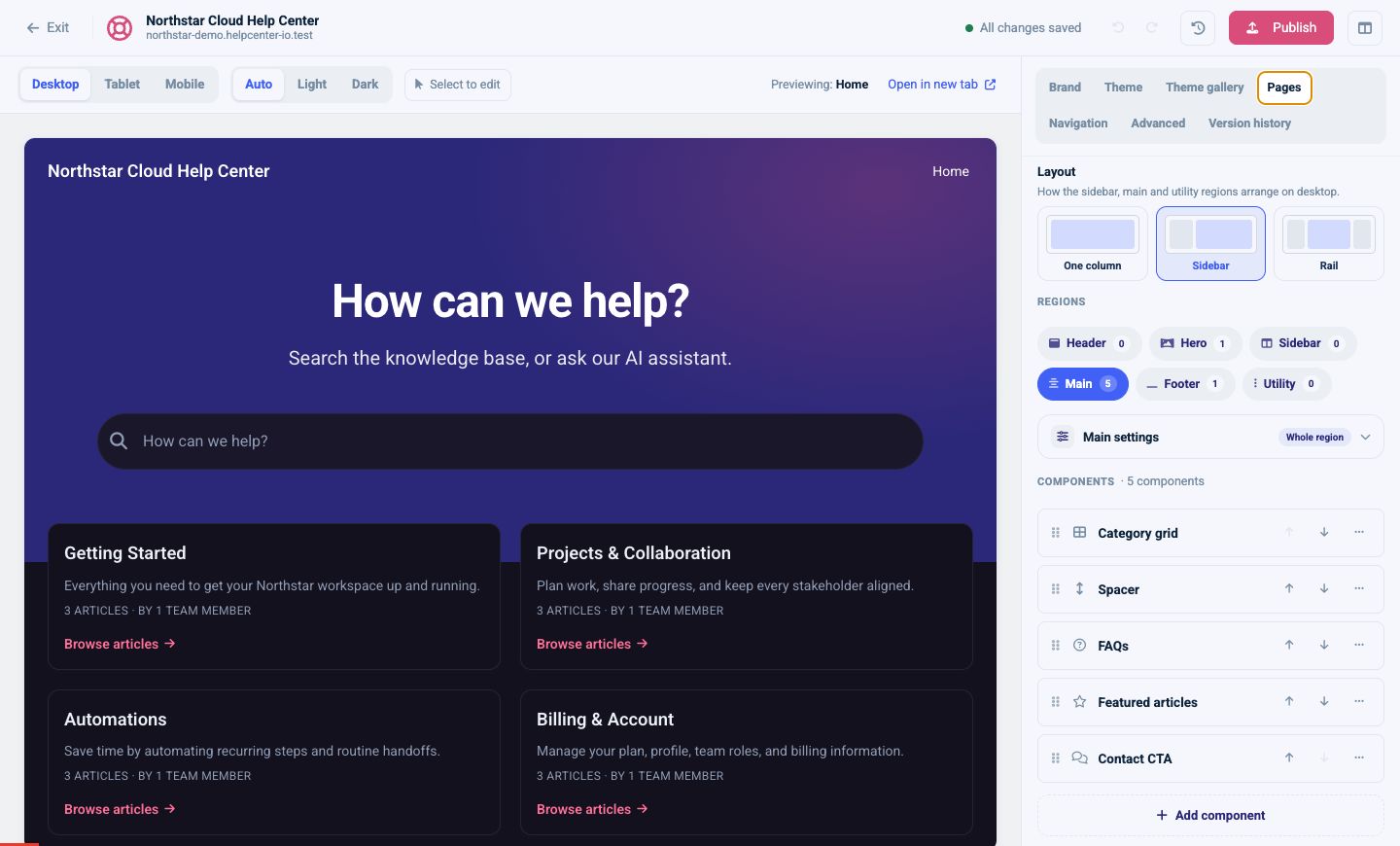
Choose a page
Open Pages, then use the page picker to edit:
- Home: the help-center landing page
- Category: a category and its articles
- Article: the article reading page
- Search: search results
- Contact: the contact form
- Not found: the 404 page
Each page keeps its own layout and component arrangement.
Choose a desktop layout
Select:
- One column: a single main content area
- Sidebar: a side column plus the main content
- Rail: side areas on both sides of the main content
The editor automatically adapts the layout for smaller screens. Use the Tablet and Mobile preview controls to verify the result.
Work with regions
Pages can use these regions:
- Header
- Hero
- Sidebar
- Main
- Footer
- Utility
Select a region to edit its background, padding, divider, and components. The number beside each region shows how many components it contains.
Add a component
- Select the destination region.
- Select Add component.
- Search or browse the component library.
- Select the component to add.
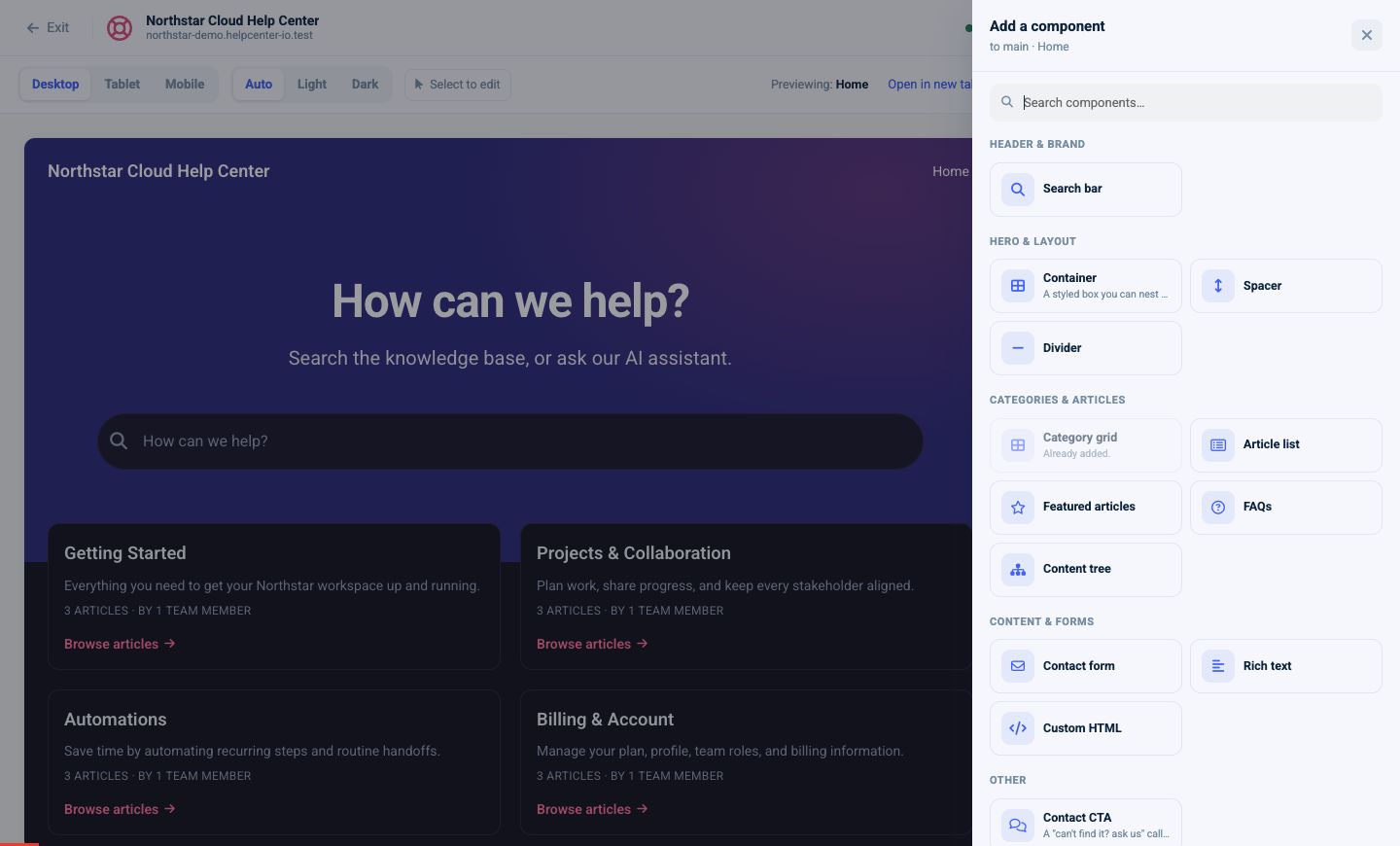
Available components include:
- Search bar
- Container
- Spacer
- Divider
- Category grid
- Article list
- Featured articles
- FAQs
- Content tree
- Contact form
- Rich text
- Custom HTML
- Contact CTA
The component library disables components that can only appear once when they are already on the page.
Arrange and edit components
In a region:
- Drag a component to reorder it.
- Use the up and down arrows for precise movement.
- Select the component name to edit its settings.
- Open the more-actions menu for options such as duplicate or remove when available.
Containers can hold other components, either stacked or side by side. Use them to create structured groups without adding custom HTML.
Preview other content types
When editing Category or Article pages, the preview uses real content from your help center. Choose representative content with long titles, images, lists, and multiple categories to catch layout issues before publishing.
Next steps
- Understand page, region, and component scope
- Customize heroes, search, and layout components
- Customize category, article-list, and discovery components
- Customize the Article page
- Build and enable the Contact page
- Customize header, footer, and utility components
- Manage header and footer navigation
- Preview desktop, tablet, mobile, light, and dark modes