

Design and templates
Themes, colors, pages and components in the template editor.
Frequently asked questions
-
How do I turn on reader comments?
Add the Comments component to your Article page in the template editor, then publish. Every article then gets a comment form at the bottom.
In the left menu, click Template editor. Open Pages, pick Article in the page menu, then the Main region.
Under After the article, click Add to "After the article" and pick Comments.
Click Publish.
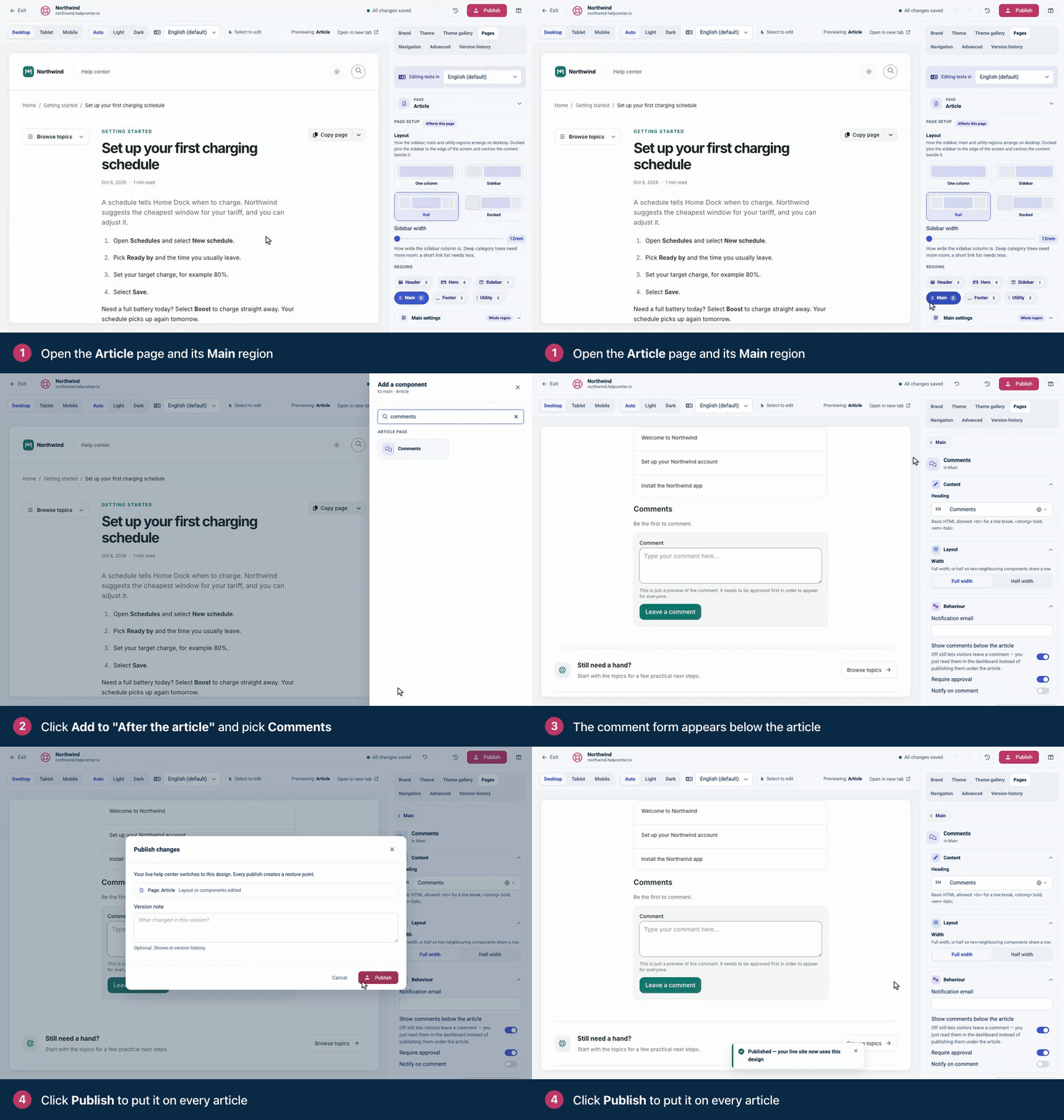
Add Comments to the Article page, then publish. Readers leave their name, email and comment. While Require approval is on, which it is by default, new comments wait for your approval before other readers see them. Approve and answer them in Comments in the left menu, which appears once you publish the design with the Comments component.
Owners and Admins can add the component (Editors through Customize on your help center), and Owners, Admins and Editors can approve comments. It works on every plan.
Related articles
-
Remove "Powered by HelpCenter.io"
Yes, on every plan. "Powered by HelpCenter.io" is part of your Footer component, and one switch hides it.
In the left menu, click Template editor. Open Pages and pick the Footer region.
Click Footer to edit it.
Open Advanced and turn off Show attribution.
Click Publish.
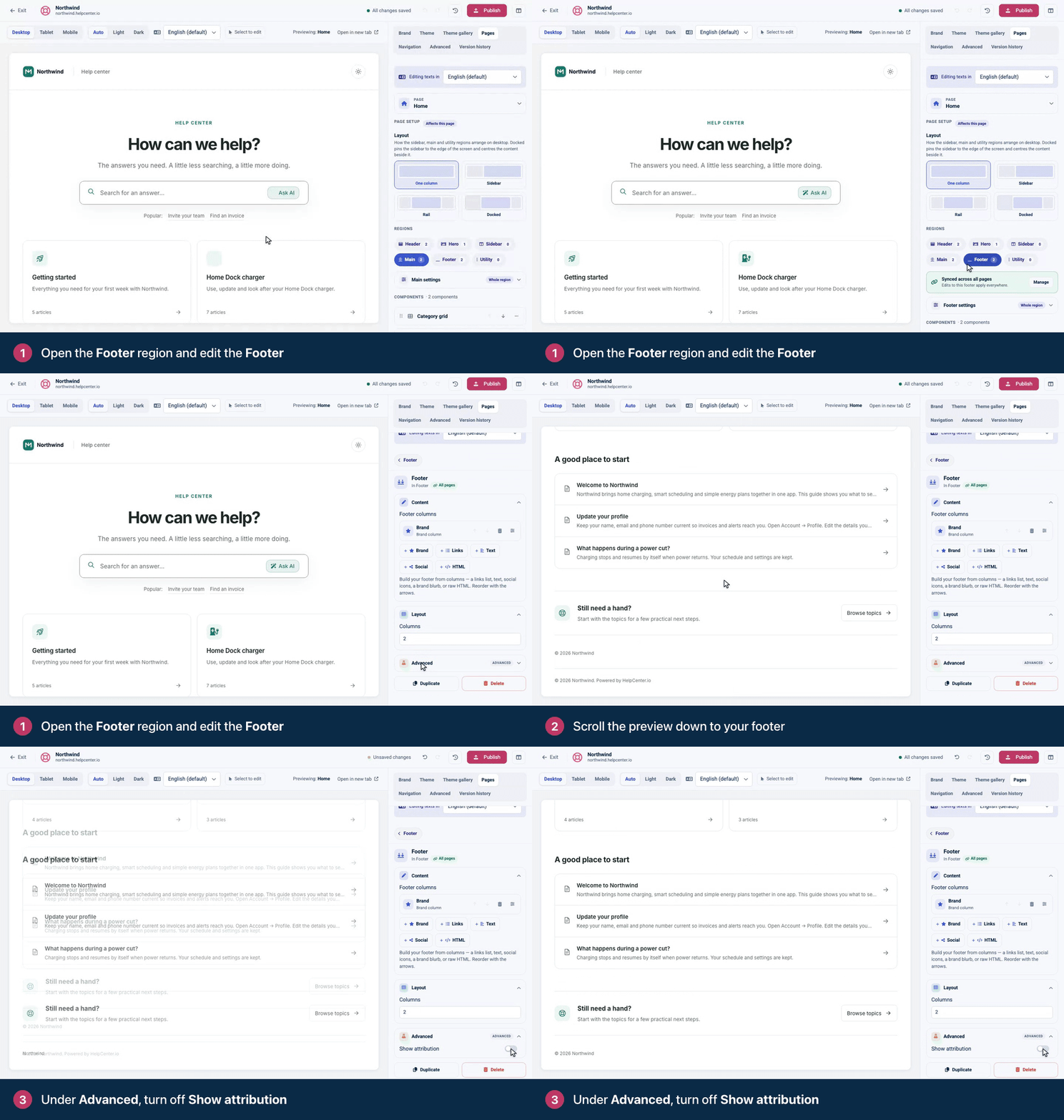
Show attribution sits under Advanced, at the end of the Footer's settings. The footer is synced across all pages by default, so one change covers every page. The switch hides the whole attribution line, including the copyright year and brand name that share it.
Using Compass? Its Show attribution is already off. Its credit, "Made with Compass · by HelpCenter.io", is an HTML column in the Footer instead. Under Footer columns, click the trash icon on that HTML column, or edit its HTML, then publish.
The widget has its own badge. Click the gear icon, then Embeddables. Under Appearance, turn on Remove HelpCenter.io branding and click Save changes.
Related articles
Articles
- Get started with the template editor Ivan Penchev
- Choose a theme Ivan Penchev
- Which theme is right for you? Ivan Penchev
- Change colors, fonts and spacing Ivan Penchev
- Add your logo, favicon and brand name Ivan Penchev
- Add, move and remove components Ivan Penchev
- Pages, regions and shared headers explained Ivan Penchev
- Edit text right in the preview Ivan Penchev
- Customize the hero and search bar Ivan Penchev
- Customize category and article lists Ivan Penchev
- Customize the article page Ivan Penchev
- Show or hide the author, date and reading time Ivan Penchev
- Customize the header and footer Ivan Penchev
- Add links to your header and footer Ivan Penchev
- Set up your contact page and form Ivan Penchev
- Preview on phones, tablets and in dark mode Ivan Penchev
- Publish your design Ivan Penchev
- Restore an earlier design Ivan Penchev
- Add custom CSS Ivan Penchev
- Custom CSS reference: selectors and examples Ivan Penchev
- Add analytics and other scripts Ivan Penchev
- Add ratings and comments to articles Ivan Penchev
- Light and dark mode Ivan Penchev
- How accessible is my help center? Ivan Penchev
Still stuck?
Our team answers in a few hours.