

Decide how visitors browse your content: the grid of categories on your home page, lists of recent or hand-picked articles, your FAQs, and the list of articles on every category page.
Who can do this: Owners and Admins (Editors through Customize on your help center) · Plans: All plans
Order the articles on category pages
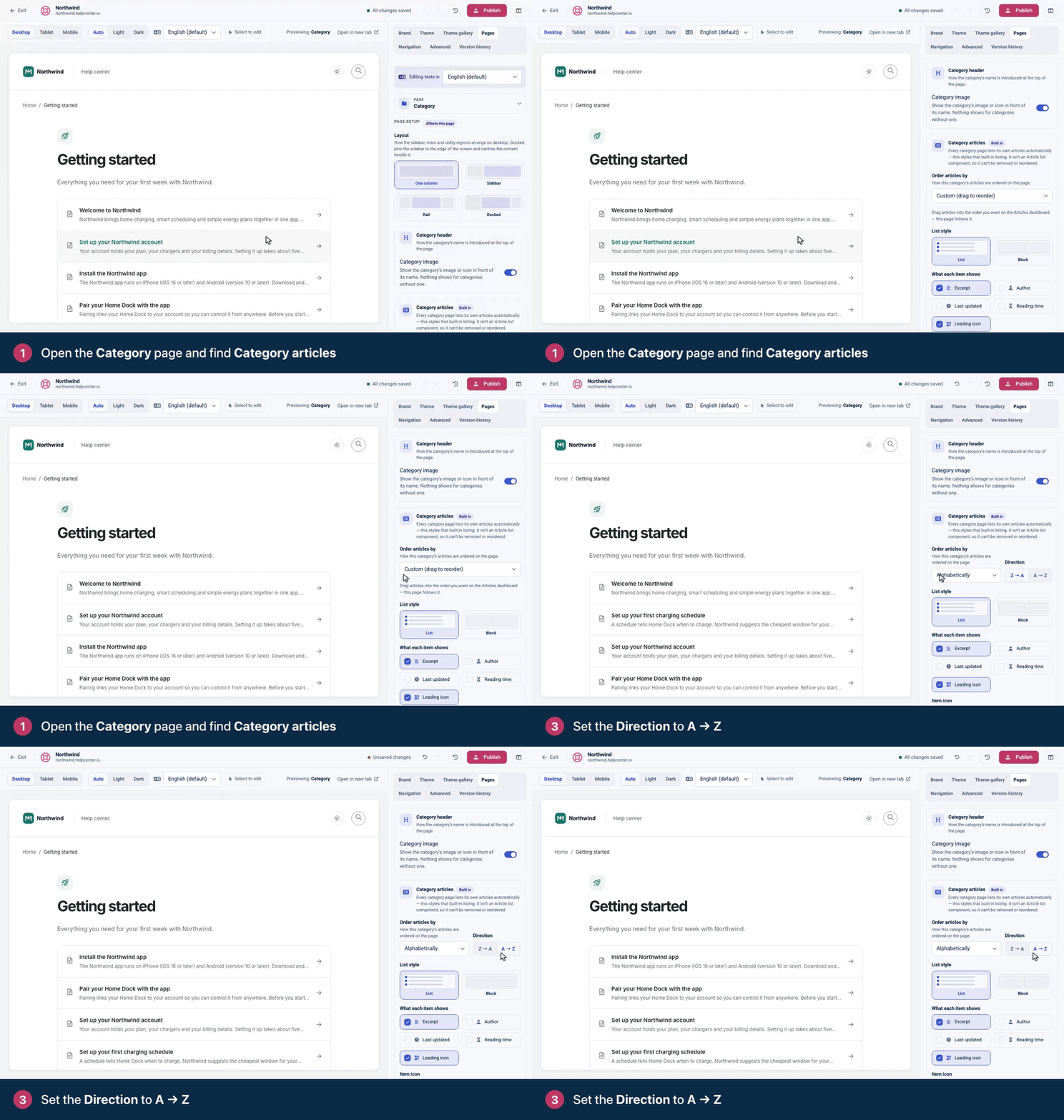
In the template editor, open Pages and pick the Category page.
Find Category articles (marked Built in).
Under Order articles by, pick Last updated, Create date, Alphabetically or Custom (drag to reorder).
Set the Direction: Newest first or Oldest first, or for Alphabetically, A → Z or Z → A. Alphabetically starts on Z → A, so switch it to A → Z if you want A first.
Click Publish.
With Custom (drag to reorder), the page follows the order you set by dragging articles on your Articles dashboard. See Change the order of articles and categories.
The rest of the category page
Every category page lists its own articles automatically. The Category articles settings style that list; it isn't a component, so you can't remove or move it.
Category image (under Category header) shows the category's image or icon in front of its name.
List style: List or Block cards, with Columns for Block.
What each item shows: Excerpt, Author, Last updated, Reading time and Leading icon.
Card background wraps the list in a card.
Separate FAQs lifts FAQ-type articles into an accordion at the top of the page. With it off, Expand FAQs shows their answers right under their titles.
Show subcategories lists each subcategory with its articles below the category's own. Set their Layout (Stacked or Grid), how many articles to Show first (3, 5, 8 or 10), whether "Show all" opens them in place (Expand inline), and whether to Hide empty subcategories. Subcategory-only cards decides how a subcategory that only holds other subcategories is shown: Title only, Rows, Chips or Tree.
Category grid
The grid of categories you usually see on the home page. Add it to the Main or Sidebar region of the Home, Category, Search or Not found page.
Variant: Vertical cards, Horizontal (image beside text), List, Minimal, Cards + top articles or Sections (grouped by parent).
Limit: All, 3, 6, 9 or Custom.
Hide empty categories leaves out categories with no published articles anywhere inside them.
What each item shows: Article count, Subcategories count, Description, Authors, Author avatars, Last updated and Browse link.
Depending on the variant: Columns, Show image, Image size, Spacing, Full-width image, Centered, Articles per category (Cards + top articles) and the section options (Sections).
Categories appear in the order of your category tree. Icons, images and descriptions come from each category's settings. See Add a category icon, image and description.
The page with all your categories
Give readers one place to browse every topic: your help center has a page at /categories (for example, yourname.helpcenter.io/categories) that lists all your top-level categories. Link to it from your header, footer or a button.
It shows a Categories heading, then a card for each top-level category with its image and description, in the order of your category tree.
It uses the header, sidebar and footer of your Category page, so change those on the Category page. The cards themselves have no settings.
Private categories show only to readers who have access to them.
Article list
A list of articles across categories, such as "Recent articles" or "Recently updated". Available on the Home, Category, Search and Not found pages.
Variant: List or Block (cards, with 1 to 3 Columns).
Sort by: Most recently updated, Most recently added, Manual order (position), Alphabetical (A → Z) or Reverse alphabetical (Z → A).
Limit, Heading, Heading icon and What each item shows.
For the List variant: Show background, and an option to show FAQ answers right under their titles.
Featured articles
A short, hand-picked set of important articles. Available on the Home, Category and Search pages.
Under Featured articles, search for articles and add them in the order you want. Leave it empty to show your most-viewed articles instead.
Variant: Cards grid or List. Also Heading, Heading icon and Limit.
FAQs
A list of questions and answers. Available on the Home, Category, Search and Not found pages.
FAQ section: keep Every FAQ article to list all your published FAQ articles, or pick one of your FAQ sections. Owners and Admins can create one here with New FAQ section, then add questions by searching for articles. The component shows the questions in your help center's style: a section's own design applies only where you embed it on your website and on its share page.
Heading, Intro, Heading icon, Limit, Show background and a leading icon for each question.
Adding or removing questions in an FAQ section takes effect right away, everywhere that section is used, without Publish.
To write FAQ articles, see Write FAQs and add them to articles.
Content tree
Your categories and articles as a tree readers can open and close, often placed in a sidebar. Available on every page except Contact.
Variant: Plain list, Icon tiles or Docs groups. Docs groups shows each top-level category as an open section with an accent heading and a separator, its articles and subcategories nested below, and a marker on the page being read. Container: Card or Minimal. Density: Comfortable or Compact.
What each item shows: Articles, Article count, Category icons and Highlight current.
Max depth, Collapsible and Sticky (keeps it in view as readers scroll).
Search results
The Search page lists results by relevance. Its Search results settings (marked Built in) set their look:
Result style: List or Block cards, with 1 to 3 Columns for Block.
What each result shows: Excerpt, Author, Last updated, Reading time and Leading icon. With Leading icon on, pick the Result icon shown before each title.
When you show the excerpt, Excerpt text picks either the Matching text, with up to 3 Passages per result, or the Article opening.
Card background (List style only) wraps the results in a card.
Troubleshooting
My custom article order doesn't show. Set Order articles by to Custom (drag to reorder) and publish. The order itself comes from your Articles dashboard.
A category is missing from the grid. Check the Limit, and whether Hide empty categories is on. Private categories show only to readers who have access to them.
My changes don't show on my help center. Click Publish. Your design changes stay in the draft until you do.
Comments
Be the first to comment.