

Design your help center in the classic template editor: your logo and colors, the header, the blocks on your home page, the footer and more. Every change saves to a draft, so visitors see nothing until you publish.
Who can do this: Owners and Admins · Plans: All plans
Open the classic editor
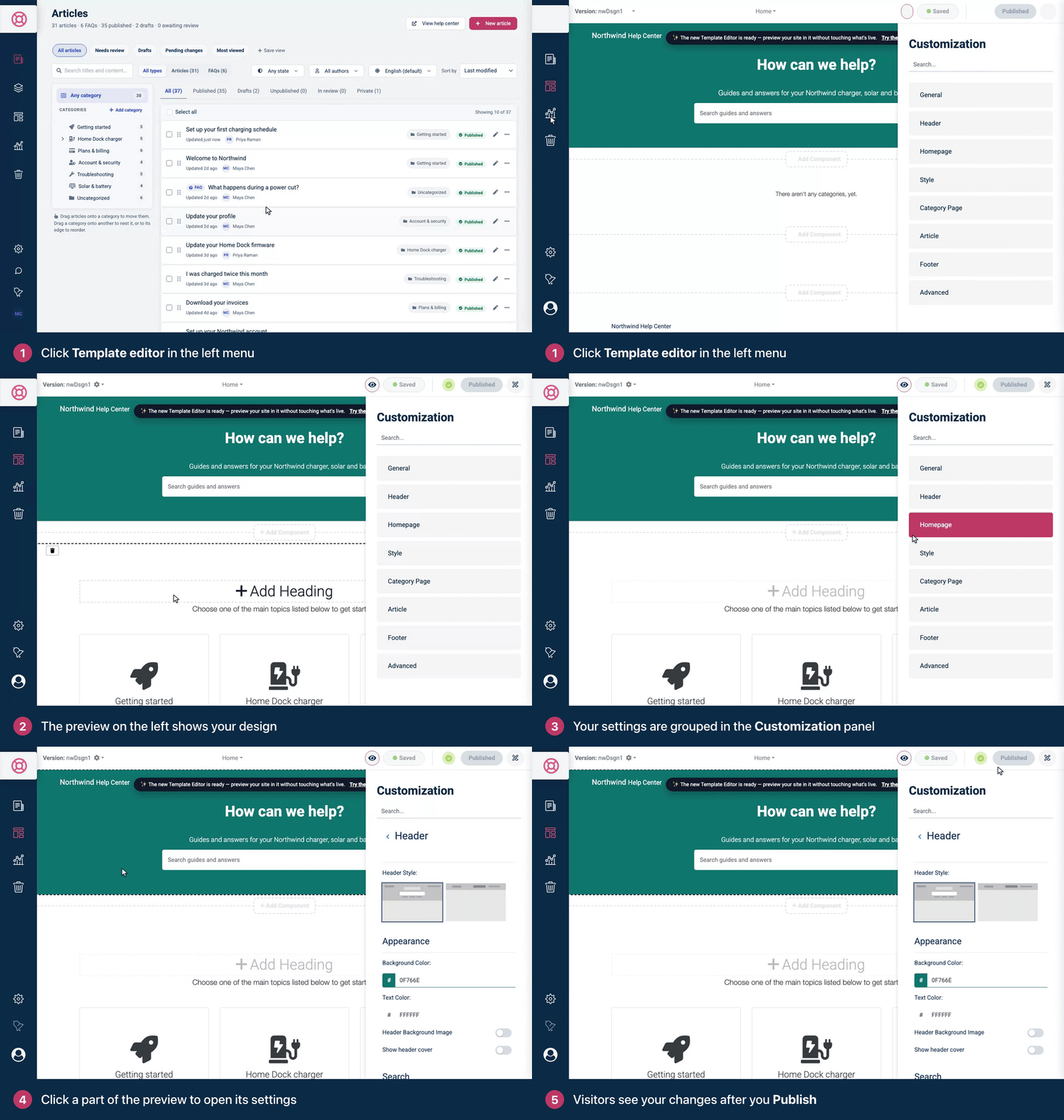
In the left menu, click Template editor.
The editor opens with your draft in the preview on the left and the Customization panel on the right.
If Template editor opens tabs such as Brand, Theme and Pages, your help center uses the new template editor instead. See Which template editor does my help center use?
Find your way around
The top bar. On the left, Version: shows a code for your latest saved draft, followed by a gear menu with Templates, Save as Template and Reset to Published. In the middle, a menu switches the preview between Home, Category and Article. On the right are the eye icon (Preview), the save status (Save, Saved or Auto-saved), a dot that is yellow while you have unpublished changes and green once they're live, Publish, and the paintbrush button that hides or shows the settings panel.
The Customization panel. Click a group to open its settings, and the arrow next to the group's name to go back to the list. To find a setting without knowing its group, type part of its name in Search... at the top of the panel.
The preview shows your draft and changes as you edit.
Group | What you set there |
|---|---|
General | Brand name, logo, favicon, your main website, the contact email, the order of articles in categories, and SEO and social sharing texts |
Header | Header style, colors and background image, the search field, heading and subheading, the language picker and the menu |
Homepage | The blocks on your home page and their order |
Style | Your main colors, fonts and custom CSS |
Category Page | The layout of category pages and extra blocks on them |
Article | The layout of article pages, table of contents, sharing, SEO options, comments and the rating question |
Footer | Footer colors, type, text and branding, or your own HTML footer |
Advanced | Custom scripts, your Google Analytics code and the 404 page |
Contacts | The contact form. This group appears once you fill in Contacts Email under General. |
The dark bar near the top says the new Template Editor is ready: Try the new editor opens a copy of your design there without changing what visitors see (see Move your help center to the new template editor).
Edit in the preview
Point at the header, the search field, a home page block or the footer to outline it, then click it to open its settings in the panel.
Click a text on the page, such as the header heading or subheading, type, then click somewhere else. To resize the header heading, point at it, click the small ruler icon and set its Size.
Between home page blocks, click Add Component, choose a block and click Add. Home page blocks also show a trash icon that removes them.
The preview isn't your real help center. The Article view shows a sample article, and blocks you add to category and article pages aren't drawn. To see your saved draft as real pages, use Preview. See Save, preview and publish in the classic editor.
Category boxes in the preview are your real categories. Dragging them into a new order, renaming them, editing a description, changing an image or creating one with the Create a Category box changes your categories right away, on your live help center too. These edits aren't part of the draft, and Reset to Published doesn't undo them.
Write text in other languages
When your help center has more than one language, fields you can translate show a language code and a globe button.
Click the globe button next to the field and pick a language.
Type the text for that language. The text in your default language shows underneath for reference.
Pick Default in the same menu to go back to your default language.
Where a translation is empty, visitors see the text in your default language. Text you type straight into the preview is saved in your default language only. Fixed phrases such as button labels are translated under Localization instead. See Translate buttons and labels.
Troubleshooting
I can't find Template editor in the left menu. Only Owners and Admins can open the template editor. Editors, Translators and Viewers don't see it, and custom roles can't open it. Ask an Owner or Admin to make the change, or to change your role. See Change someone's role or remove them.
"Sorry" and "You don't seem to have sufficient permissions to see this page." Your role can't use the template editor, for example because it's a custom role. The fix is the same: an Owner or Admin role.
There's no Contacts group. Fill in Contacts Email under General, and the group appears at the end of the list.
Comments
Be the first to comment.