

The template editor is where you design your help center: pick a theme, add your logo and colors, arrange every page and check the result on any screen size. Everything you change stays in a private draft until you publish it, so you can try ideas without visitors noticing.
Who can do this: Owners and Admins (Editors through Customize on your help center) · Plans: All plans
Open the template editor
In the left menu, click Template editor.
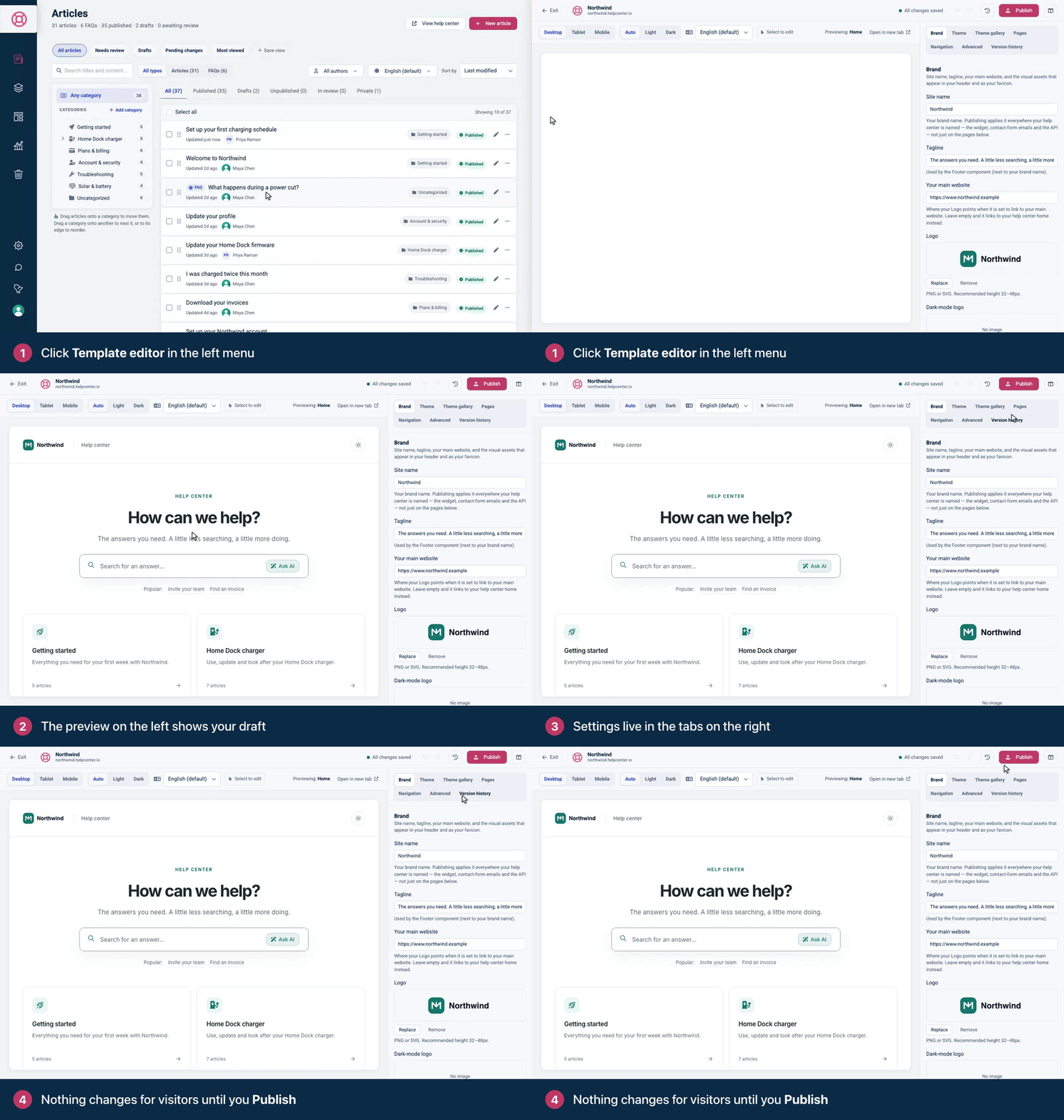
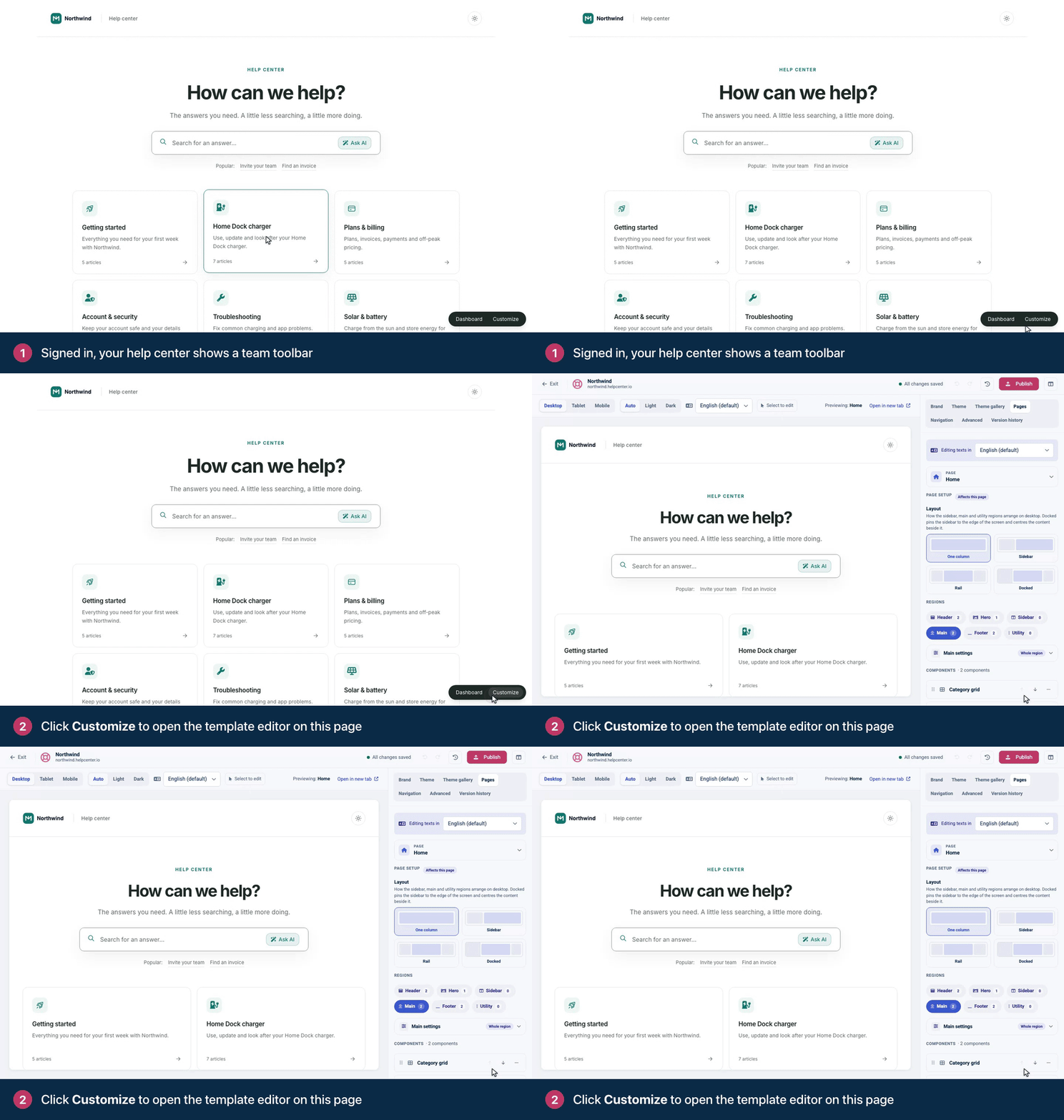
You can also start from your live help center. While you're signed in, it shows a small team toolbar in the bottom right corner:
Open the page you want to change, for example an article.
In the team toolbar, click Customize. The template editor opens on the settings for that page.
Find your way around
The preview on the left shows your draft the way visitors will see it. Above it, switch between Desktop, Tablet and Mobile, set Appearance to Auto, Light or Dark, and turn on Select to edit to change text right in the page. Open in new tab shows the preview at full size.
The top bar holds Exit (back to your articles), the save status, the undo and redo arrows, Reset draft (the clock icon), Publish and a button that hides the settings panel.
The settings panel on the right has seven tabs.
Tab | Shortcut | What you do there |
|---|---|---|
Brand | ⌘1 | Site name, tagline, logo, dark-mode logo and favicon, plus SEO and social sharing settings. |
Theme | ⌘2 | Colors for light and dark mode, fonts, density and corner radius. |
Theme gallery | ⌘3 | Switch to one of 17 ready-made themes. |
Pages | ⌘4 | The layout of each page and the components in it. |
Navigation | ⌘5 | The links in your header and footer. |
Advanced | ⌘6 | Custom CSS and scripts. |
Version history | ⌘7 | Your earlier published designs, ready to restore. |
Drafts and publishing
Every change saves to your draft automatically a moment after you make it. The top bar shows Saving… and then All changes saved.
Visitors keep seeing your current design until you click Publish. Each publish becomes a restore point in Version history.
Undo and redo step through your last 50 changes. The history starts fresh when you publish or reload the editor.
Reset draft discards every unpublished change and takes your draft back to the live design. It can't be undone.
An integration that uses an API key with design access works on this same draft. Its changes appear here for you to review, and they reach visitors only when the draft is published. See Create an API key.
Your articles and categories aren't part of the design, so publishing a new design never changes them.
Keyboard shortcuts
Shortcut | What it does |
|---|---|
⌘S | Save the draft now |
⌘Z | Undo |
⌘⇧Z or ⌘Y | Redo |
⌘Enter | Open the publish dialog |
⌘\ | Hide or show the settings panel |
⌘1 to ⌘7 | Jump to a tab |
On Windows and Linux, use Ctrl instead of ⌘. While your cursor is in a text field, only ⌘S acts on the editor; ⌘Z undoes your typing in that field instead.
A good first setup
Pick a starting design in Theme gallery. See Choose a theme.
Add your name, logo and favicon in Brand. See Add your logo, favicon and brand name.
Set your colors and fonts in Theme. See Change colors, fonts and spacing.
Arrange your pages in Pages. See Add, move and remove components.
Add header and footer links in Navigation. See Add links to your header and footer.
Check the result on a phone, a tablet and in dark mode. See Preview on phones, tablets and in dark mode.
Click Publish. See Publish your design.
Troubleshooting
Visitors don't see my changes. Saved isn't the same as published. Click Publish, then refresh your help center. See My changes don't show on my help center.
"Save failed." Click Retry save. If it keeps failing, check that Site name under Brand isn't empty: the draft can't save without a name.
"This draft was changed elsewhere." Someone else, or another browser tab, saved the same draft. Click Reload to load the latest version, or Overwrite to keep what you have in front of you.
"Recover unsaved changes?" Your last session ended before everything reached the server. Click Recover changes to bring those edits back, or Discard to keep the saved draft.
I can't find Template editor in the menu. It shows for Owners and Admins. Editors can use Customize on the help center. Translators and Viewers can't change the design.
Comments
Be the first to comment.