

Give readers who can't find an answer a way to reach your team. The contact form gets its own page on your help center, with a Contact Us button in the header, and every message goes to the email address you choose.
Who can do this: Owners and Admins · Plans: All plans
Turn on the contact form
In the left menu, click Template editor, then click General.
In Contacts Email, enter the address that should receive messages.
Click the arrow next to General to go back, then click Contacts. This group appears once Contacts Email is filled in.
Turn on Enable contacts form:.
Check the settings below, then click Publish.
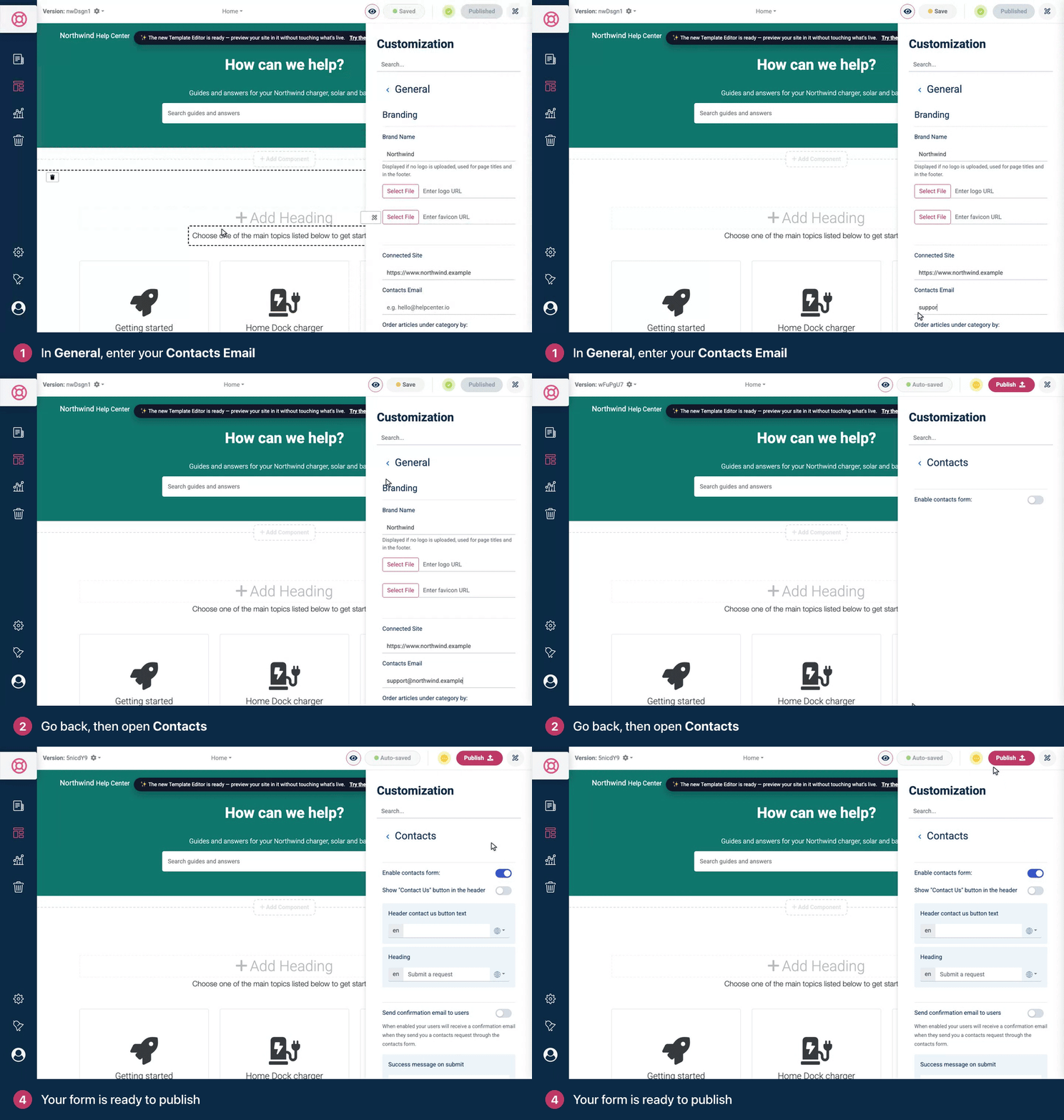
Your changes save to a draft automatically, and readers see them after you click Publish. See Save, preview and publish in the classic editor.
Where readers find the form
The contact page at
/contactson your help center's address.The Contact Us button in the header menu, which opens that page. Show "Contact Us" button in the header controls it. Until you change that switch, it reads off even though the button shows, so to hide the button, turn the switch on and then off again.
The Contacts Section you can add to your home page, category pages and article pages. Its Ask Us button opens an email to your Contacts Email rather than the form. You can link to
/contactsin its text instead. See Arrange your home page in the classic editor.
Set the texts and the confirmation email
Setting | What it does |
|---|---|
Header contact us button text | The button's label. Until you change it, it reads "Contact Us". |
Heading | The heading of the contact page. Until you change it, it reads "Submit a request". |
Send confirmation email to users | Emails each person who sends the form to confirm you received their message. When they reply to it, the reply goes to your Contacts Email. |
Confirmation email subject and Confirmation email text | The subject and message of that email. |
Success message on submit | What readers see after they send the form. |
Choose the form's fields
Under Form Settings, each field has a card. Click the arrow at the top of a card to open or close it, and drag cards to change the order.
Label, Placeholder and Help Text set what the field says. Select and attachment fields have no placeholder.
Request Type and other select fields have a list of options. Click Add, type the option and click Save. Double-click an option to edit it, or click its x to remove it. Enumerate options: numbers the options.
Remove deletes a field. The Email field can't be removed.
Add new field adds a field: pick Name, Email, Phone, Description, Request Type, Short Text, Long Text, Select or Attachment and click Add. Name, Email, Phone, Description and Request Type can each be on the form once.
If Form Settings shows no field cards, your form uses the standard fields: Name, Email, Phone, Request Type and Description. Adding a field now replaces all of them with only the field you add. To edit the standard fields instead, type a Heading in the Contacts group first, wait for Auto-saved, then reload the page: the five standard fields appear as cards. Turning on Enable contacts form: alone doesn't bring them.
What readers can send
Email, Request Type and Description are required when they're on the form. Your other fields are optional.
The form is protected by Google reCAPTCHA against spam.
An attachment can be up to 10 MB.
Every message goes to your Contacts Email. The form has one recipient.
In the new template editor, the contact form is a component you can set up on any page. See Move your help center to the new template editor.
Troubleshooting
There's no Contacts group. Fill in Contacts Email under General.
The contact page or the Contact Us button is missing. The form needs both a Contacts Email and Enable contacts form: turned on, and you need to publish. If the button alone is missing, check Show "Contact Us" button in the header.
Messages don't arrive. Check the address in Contacts Email and your spam folder. Messages come from no-reply@helpcenter.io. See I'm not getting emails from HelpCenter.io.
Comments
Be the first to comment.