

Add analytics, chat and verification code to every page of your help center, or only to the pages that need it. You add scripts in the template editor, and they go live when you publish.
Who can do this: Owners and Admins (Editors through Customize on your help center) · Plans: All plans
Add a script
In the left menu, click Template editor. Open the Advanced tab and scroll to Script injections.
Click External script. (For code you paste in, or a whole HTML tag, see the types below.)
In Source URL, replace the
https://that's already there with the script's full address.Choose where it loads: Start of <head>, End of <head>, Start of <body> or End of <body>. Follow your provider's instructions. If they don't say, keep End of <body>.
Give it a label, such as the name of the tool, so your team knows what it is.
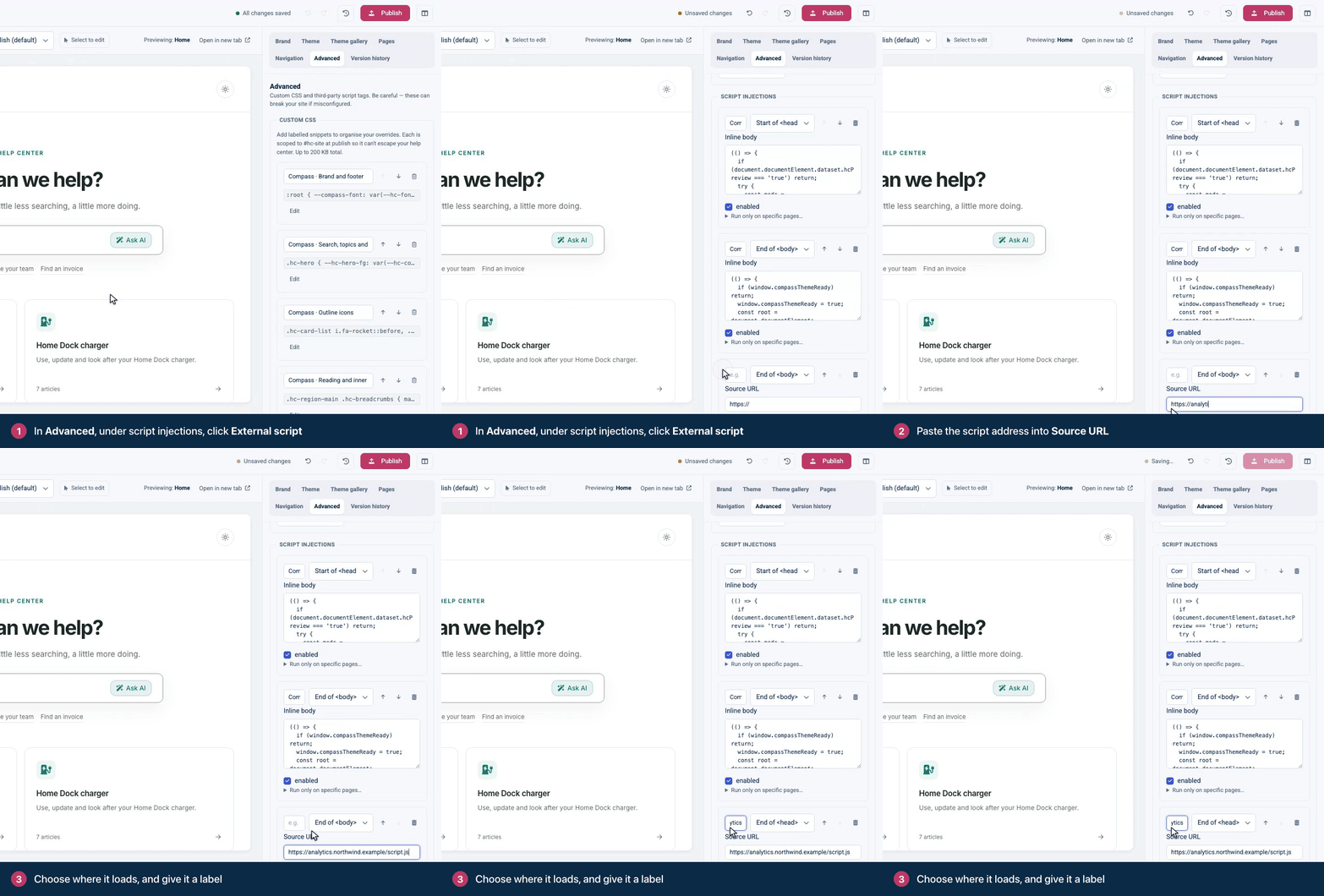
Click Publish. The script runs on your help center from then on.
Pick the right type
Type | What it adds | Use it for |
|---|---|---|
External script | A script file loaded from a URL. Starts at End of <body> with defer on. | Analytics and chat tools that give you a script address. |
Inline script | JavaScript you paste into Inline body. HelpCenter.io wraps it in a script tag for you. Starts at End of <body>. | Short setup code, such as a tool's configuration. |
HTML snippet | Any HTML, added exactly as you write it. Starts at End of <head>. | Verification meta tags, or a provider's complete script tag with its own attributes. |
If your provider gives you a whole <script> tag with extra attributes, such as data-domain, paste the whole tag into an HTML snippet. An External script only takes the address, so those attributes would be lost.
Example: verify your help center in Google Search Console
Click HTML snippet.
Replace the example text with the meta tag Search Console gives you. It looks like this:
<meta name="google-site-verification" content="YOUR_VERIFICATION_CODE" />Keep the position at End of <head>, label it, and publish.
Go back to Search Console and click Verify.
Setting up Google Analytics or Google Tag Manager? See Add Google Analytics or Google Tag Manager. Your help center's built-in statistics work without any script.
Script options
defer and async (External script): how the browser loads the file. Ticking one unticks the other. Use what your provider recommends.
enabled: untick it to switch a script off without deleting it.
Run only on specific pages…: open it and pick the pages the script should run on: Home, Category, Article, Search, Contact or Not found. With none picked, it runs on every page.
The up and down arrows change the order. Scripts in the same position load from top to bottom.
To delete a script, click the trash icon, then Remove. Press ⌘Z (Ctrl+Z) to bring it back.
Leave SRI integrity empty for now. Browsers can only check an integrity value on scripts from other websites when the script tag allows it, and the tag an External script creates doesn't. With a value filled in, the browser blocks the script. If you need integrity checks, paste the provider's complete tag, with its integrity and crossorigin attributes, into an HTML snippet instead.
Good to know
Scripts run on your published pages and in the editor's preview, so you can check them before you publish.
Your theme may add scripts of its own. Compass adds two, "Compass · Remember appearance" and "Compass · Appearance, search shortcut and brand". They run its light and dark switch, the Ctrl+K (⌘K) search shortcut and a few small touches in the header and footer. Don't delete or disable them.
Custom HTML can't hold scripts. The Custom HTML component and HTML footer columns remove
<script>and<style>tags. Add scripts here, or, for a single page, with the Custom script component in that page's Utility region, which loads a script file from its URL. Add styles under Custom CSS.Only add code you trust. A script runs for every reader and can slow pages down or break search and forms.
Privacy is your call. Some tools set cookies or collect personal data. If the law where your readers live requires a consent banner, setting one up is up to you.
Troubleshooting
The script doesn't run on your help center. Check that you published, that enabled is ticked, and that Run only on specific pages… includes the page you're testing. Then check the Source URL: it must be one address, without a leftover https:// at the start or the end.
Your browser's console reports an integrity error for the script. Clear SRI integrity and publish again.
Compass's light and dark switch or its search shortcut stopped working. One of its two scripts was disabled or removed. Tick enabled again, or undo the removal with ⌘Z. Already published without it? Restore a version from before the change (see Restore an earlier design). A restore brings back that whole design, so redo any later changes afterwards.
Comments
Be the first to comment.