

Under each article's title, readers can see who wrote it, when it was last updated and how long it takes to read. Choose which of the three to show, or hide the line altogether.
Who can do this: Owners and Admins (Editors through Customize on your help center) · Plans: All plans
Choose what shows
In the template editor, open Pages and pick the Article page.
Under Regions, click Main. The Article metadata component sits in the After the title zone.
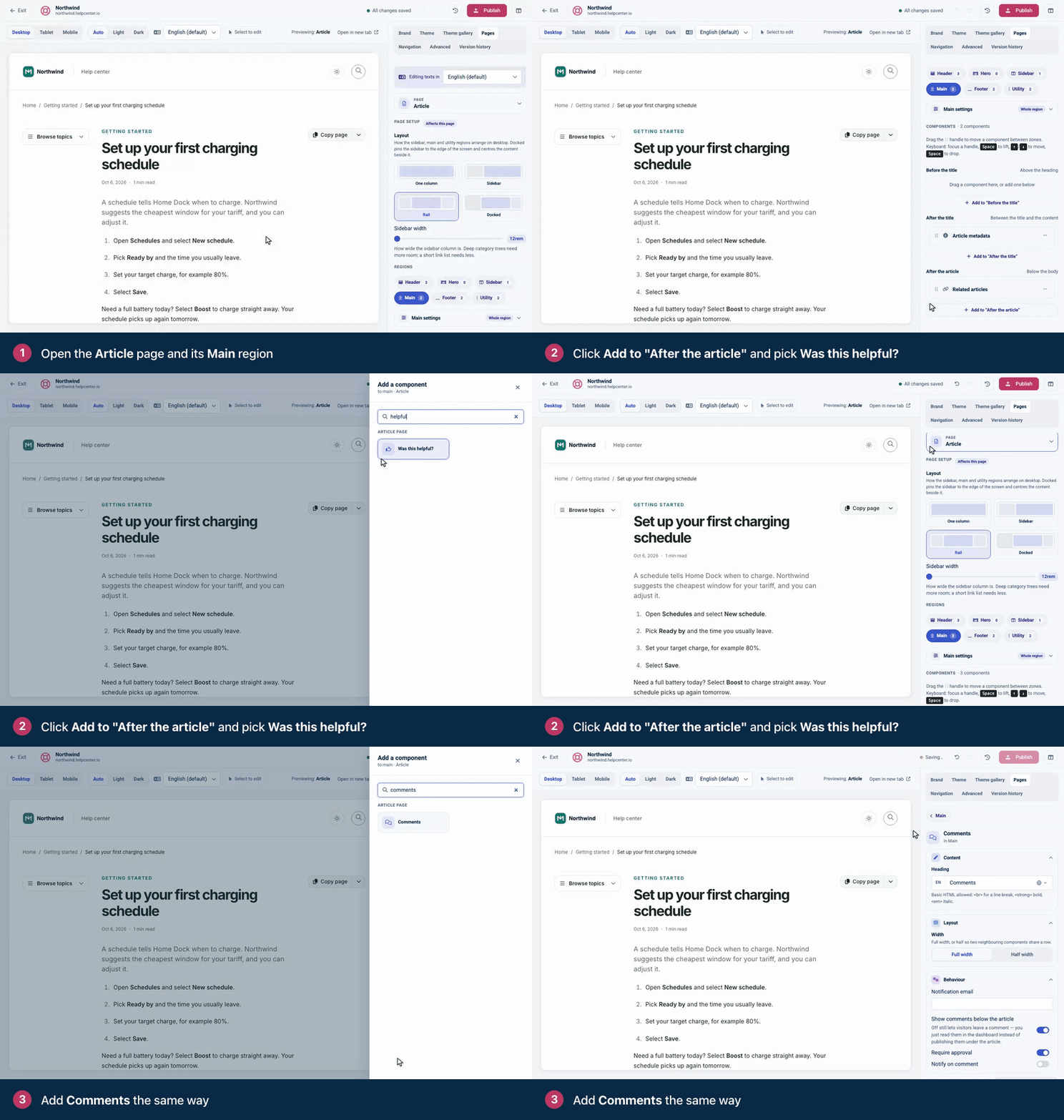
Click Article metadata to open its settings.
Under What each item shows, turn Author, Last updated and Reading time on or off.
Click Publish.
What each part shows
Part | What readers see |
|---|---|
Author | The name of the article's author. It's left out on articles without an author. |
Last updated | The date the article was last updated, written the way the reader's language writes dates. |
Reading time | An estimate such as "4 min read", based on the article's length at about 220 words a minute. Notes for your team don't count. |
Hide the line completely
In the Main region of the Article page, open the ⋯ menu on the Article metadata row.
Choose Delete, then Remove.
Click Publish.
To bring it back, click Add to "After the title" and pick Article metadata.
Move it
Drag it by its handle (⋮⋮) to the Before the title zone to show it above the title.
Set its Width to Half width to share a row with the Export menu.
Or add it to the Sidebar region instead of Main.
Troubleshooting
My help center still shows the old line. Click Publish. Your change is in the draft until you do.
I deleted it, but the author still shows. Check the Article page's Sidebar region too: each region can hold its own Article metadata.
Comments
Be the first to comment.