

The classic template editor saves every change to a draft as you work. Check the draft as real pages with Preview, then click Publish to show it to visitors.
Who can do this: Owners and Admins · Plans: All plans
How saving works
About a second after your last change, the editor saves your draft by itself, and the save status in the top bar reads Auto-saved.
While a change isn't saved yet, the status reads Save. Click it to save straight away. You rarely need to, except when an automatic save didn't go through. After you click it, it reads Saved.
Each save gets a new code next to Version:. The classic editor keeps no list of versions you can open or restore. To keep a copy of a design you like, save it as a template. See Save and reuse a design in the classic editor.
If you try to leave the page while a change isn't saved, your browser asks you to confirm.
Preview your draft
Wait until the save status reads Auto-saved or Saved.
Click the eye icon (Preview) in the top bar.
Your help center opens in a new tab at a separate preview address ending in helpcenter.dev, built from your latest saved draft, with a bar at the top that links back to the editor and shows the Version: you're looking at. Unlike the preview inside the editor, these are real pages: your articles, category pages, scripts and custom CSS all work. Only signed-in members of your team can open this preview.
Publish your changes
Make your changes, in the panel or right in the preview. Wait until the save status reads Auto-saved.
Click Publish.
The button reads Publishing... and then Published, and the dot next to it turns green.
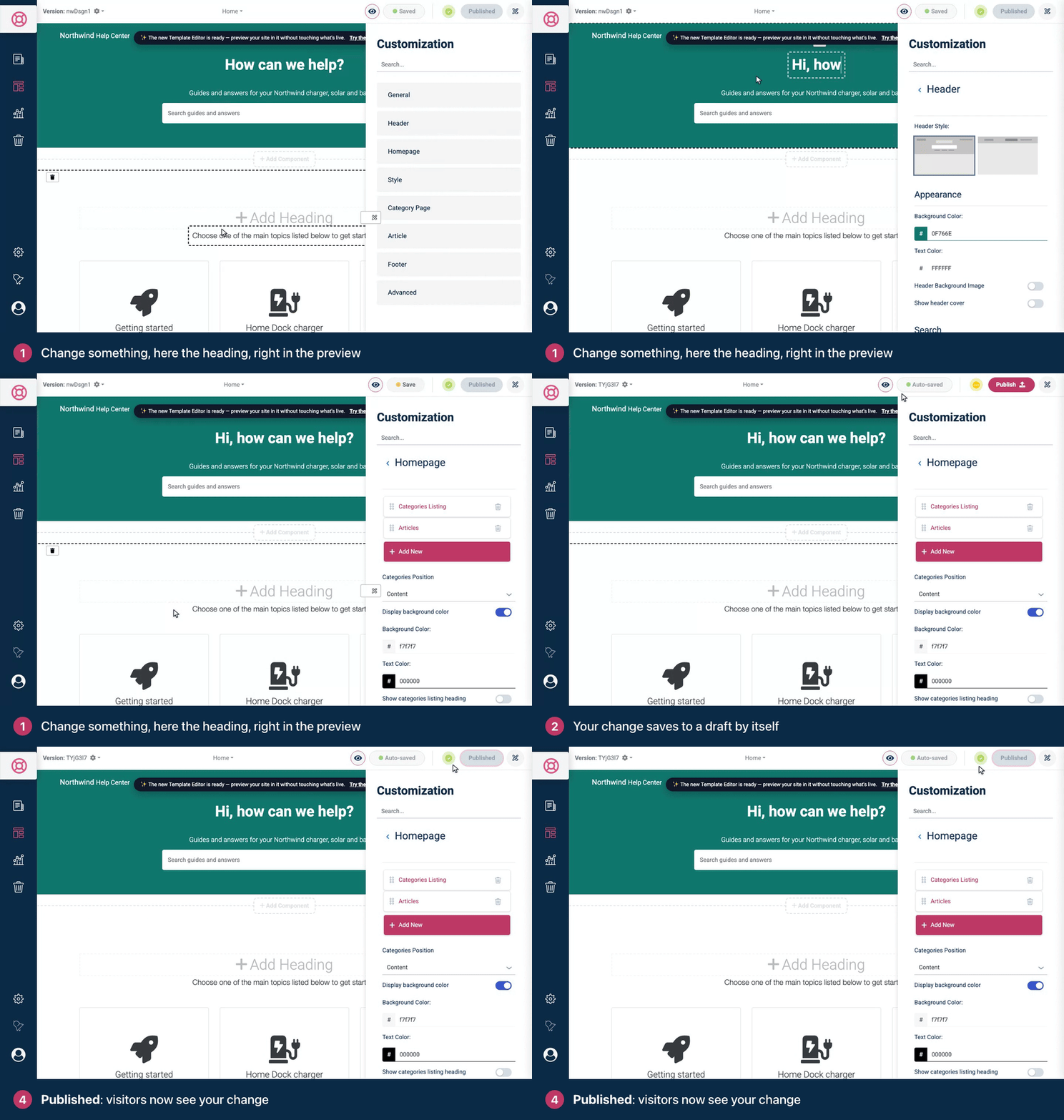
That's the whole confirmation: no other message appears. Your live help center now shows the published design.
Publish sends your latest saved draft live, including changes a teammate saved in the classic editor since the last publish.
Publish right after a change and you publish the save before it. If the button still reads Publish afterwards, wait for Auto-saved and click it again.
Publishing never changes your articles or categories. They aren't part of the design.
The new template editor keeps every publish as a restore point you can go back to. See Move your help center to the new template editor.
Throw away unpublished changes
Click the gear next to Version:.
Click Reset to Published.
Your draft goes back to the published design, and "Template successfully reset to last published version." appears. This discards every unpublished change, including your teammates', straight away: there's no confirmation and no undo. Reset to Published is grayed out when there's nothing unpublished.
What changes right away, without Publish
A few things don't wait for Publish, and Reset to Published doesn't undo them:
Brand Name and Connected Site under General are saved to your help center as soon as the draft saves. A new brand name shows on your live help center straight away, for example in the header when you have no logo and in the footer.
Category changes in the preview: a new order, names, descriptions, images and new categories. These change your real categories.
Fonts you install, upload or delete under Style. Choosing which font your headings and text use is part of the draft.
Troubleshooting
Visitors still see the old design. Check that the button reads Published and the dot is green, then reload your help center. See My changes don't show on my help center. If your help center itself isn't published yet, visitors can't see it at all. See Publish your help center.
Nothing happens when I click Publish or Reset to Published. The editor doesn't show a message when these fail. Reload the page, then check the save status, the dot and the button.
The save status keeps saying Save. Your changes aren't reaching the server. Click Save. If it still doesn't change to Saved, check your connection and reload the page, then make the change again: changes that weren't saved are lost when you reload.
Preview asks me to sign in. Preview works only for signed-in members of your team. Sign in to HelpCenter.io in the same browser, then click the eye icon again.
Template editor opens tabs such as Brand, Theme and Pages. Your help center uses the new template editor, which publishes differently. See Publish your design.
Comments
Be the first to comment.