

Every time you publish your design, HelpCenter.io keeps a copy. If a change didn't work out, restore an earlier version and it goes live again in one step.
Who can do this: Owners and Admins (Editors through Customize on your help center) · Plans: All plans
Restore a version
In the left menu, click Template editor, then open the Version history tab.
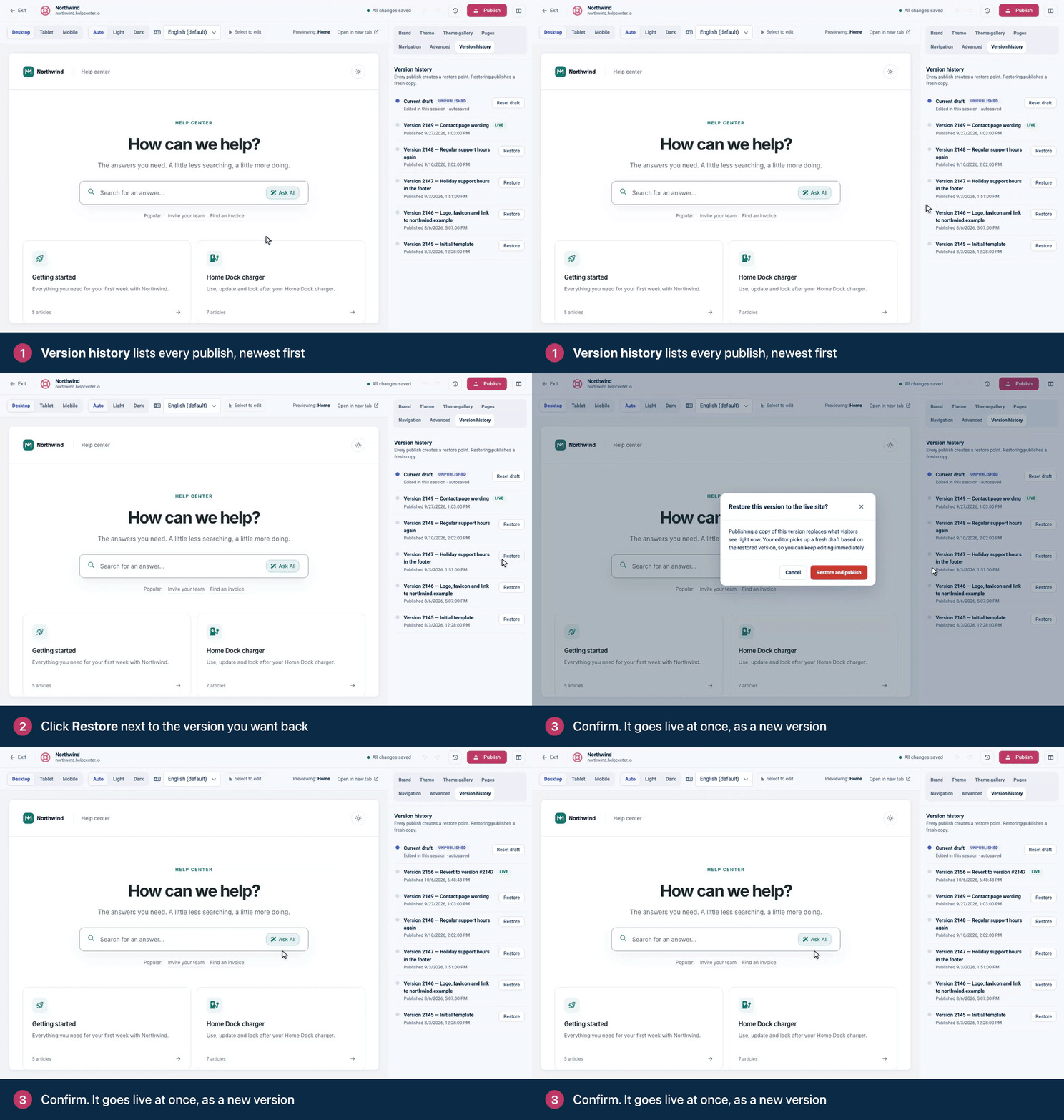
Find the version you want back. The list shows every publish, newest first, with its version note and the date it was published. The version readers see now is marked Live.
Click Restore next to it.
The editor asks Restore this version to the live site? Click Restore and publish to confirm.
What happens when you restore
It goes live at once. Readers see the restored design right away.
It's added as a new version. The restored copy appears at the top of the list as Revert to version #N, marked Live. The versions after it stay in the list, so you can switch back again.
Your draft is replaced. The editor starts a fresh draft from the restored version. Any unpublished changes you had are discarded, so publish or note them before you restore.
The whole design comes back together: your brand settings (including your Site name), colors, fonts, pages, navigation, scripts, custom CSS and translated design texts.
What a restore doesn't change
Only your design is restored. Your articles, categories, languages and settings stay exactly as they are. To bring back an earlier version of an article, see See and restore earlier versions of an article.
Only want to throw away your draft?
If you haven't published yet and want to start over, you don't need a restore. Click Reset draft (next to Current draft in Version history, or the clock icon in the top bar) to go back to the published design. See Publish your design.
Good to know
Version history shows your last 50 publishes.
The live version has no Restore button, because it's already live.
A Version note when you publish makes the right version easy to find later. Versions without a note show only their number and date.
Troubleshooting
"No published versions yet." You haven't published a design yet, so there's nothing to restore.
Your help center still shows the old design. Reload the page. If it still looks the same, see My changes don't show on my help center.
Comments
Be the first to comment.