

Put your name and logo on your help center. Set the site name and tagline, upload your logo (plus a light version for dark mode) and add a favicon for browser tabs, all in the Brand tab of the template editor.
Who can do this: Owners and Admins (Editors through Customize on your help center) · Plans: All plans
Add your name, logo and favicon
In the template editor, open the Brand tab (⌘1).
Enter your Site name. When you publish, this name is used everywhere your help center is named: on its pages, in the widget, in contact form emails and in the API.
Add a Tagline if you like. Your footer can show it next to your name.
Enter Your main website, for example https://example.com. Your logo can link there.
Under Logo, click Upload and choose your logo. A PNG or SVG works best.
Under Dark-mode logo, click Upload and choose a light version of your logo. Switch the preview's Appearance to Dark to check it.
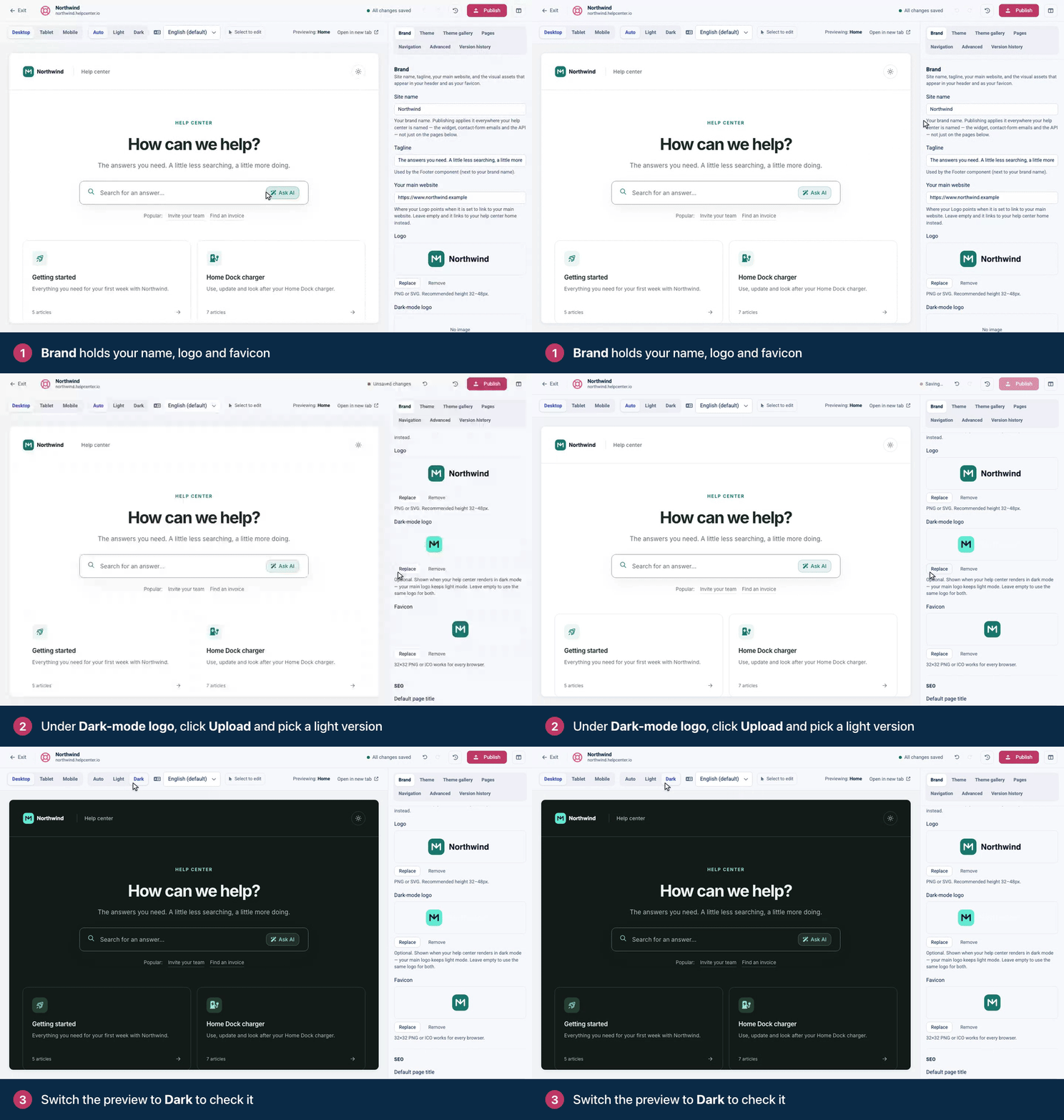
Under Favicon, upload a 32×32 PNG or ICO file. It shows in browser tabs and bookmarks.
Click Publish.
Image files
You can upload JPEG, PNG, GIF, WebP, SVG and ICO files up to 10 MB.
Click Replace to swap an image, or Remove to clear it.
If you leave Dark-mode logo empty, your main logo shows in both light and dark mode.
If you don't upload a logo, your site name shows as text in its place.
Logo size
Your logo shows 32 pixels tall in the header, and its width follows its proportions. A file 32 to 48 pixels tall works well.
To show it bigger, add this custom CSS under Advanced → Custom CSS, then publish:
.hc-logo-img { height: 48px; }See Add custom CSS for how custom CSS works.
Where your logo links
By default, your logo links to your help center's home page. To send visitors to your main website instead:
Make sure Your main website is filled in under Brand.
Open Pages, click the Header region and click Logo.
Set Link target to Your main website.
Click Publish.
In the same place, Variant switches between Logo image and Brand name (text). If your header is synced across all pages, this changes the logo on every page. The label next to the component's name tells you: All pages, or one page, such as Home only. See Pages, regions and shared headers explained.
Search engines and social sharing
Further down the Brand tab you'll find the SEO and Open Graph (social sharing) settings: your default page title, meta description, the image shown when someone shares a link, and more. See SEO settings for your help center.
Troubleshooting
"Unsupported image type. Upload a JPEG, PNG, GIF, WebP, SVG, or ICO image." Save your logo in one of those formats and upload it again.
"The image is too large. The maximum upload size is 10 MB." Make the file smaller, for example by exporting it at a smaller size, and upload it again.
"The SVG could not be sanitized safely." Export the logo as a simple SVG or as a PNG, and upload that.
My logo disappears in dark mode. A dark logo on a dark background is hard to see. Upload a light version under Dark-mode logo.
The logo still links to my help center. Check both steps above: Your main website must be filled in, and the Logo's Link target set to Your main website.
"Save failed" after I cleared the Site name. Your help center needs a name. Enter one and the draft saves again.
Comments
Be the first to comment.