

Every page of your help center is built the same way: a layout, six regions, and the components inside them. Once you know which of these you're changing, you know exactly where the change will show.
Who can do this: Owners and Admins (Editors through Customize on your help center) · Plans: All plans
Six pages
In the Pages tab, the page picker at the top switches between the six kinds of pages in your help center. Each has its own layout and components.
Page | What visitors see there |
|---|---|
Home | Your landing page. |
Category | A category with its articles and subcategories. |
Article | A single article. |
Search | Search results. |
Contact | Your contact form. |
Not found | The page shown for a link that doesn't exist. |
Six regions
Each page is divided into regions, and each region holds components in order. Click a region under Regions to see and change its components.
Region | Where it appears |
|---|---|
Header | The top of the page: logo, menu, search. Can be synced across all pages. |
Hero | The banner under the header, usually with a heading and a search bar. |
Sidebar | A column beside the main content, when the layout has one. |
Main | The page's own content. On the Article page, this is where the article sits. Main is never shared between pages. |
Footer | The bottom of the page. Can be synced across all pages, and usually is. |
Utility | A narrow rail on the right in the Rail and Docked layouts. In the other layouts, it shows below the main content. |
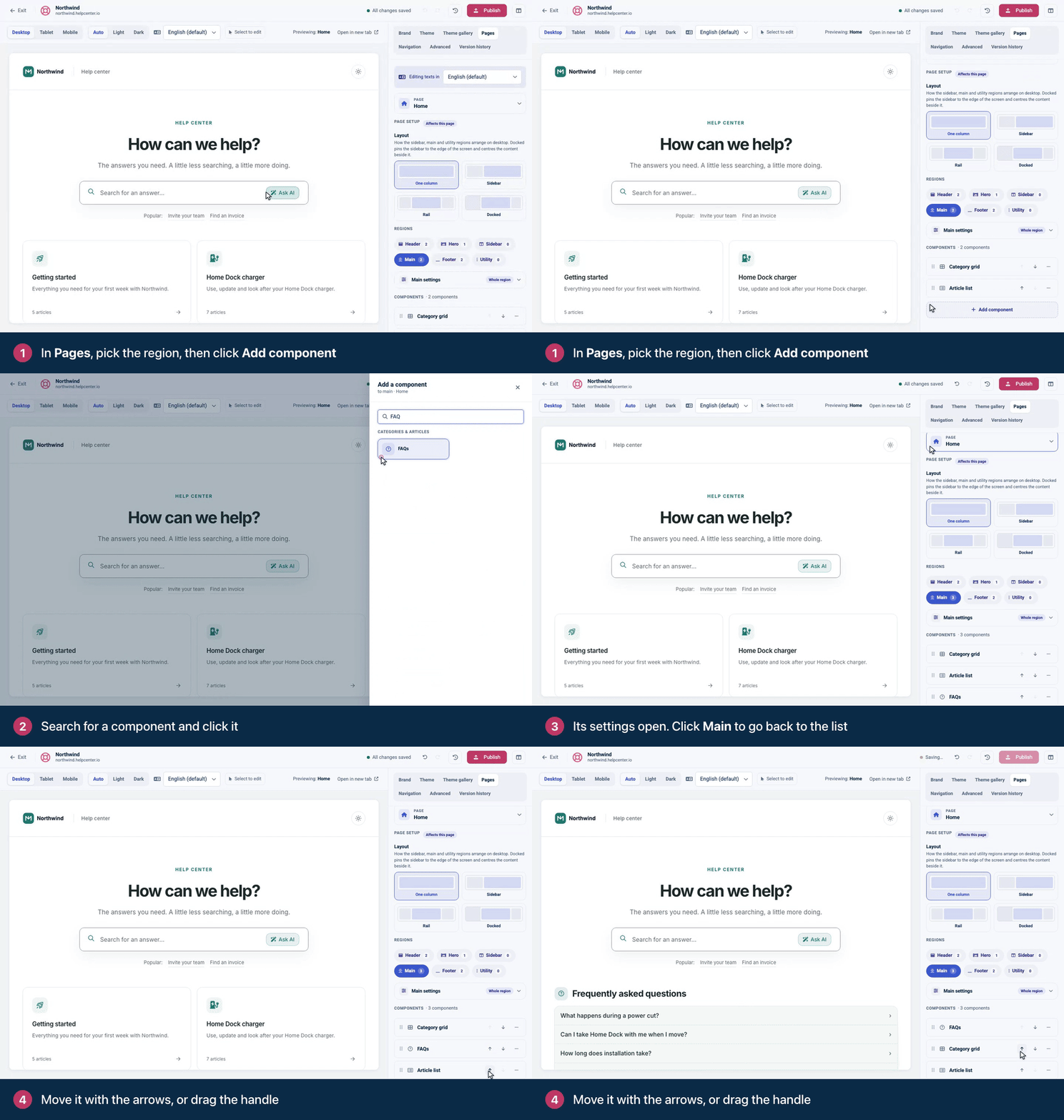
Page layouts
Under Page setup, the Layout you choose applies to the current page only (it's marked Affects this page). It decides how the Sidebar, Main and Utility regions sit on a computer screen:
One column: everything in a single column. Sidebar components stack above the main content.
Sidebar: a sidebar column next to the main content.
Rail: the sidebar, the main content and a Utility rail on the right.
Docked: the sidebar is pinned to the edge of the screen and the content is centered beside it. On smaller screens, the sidebar opens from a Browse button.
For layouts with a sidebar, Sidebar width makes the column wider or narrower. On smaller screens, the columns stack so everything stays readable.
Three more settings fine-tune the spacing. Each starts at Theme default; switch it to Custom to set your own size with a slider:
Page width: how wide the whole page is, sidebars included. The header and footer line up with it.
Content width: the widest the reading column gets, so long articles stay comfortable to read.
Column spacing: the space between the sidebar, content and utility columns on a computer screen. Phones keep the theme's spacing. It isn't offered for the One column layout.
Region settings
Open a region and expand its settings card (for example Hero settings, marked Whole region) to style the region as a whole:
Background: a background color for the region.
Padding: None, Compact, Standard or Tall.
Border below: a divider line under the region.
Content alignment (Hero only): Left or Center.
Shared headers and footers
A header or footer can be synced: one version for the whole help center. Open the region, and the note at the top tells you how yours is set up:
Synced across all pages: every page has the same version. Change it on any page, and every page gets the change.
Not the same on every page: the region is set to sync, but some pages hold a different version. Until you choose what to do, an edit changes only the page you make it on.
Apply this header to other pages (or footer): each page has its own version, and you edit each page separately.
A theme keeps a region synced only where its pages start out the same. Compass, for example, puts a search bar in the header of category and article pages only, so with Compass each page starts with its own header, while the footer is synced.
While you edit a component in one of these regions, a label next to its name shows how far your change reaches: All pages, or the name of the page, such as Home only.
When pages differ
If the note says Not the same on every page, click Choose. The dialog marks each page as the same or Different (or Different translations) and gives you two choices:
Keep separate headers: syncing stops. Every page keeps the header it has now, and you edit them one page at a time.
Use this header everywhere: the header of the page you're on replaces the header on the other pages, translations included, and every page stays in sync from then on. You can undo it with ⌘Z.
Decide later closes the dialog and changes nothing. For a footer, the buttons name the footer instead.
Stop syncing
To give each page its own header or footer, open a region that is synced, click Manage and choose Give each page its own setup. Each page keeps its current version, and from then on you edit each page separately.
Use a region on other pages
The Hero, Sidebar and Utility regions belong to one page, and so does a header or footer that isn't synced. To reuse one elsewhere, open it and click Apply this hero to other pages (the name changes with the region). You get two choices:
Copy to other pages · one-time: tick the pages you want and click the Copy to button, which counts the pages you picked. Each page gets its own copy, and later edits don't travel.
Keep in sync · live link: click Keep in sync everywhere. The region becomes identical on every page, and later edits apply everywhere.
Both replace the region on the other pages, components and settings included, which is why the dialog warns Will overwrite. You can undo with ⌘Z. The Main region can't be shared, because it holds each page's own content.
What changes where
You change | Where it shows |
|---|---|
Brand, Theme, Navigation or Advanced | Every page |
A page's Layout | That page only |
A region's settings or components | That page only, or every page if the region is synced |
Copy to other pages | The pages you pick, once, as separate copies |
Keep in sync | Every page, now and for later edits |
As always, nothing reaches visitors until you click Publish.
Troubleshooting
I changed the header on one page and it changed everywhere. The header is synced. That's usually what you want. If a page needs its own header, use Manage → Give each page its own setup.
I changed the header and the other pages didn't change. The header isn't synced, or its pages differ. The label next to the component's name shows the page your change reached, such as Home only. To have one header everywhere, open the Header region on the page whose header you want and click Choose → Use this header everywhere, or Apply this header to other pages → Keep in sync everywhere.
The search bar disappeared from my other pages' headers. You synced the header from a page without a search bar, and that page's header replaced the others. Press ⌘Z, or add the search bar back on any page: the change syncs to all of them.
My sidebar components show above the content. The page uses the One column layout. Pick Sidebar, Rail or Docked to put them in a column.
Comments
Be the first to comment.