

Everything you change in the template editor saves to a draft as you work, and only your team can see it. Readers keep seeing your current design until you publish, and then all your changes go live together.
Who can do this: Owners and Admins (Editors through Customize on your help center) · Plans: All plans
Publish your changes
Make your changes in the template editor. The top bar shows Saving… and then All changes saved.
Click Publish, or press ⌘Enter (Ctrl+Enter on Windows).
In the Publish changes dialog, check the list of what changed, such as Colors (light), Page: Article or Custom CSS.
Optionally, write a Version note (up to 300 characters) that says what changed. Your team sees it in Version history.
Click Publish.
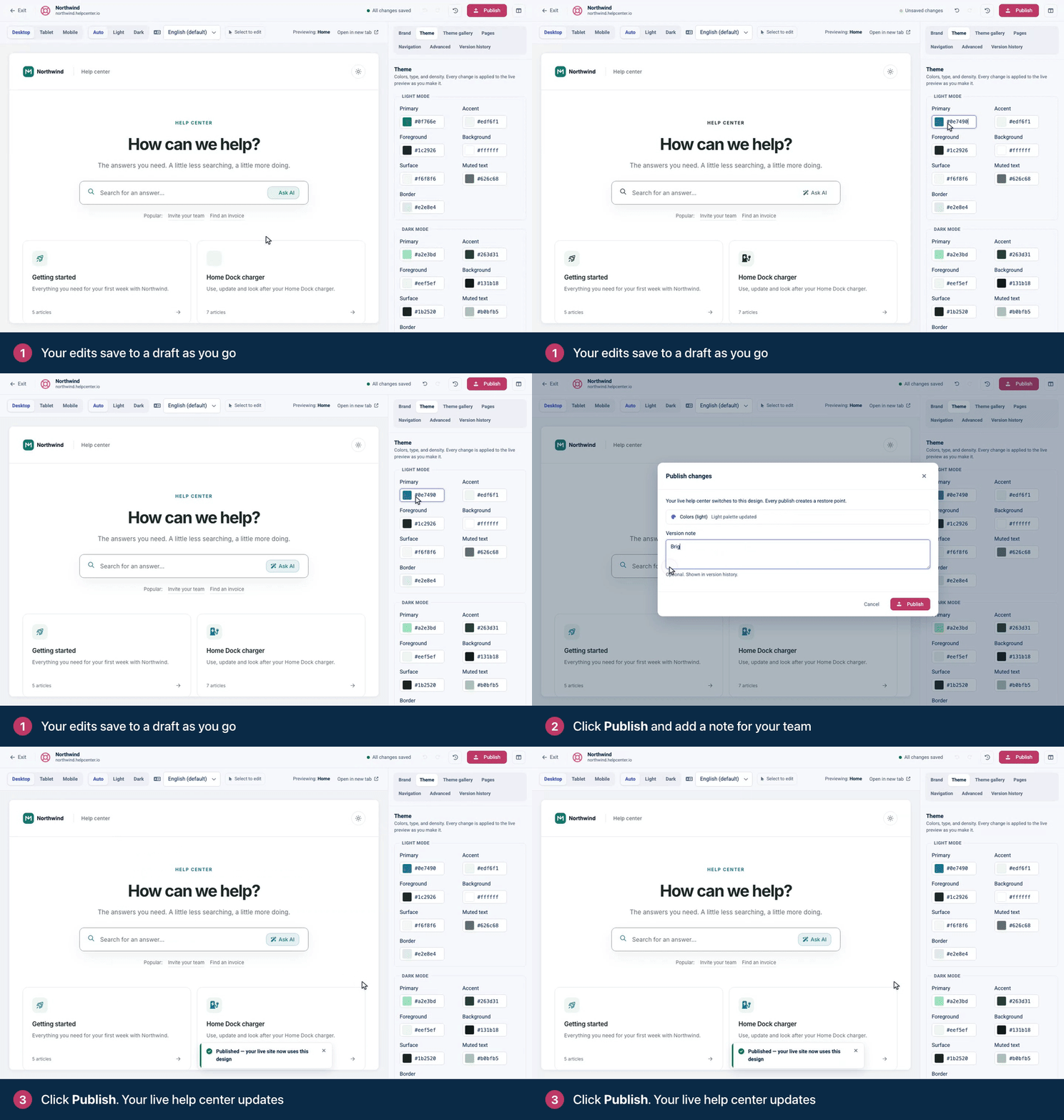
Your live help center switches to the new design right away, and a message confirms it.
What publishing does
It publishes the whole draft. Every unpublished change goes live, including changes your teammates made in the same draft. Check the list in the dialog before you confirm.
It creates a restore point. Each publish is saved in Version history, so you can go back later. See Restore an earlier design.
It updates your brand name everywhere. The Site name under Brand also names your help center in the widget, contact form emails and the API, and those follow the published design.
It starts a fresh draft. You can keep editing straight away. Nothing you change reaches readers until your next publish.
Save status
Top bar says | What it means |
|---|---|
All changes saved | Your draft is stored. Safe to close the editor. |
Unsaved changes | You made an edit. It saves a moment later, or right away if you press ⌘S (Ctrl+S). |
Saving… | Your draft is being stored. Publish waits until it's done. |
Draft conflict | Someone else changed the same draft. See Troubleshooting below. |
Save failed | Your last change couldn't be stored. See Troubleshooting below. |
Undo, redo or start over
Undo and Redo in the top bar step through your last 50 changes: ⌘Z to undo, ⌘⇧Z or ⌘Y to redo (Ctrl on Windows). The history clears when you publish or reload the editor.
Applying a theme can't be undone step by step. Use Reset draft instead.
Reset draft (the clock icon in the top bar) throws away every unpublished change and takes your draft back to the published design. Click it, then confirm Reset draft. This can't be undone.
Keyboard shortcuts pause while you're typing in a field, so ⌘Z there undoes your typing instead.
Troubleshooting
"This draft was changed elsewhere." A teammate, or you in another tab, saved the same draft. Click Reload to pick up their changes, or Overwrite to keep yours and replace theirs.
"Save failed." The message says what went wrong, for example an empty Site name. Fix it, then click Retry save. Publishing is blocked until the save works, so you never publish an outdated draft.
"Recover unsaved changes?" Last time, you left before some changes reached the server. Click Recover changes to add them to your draft, or Discard to keep the saved copy.
Your help center still shows the old design. Check that you clicked Publish in the dialog, not only saved. Then wait a moment and reload the page. See My changes don't show on my help center.
Comments
Be the first to comment.