

A theme restyles your whole help center in one step: colors, fonts, spacing and the layout of every page. You choose which parts to take from it, and nothing changes for visitors until you publish.
Who can do this: Owners and Admins (Editors through Customize on your help center) · Plans: All plans, with every theme included
Apply a theme
In the template editor, open the Theme gallery tab (⌘3). The theme you use now is marked Active.
Click Compare & apply… on the theme you want.
In the dialog, untick every part you want to keep as it is now. The dialog lists only the parts that differ from your current design.
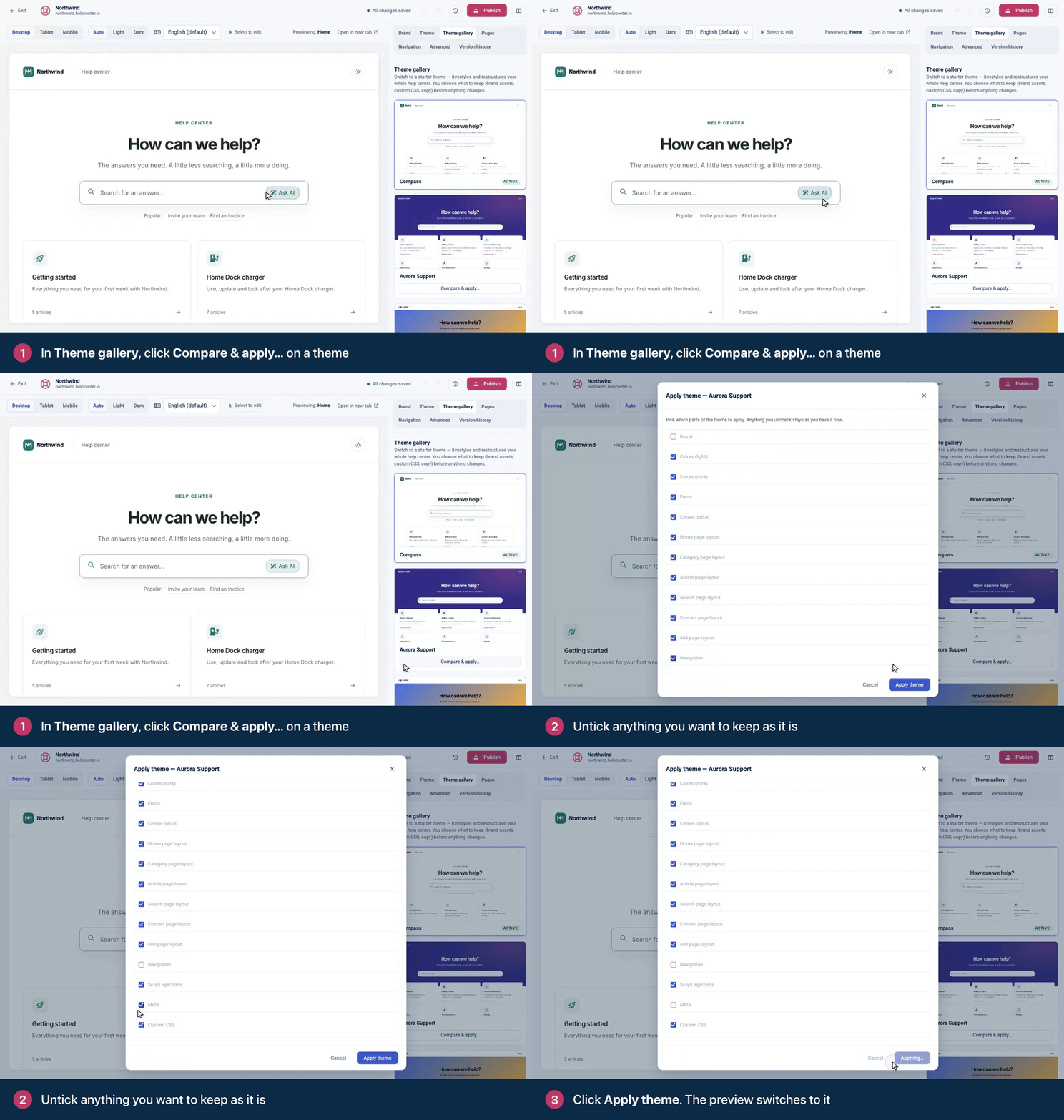
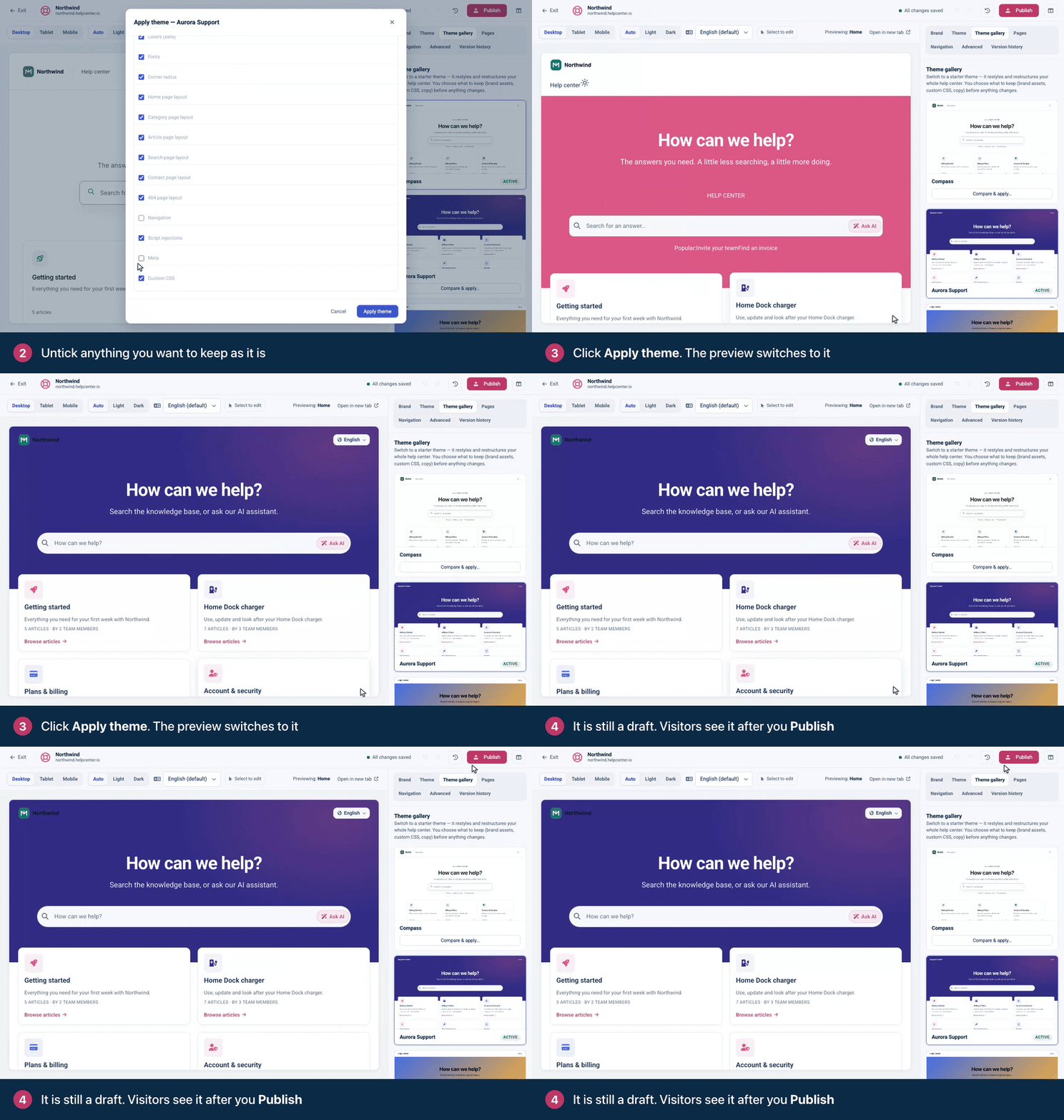
Click Apply theme. The preview switches to the new theme and shows your Home page.
Look through your pages. When you're happy, click Publish.
Not sure which theme to pick? See Which theme is right for you? or see screenshots of every theme at helpcenter.io/knowledge-base-templates.
Choose what to keep
Every part in the dialog starts ticked except Brand. A ticked part is replaced by the theme's version. Anything you untick stays exactly as you have it.
Part | What applying it replaces |
|---|---|
Brand | Your site name, tagline, logo, dark-mode logo and favicon. Themes come with a sample name and no logo, so leave this unticked unless you're starting from scratch. |
Colors (light), Colors (dark) | Your light and dark color palettes. |
Fonts, Corner radius, Density | Your fonts, the roundness of corners and the spacing. |
Home page layout, Category page layout, Article page layout, Search page layout, Contact page layout, 404 page layout | That page's layout and every component on it, including its header, hero, footer and their texts. |
Navigation | Your header and footer links. Some themes bring sample links, others none. |
Script injections | Your scripts, such as analytics, chat and site verification tags. Most themes have none, so this removes yours. |
Meta | Your SEO and social sharing settings from the Brand tab: default page title, meta description, keywords, Hide from search engines (no-index), Nofollow external links and the Open Graph fields. |
Custom CSS | Your custom CSS snippets, replaced by the theme's own CSS (or by none). |
Keep what already works. Untick Script injections to keep your analytics and chat, Navigation to keep your links and Custom CSS to keep your styling. Untick Meta to keep your SEO settings: applying it also turns off Hide from search engines (no-index) if you use it. Untick Contact page layout to keep your contact form: themes come with an empty recipient address, so applying it hides your contact page and any "Ask us" buttons until you add the address again.
Switching to Compass? Its light and dark switch and its search shortcut run as two scripts that come with the theme. They're added only if you leave Script injections ticked, which also replaces your own scripts, so add yours back under Advanced afterwards.
Changed your mind?
Applying a theme isn't added to the undo history, so don't rely on ⌘Z to take it back. To return to your published design, click Reset draft (the clock icon in the top bar) and confirm. That also discards every other unpublished change, so publish the work you want to keep before you try a new theme.
If you already published the new theme, open Version history and restore an earlier version. See Restore an earlier design.
Good to know
Themes never touch your articles, categories or languages.
Everything a theme sets stays editable afterwards: colors, fonts, pages and components.
On a help center with one language, themes leave out their language switcher. Add it to your header once you add a second language.
When your draft already has everything a theme would change, the dialog says "Your draft already matches this theme." and there's nothing to apply.
Troubleshooting
"Your latest edits could not be saved" when you click Apply theme. The editor saves your draft before it applies a theme. Fix the save problem first (click Retry save in the banner at the top), then apply the theme again.
My contact page disappeared. You applied Contact page layout. Add your recipient email to the Contact form again. See Set up your contact page and form.
My analytics stopped working. You applied Script injections. Add your scripts again under Advanced. See Add analytics and other scripts.
My page title in search results changed. You applied Meta. Set your title and description again under Brand. See SEO settings for your help center.
Comments
Be the first to comment.