

Move your help center from the classic template editor to the new one to get themes, dark mode, a layout you can change on every page and a restore point for every design you publish. You try the new editor on a copy of your current design first, so visitors see no change until you publish.
Who can do this: Owners and Admins · Plans: All plans
Try the new template editor
In the left menu, click Template editor. The classic editor opens.
In the dark bar near the top, click Try the new editor.
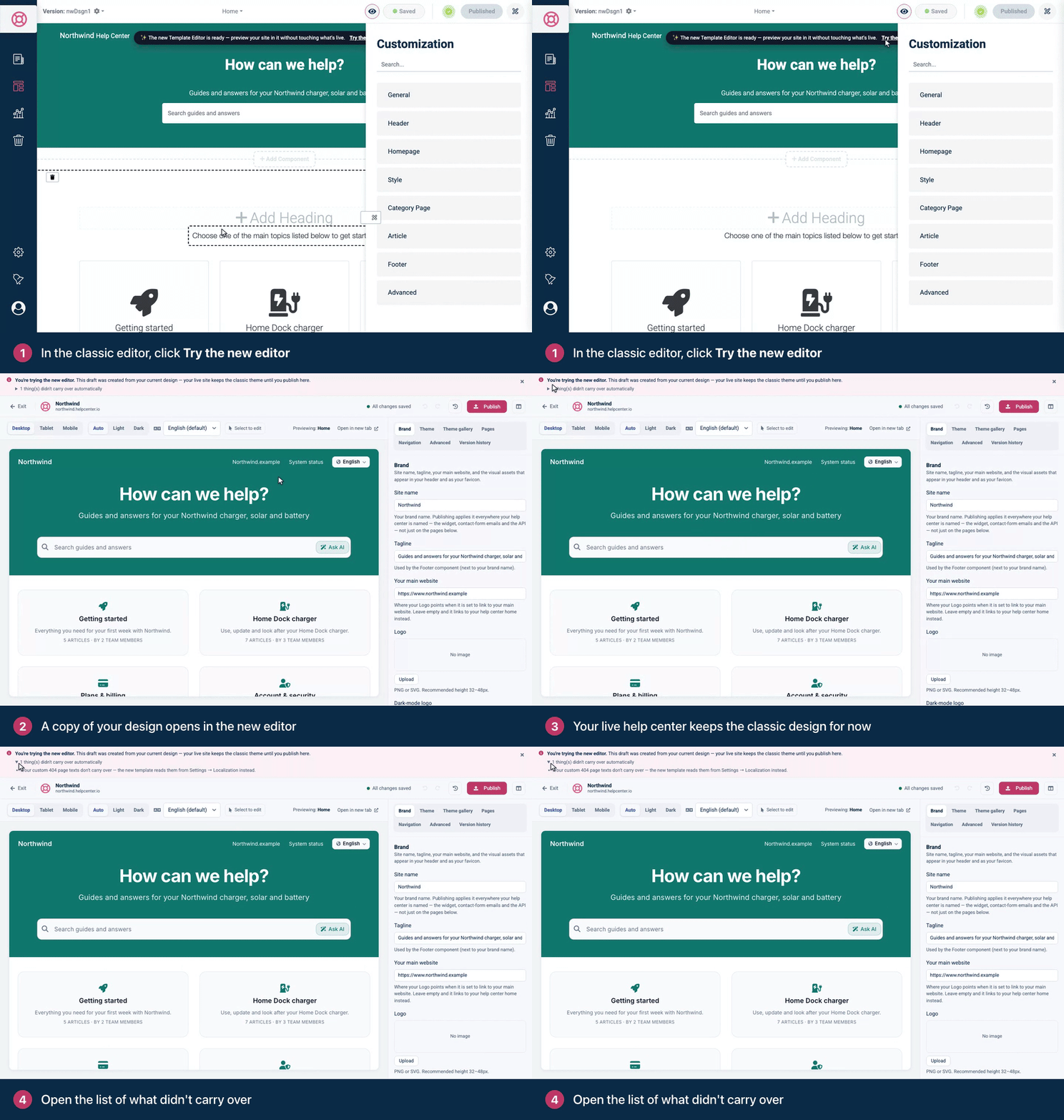
The new template editor opens with a banner that starts You're trying the new editor. Your draft is a copy of your design, converted for the new editor, and it saves as you work.
The copy is made from your latest saved classic design, so it includes changes you saved in the classic editor but never published.
See what didn't carry over
Most of your classic design carries over: your logo, colors, fonts, header, menu, home page sections, contact form, custom CSS and scripts. When something can't be converted, the banner says how many things didn't carry over automatically.
In the banner, click the line that says how many things didn't carry over.
Read each item and decide whether you need it. Some are only notes, for example that a script moved to Advanced.
A few classic settings have no counterpart and don't appear in that list, such as footer colors and links that opened in a new tab. Check them against What carries over to the new template editor.
Check every page
Click Pages and open each page in turn: Home, Category, Article, Search, Contact and Not found.
Above the preview, switch between Desktop, Tablet and Mobile.
Click Dark above the preview. In the new editor, your help center follows each reader's device, so readers who use dark mode see dark colors. Your classic design had no dark mode, so the copy starts with standard dark colors. Set your own under Theme, then Dark mode. See Light and dark mode.
Fix anything that looks wrong. Get started with the template editor shows where everything is.
Publish to make the switch
Click Publish.
Read the warning at the top of the Publish changes dialog: This publish switches your live site to the new template engine.
Optionally, add a Version note, such as "Moved from the classic editor".
Click Publish.
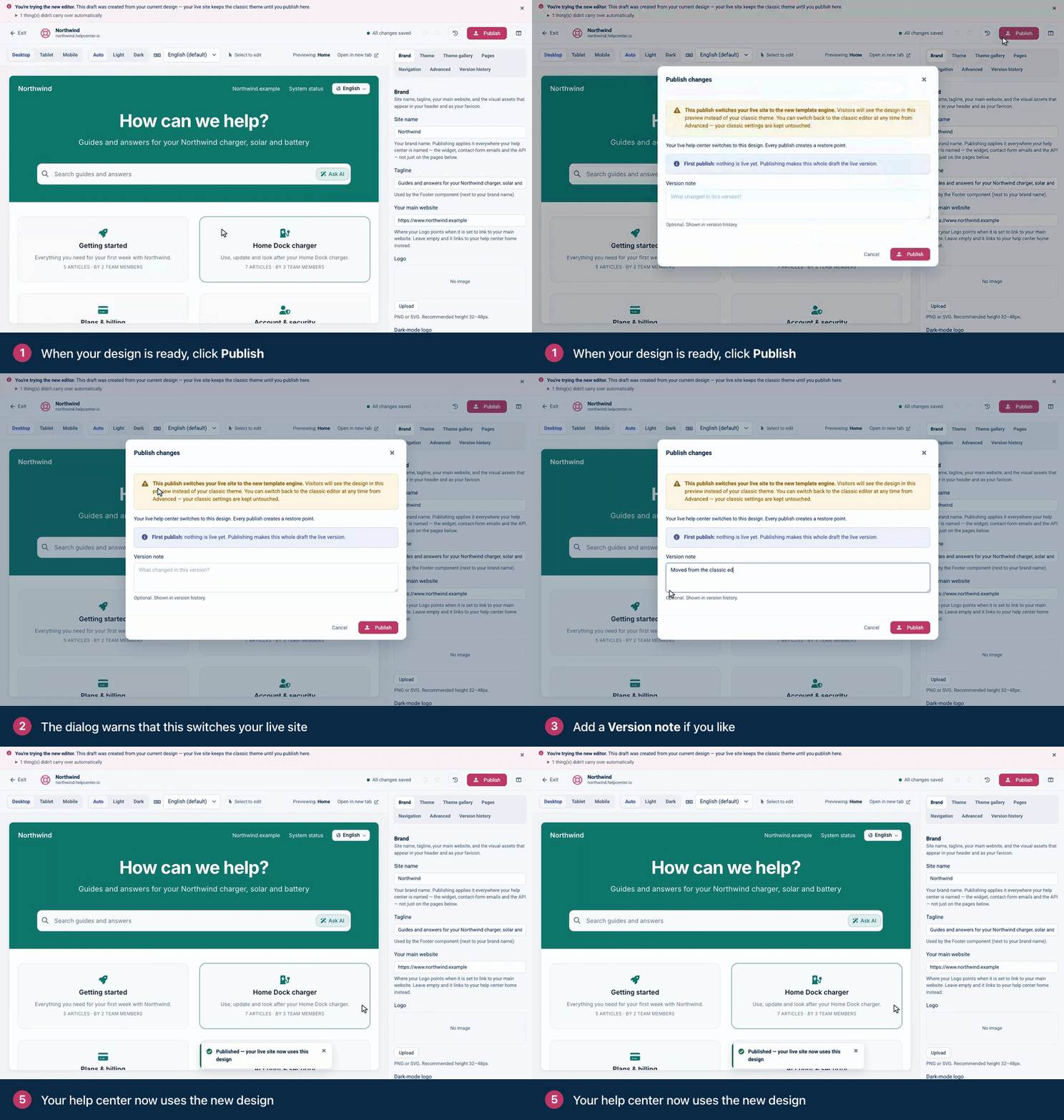
Your live help center switches to the new design right away, and a message confirms it. If you're not happy with it, you can switch back at any time. See Switch back to the classic template editor.
What changes, and what stays the same
Your design changes to the one you published, with dark mode for readers who use it.
Your content stays as it is. Articles, categories, translations, web addresses, search, the widget, your custom domain, redirects and statistics don't change.
Template editor opens the new editor from now on. Your classic settings are kept, unchanged, in case you switch back.
Every publish is a restore point in Version history. See Restore an earlier design.
AI assistants and API keys with design access can now read and change your design. AI assistants need the Growth or Catalyst plan. See Create an API key.
Good to know
You can take your time. Close the editor and come back later: your draft is still there. While you're trying the new editor, Exit takes you back to the classic one.
The copy doesn't follow later classic changes. If you change your classic design after you start, click Reset draft (the clock icon in the top bar) in the new editor to make a fresh copy. This discards what you changed in the new editor. It works only until your first publish here: after that, Reset draft returns to your last published design instead.
Turn off "Redirect to homepage on 404" first if you use it and don't want to keep it. It keeps working after the move, and the new editor has no setting for it. In the classic editor, it's under Advanced: turn it off and publish there before you move.
Troubleshooting
I don't see Try the new editor. Only Owners and Admins see it. If Template editor already opens tabs such as Brand, Theme and Pages, your help center has already moved.
The list of what didn't carry over is gone. The X hides the banner until you reload, and the list may not show when you come back days later. What carries over to the new template editor covers everything it can contain.
Visitors still see the classic design. Check that you clicked Publish in the dialog, then reload your help center. See My changes don't show on my help center.
Comments
Be the first to comment.