

Fine-tune your help center's look with your own CSS when the theme settings don't go far enough. You add CSS as labeled snippets, watch the preview change as you type, and publish when it looks right.
This is for people comfortable with CSS. For colors, fonts, spacing and corner radius, start with the Theme tab: those settings work in light and dark mode without any code.
Who can do this: Owners and Admins (Editors through Customize on your help center) · Plans: All plans
Add a CSS snippet
In the left menu, click Template editor, then open the Advanced tab.
Under Custom CSS, click Add custom CSS.
Give the snippet a label that says what it does, for example "Bigger logo".
Write your CSS in the code editor. The preview updates as you type.
Click Save to fold the snippet away. Your draft saves on its own either way.
Click Publish to put it live.
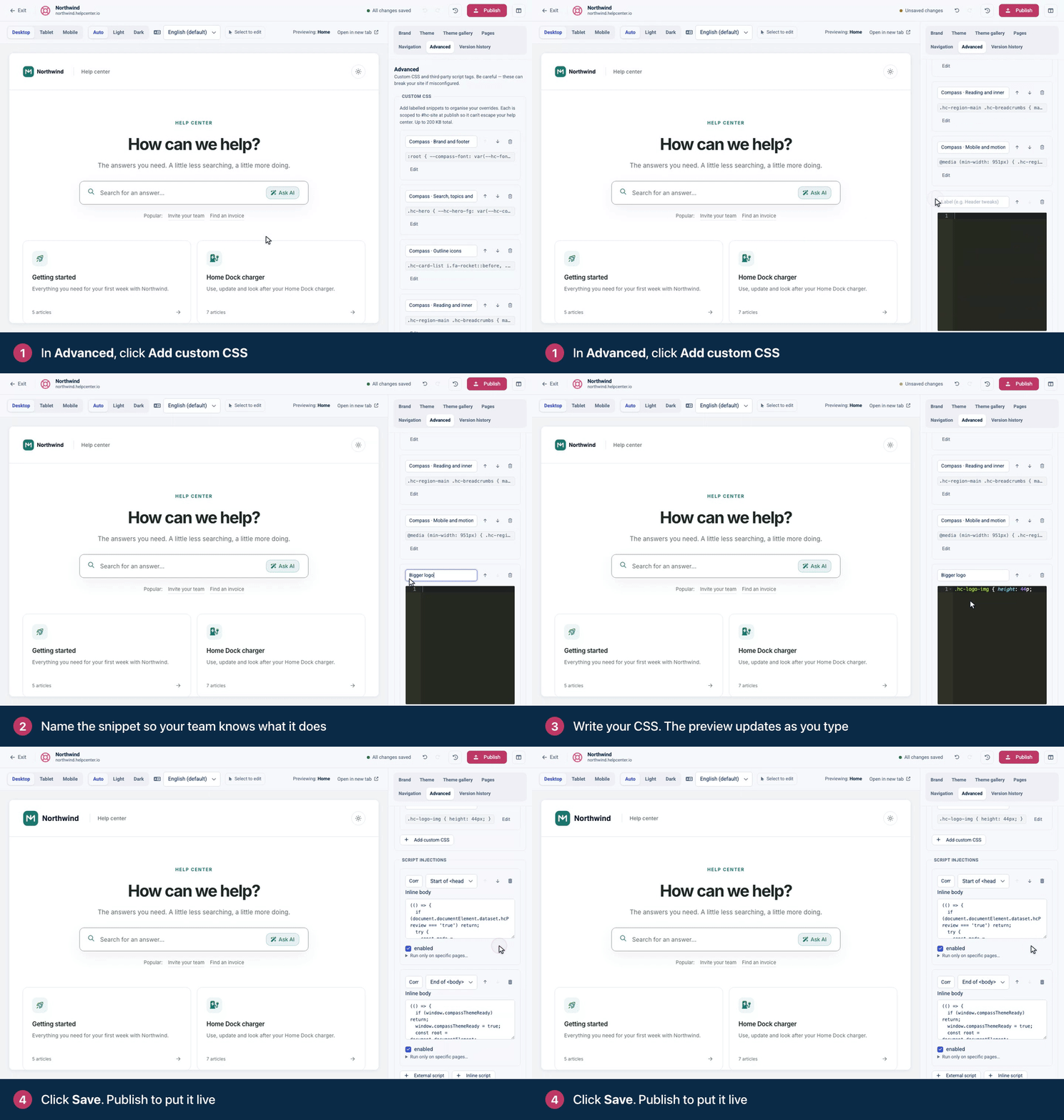
The recording uses a snippet like this one. Your logo shows 32 pixels tall, and this makes it 48:
.hc-logo-img {
  height: 48px;
}
Manage your snippets
Edit opens a folded snippet again.
The Enabled switch turns a snippet off without deleting it. A disabled snippet stays saved but isn't used.
The up and down arrows change the order. Snippets are combined from top to bottom, so when two rules are equally specific, the lower one wins.
The trash icon removes a snippet. Press ⌘Z (Ctrl+Z) to bring it back.
Your theme may come with snippets of its own. Compass's start with "Compass ·" and hold part of its look. Leave them in place and add yours below them.
How your CSS is applied
It only styles your help center. HelpCenter.io puts
#hc-sitein front of every selector, so your rules can't leak into anything else. You don't need to write#hc-siteyourself.Rules for
html,bodyor:rootapply to that#hc-sitewrapper instead. The Custom CSS reference explains what that means for your selectors.Up to 200 KB in total. That covers all your enabled snippets together. Above the limit, none of your custom CSS is applied, and your draft can't be saved until you trim it.
Some things are removed for safety:
@import,@charset,@namespace,javascript:URLs,behaviorandexpression(). To change fonts, use the Theme tab.Applying a theme can replace your snippets. When you apply a theme with Custom CSS ticked, the theme's snippets replace yours. Untick it in the Apply theme dialog to keep them.
One missing brace turns off all your custom CSS. If any snippet has an unmatched { or }, none of your snippets are applied, in the preview or on your live help center. If all your styling disappears at once, look for the missing brace in the snippet you edited last.
Write CSS that keeps working
Target the hooks made for customization, such as
[data-hc-component-type="CategoryGrid"]or.hc-article__title, rather than utility classes that can change. The Custom CSS reference lists them.Use theme variables instead of fixed colors, so your rules look right in light and dark mode.
Check Mobile, Tablet and Dark in the preview before you publish.
Keep a visible focus outline on anything readers can click, for people who use a keyboard.
For example, this colors every article title with your brand color, in a shade that stays readable in both modes:
.hc-article__title {
  color: var(--hc-color-primary-text);
}
Troubleshooting
The preview is right, but your help center isn't. Click Publish. Custom CSS goes live with the rest of your draft.
All your custom CSS stopped working. Look for an unmatched brace, and check that your snippets together stay under 200 KB.
One rule does nothing. Check that the snippet is enabled and that the selector matches the page. See My custom CSS doesn't work.
Comments
Be the first to comment.