

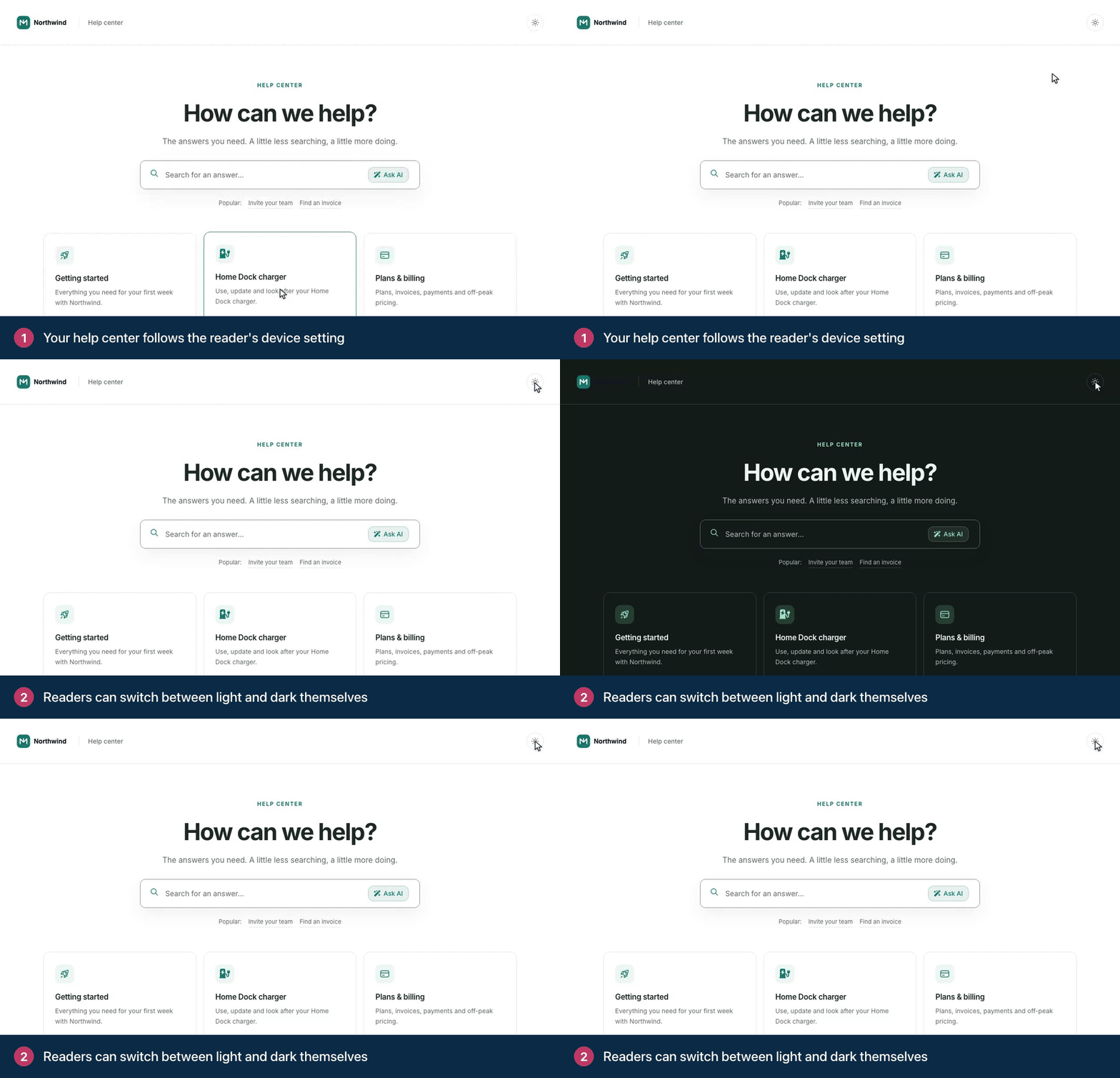
Every help center comes in a light and a dark version. It follows each reader's device setting, and with a theme like Compass, readers can switch themselves. Here's how to make both versions look like your brand.
Who can do this: Owners and Admins (Editors through Customize on your help center) · Plans: All plans
How readers get light or dark mode
Your help center follows the appearance the reader's device or browser is set to. Someone who uses dark mode on their laptop sees your dark colors.
Compass, the theme new help centers start with, adds a switch to the header so readers can choose for themselves. Their browser remembers the choice.
Other themes follow the device setting only.
Set your dark mode colors
In the left menu, click Template editor, then open the Theme tab.
Under Dark mode, set Primary, Accent, Foreground, Background, Surface, Muted text and Border.
Above the preview, click Dark to check the result.
Click Publish.
HelpCenter.io keeps text readable in both modes by itself. Muted text, links in your brand color and form field outlines are adjusted when a color you pick would be too faint, and labels on buttons in your primary color turn black or white, whichever reads better. See Change colors, fonts and spacing.
Add a logo for dark mode
A dark logo can disappear on a dark background. Upload a light version for dark mode:
In the template editor, open the Brand tab.
Under Dark-mode logo, click Upload and pick a version of your logo that reads well on dark backgrounds.
Publish.
Your main logo keeps light mode. Leave Dark-mode logo empty to use the same logo in both. See Add your logo, favicon and brand name.
Check your design in dark mode
In the preview, Light and Dark show each mode whatever your own device uses. Look for:
Your logo, on every page.
Hero text on an image. The Hero's Text color set to Auto picks a readable color for each mode, but it can't measure a background image. With an image, choose Light text or Dark text, which then applies in both modes.
Colored text in articles. Text colors picked in the article editor are lightened automatically in dark mode, keeping their hue, so a dark blue heading doesn't disappear. Text on its own background color is left as it is.
Images with transparent backgrounds in your articles, which can vanish against a dark page.
Custom CSS with fixed colors. Use theme variables such as
var(--hc-color-fg)instead: they change with the mode. See the Custom CSS reference.
Want the same look in both modes?
There's no setting that turns dark mode off. If you want one look everywhere, give the Dark mode palette the same colors as Light mode and leave Dark-mode logo empty. With Compass, you can also take out its switch: it sits in a Custom HTML component in the header.
Troubleshooting
Your help center is dark on your computer but light on a colleague's. That's expected: each reader sees the mode their own device asks for.
Compass's switch stopped working. Its two scripts under Advanced → Script injections run the switch. Make sure both are there and enabled. See Add analytics and other scripts.
Comments
Be the first to comment.