

Let readers into your private help center with the account they already have in your product. Your app signs them in the way it always does and hands HelpCenter.io a signed token, so readers never see a second login or need a second password.
Who can do this: Owners and Admins · Plans: Catalyst
Before you start
Your help center is on the Catalyst plan. On other plans, the Single sign-on card says SSO isn't available and offers View plans. A setup you've already saved keeps working, and stays manageable, if your help center later moves to another plan. New setups need Catalyst.
Your help center is set to Private. SSO is how readers get into a private help center. A public help center needs no sign-in, and a password-protected one shows its password page instead.
Your developers can add a sign-in endpoint to your app. It signs JSON Web Tokens (JWT) with HS256, which most languages have a library for. See What your developers build, below.
Turn on single sign-on
In the left menu, click the gear icon, then Settings.
In the Single sign-on card, switch on Enable Single Sign-On. The provider is JWT (HS256).
In Login URL, enter the address of your sign-in endpoint, for example
https://app.yourcompany.com/auth/helpcenter.Next to Shared secret, click Generate. Copy the secret into your server's configuration. Keep it on the server: it must never reach a browser.
If you like, fill in Issuer (iss claim), Audience (aud claim) and Token TTL (seconds), and choose how long a sign-in lasts under Reader sign-in lasts. See the table below.
Click Save JWT settings.
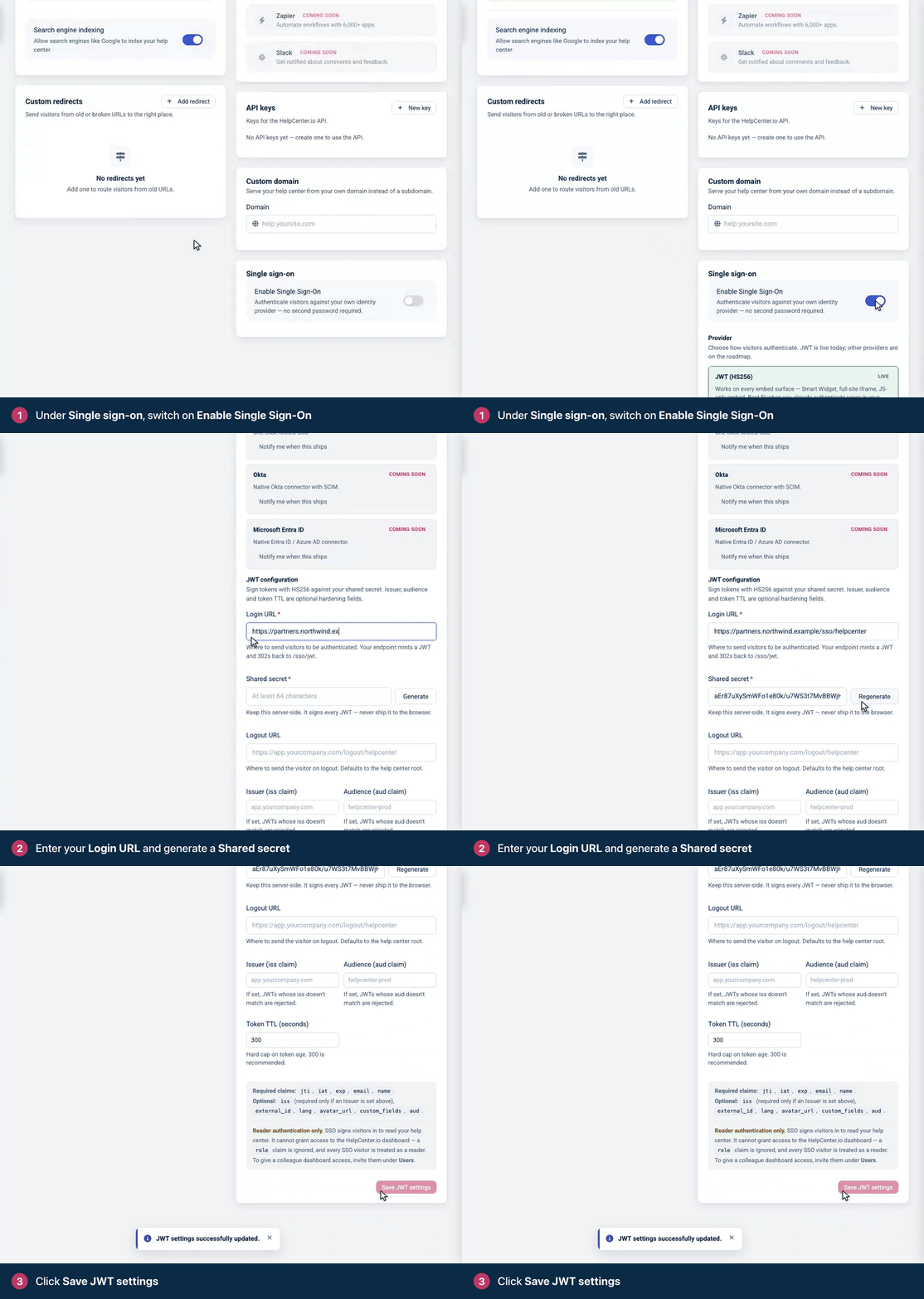
You'll see "JWT settings successfully updated." If your help center isn't private yet, go to General → Access & visibility, choose Private and click Save changes.
The settings
Setting | What it does |
|---|---|
Login URL (required) | Where HelpCenter.io sends readers who aren't signed in. Your endpoint signs them in and sends them back with a token. HelpCenter.io adds its own |
Shared secret (required) | Signs every token. At least 64 characters. Generate creates one, or you can paste your own. Your server signs with it exactly as shown. |
Issuer (iss claim) | Optional. When set, tokens whose |
Audience (aud claim) | Optional. When set, tokens whose |
Token TTL (seconds) | The oldest token the widget accepts, counted from |
Reader sign-in lasts | How long a reader stays signed in to your help center: 1 hour, 8 hours, 24 hours (the default), 7 days or 30 days. The time counts from the sign-in and visits don't extend it. After that, the reader goes through your Login URL again, so someone you've removed from your own login loses access to the help center too. |
Logout URL | HelpCenter.io doesn't use this field, so you can leave it empty. |
Regenerating the secret breaks sign-in until your server has the new one. The new secret takes effect when you click Save JWT settings, and tokens signed with the old secret stop working at that moment. Changing the secret also signs out every reader, who then sign in again through your Login URL. See Can I rotate the SSO shared secret without downtime?
What your developers build
When a reader who isn't signed in opens your help center, HelpCenter.io sends them to your Login URL with a one-time key. Your endpoint signs them in with your usual login, creates a token signed with the shared secret, with jti set to that key, and sends them to https://<your help center>/sso/jwt?jwt=<token>. HelpCenter.io checks the token, signs the reader in and opens the page they first asked for.
Every token needs jti, iat, exp, email and name. Send external_id too, so readers keep their account when their email changes. The developer portal has the rest:
Build your Login URL: tested code in Node.js, PHP, Python and Ruby.
How JWT single sign-on works: each sign-in flow step by step, on your help center, in the widget and in an iframe.
JWT claims and validation rules: every claim, and how HelpCenter.io checks a token.
Test it
Open your help center in a private browser window, so your own HelpCenter.io sign-in doesn't get in the way (see Troubleshooting). You should land on your login, then come back to the help center signed in, without seeing a HelpCenter.io sign-in page.
SSO signs in readers, not your team
Everyone who signs in through SSO is a reader. SSO can't open the HelpCenter.io dashboard, and a role claim in the token is ignored. Your team keeps using their HelpCenter.io accounts. To give a colleague dashboard access, invite them under Users. See Invite your team.
SSO readers see everything that's open to all readers of your help center. Categories shared with team members only, and content shared with selected team members, stay hidden from them. See Can different readers get different access?
Use it in the widget or an iframe
The same settings sign readers in to the widget inside your product and to your help center shown in an iframe: your server creates the tokens. See Sign readers into the widget with a JWT and Embed your help center in your app on the developer portal. Token TTL applies to widget tokens only.
Troubleshooting
Readers see the HelpCenter.io sign-in page or a password page instead of your login. Check that the help center is set to Private and that you clicked Save JWT settings. If you limit access by IP address, readers from other addresses land on the HelpCenter.io sign-in page too. See Restrict access by IP address.
Readers go back and forth between your login and the help center. The browser is signed in to a HelpCenter.io account, such as your team's dashboard or a help center on helpcenter.io, and HelpCenter.io doesn't complete an SSO sign-in in a browser that's already signed in. Sign out of HelpCenter.io in that browser, or use a private window.
"Missing jwt parameter." Your endpoint redirected to /sso/jwt without the ?jwt= part.
"Invalid SSO token." HelpCenter.io rejected the token. Check that it's signed with HS256 and the exact secret you saved, that every required claim is there, and that exp isn't in the past and iat isn't in the future. HelpCenter.io allows 30 seconds of clock difference, so keep your server's clock in sync. If you set an Issuer or Audience, iss and aud must match them exactly.
"SSO is not properly configured." No shared secret is saved. Enter one and click Save JWT settings.
After your login, readers land on the HelpCenter.io sign-in page. The token's jti isn't the key HelpCenter.io sent, or that key has already been used. Each key works for one sign-in, so the reader should start again from the help center.
You switched off Enable Single Sign-On, but readers still go to your login. The switch only hides the settings; your saved setup stays active. To stop using SSO, change the help center's visibility or contact support to remove the setup.
More causes and fixes are in Troubleshoot single sign-on on the developer portal.
Related articles
Build your Login URL on the developer portal
How JWT single sign-on works on the developer portal
Comments
Be the first to comment.