

Write the greeting visitors see when they open the widget, in each of your help center's languages, and add your own content to its home screen.
Who can do this: Owners and Admins · Plans: All plans
Change the heading and subheading
In the left menu, click the gear icon, then Embeddables.
On the Widget tab, find the Content card.
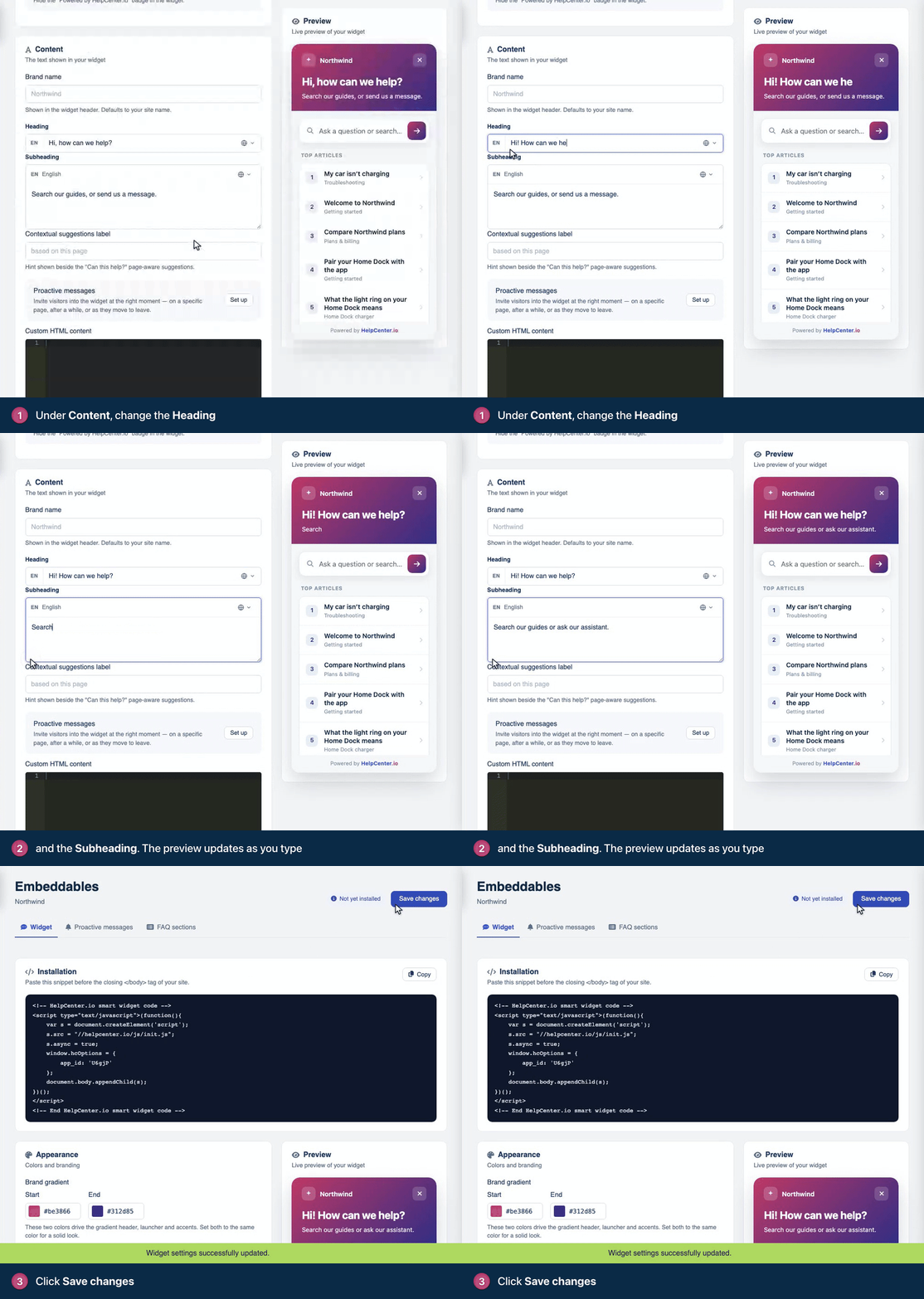
Change the Heading, then the Subheading. The Preview updates as you type.
Click Save changes at the top of the page.
If your help center has more than one language, the Heading and Subheading fields each have a language switcher (the globe inside the field). Pick a language, write the text for it, and repeat for your other languages before you save. Brand name and Contextual suggestions label have one value that every language shows. To translate parts of Custom HTML content, see below.
Until you save this tab for the first time, the live widget shows its default greeting, "How can we help?", while the fields show different starter text. Saving anything on the Widget tab, even a color, puts the text in these fields live, so write your own first.
Everything in the Content card
Field | What it does |
|---|---|
Brand name | The name in the widget's header, up to 60 characters. Leave it empty to use your site name. |
Heading | The large greeting at the top of the home screen. |
Subheading | The line under the heading. A good one tells visitors what they can do, such as search or ask a question. |
Contextual suggestions label | The hint next to Can this help?, the articles suggested for the page the visitor is on. The default is "based on this page". Up to 60 characters. |
Proactive messages | Set up or Manage takes you to the Proactive messages tab. See Invite visitors with proactive messages. |
Custom HTML content | Your own HTML, shown after the subheading and before the suggested articles. Use it for a short notice, your support hours or a link to your status page. It can be translated: see the next section. |
Translate your custom HTML
The HTML itself is the same in every language, so put the words that change in a placeholder: a name of your choice in curly brackets, such as {hours}. Use letters, numbers and underscores in the name, starting with a letter.
Type the placeholder where the text should appear, for example
<p>{hours}</p>.Under the code editor, Translatables now lists hours. Write its text, then use its language switcher to write it for each of your other languages.
Click Save changes.
Visitors see the text for the language the widget shows. Fill in every language, your default one included: where a placeholder has no text, visitors see it as you typed it, curly brackets and all.
Translate the rest of the widget
The widget's buttons, labels and messages, such as Send message or Was this article helpful?, have built-in text. To change them for your other languages:
In the left menu, click the gear icon, then Localization.
In Interface translations, open the Widget group.
Edit the phrases for each language. See Translate buttons and labels.
The widget's English phrases can't be changed there today.
Which language the widget uses
The widget shows your help center's default language. To show another of your languages on a page, for example on the Spanish version of your site, set lang in that page's snippet, such as lang: 'es'. See Widget installation and options on the developer portal.
Comments
Be the first to comment.