

Turn on AI Answers so readers can ask a question in their own words and get a short answer written from your published articles, with links to the sources. It works in your help center's search bar and in the widget.
Who can do this: Owners and Admins · Plans: Catalyst, or the AI add-on on Bootstrap and Growth
Turn on AI Answers
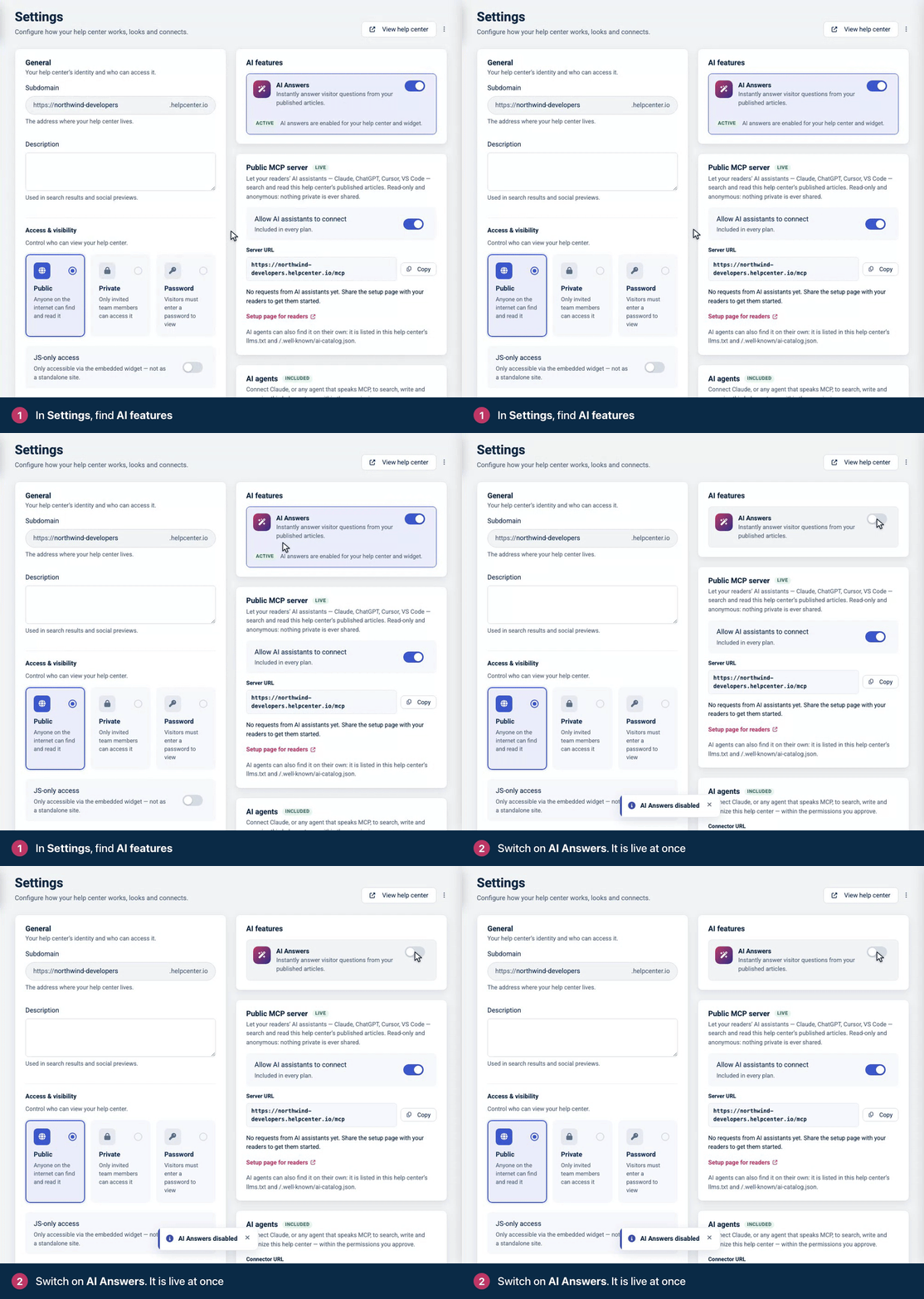
In the left menu, click the gear icon, then Settings.
Find the AI features card on the right.
Switch on AI Answers. You see AI Answers enabled, and the card shows an Active badge.
Readers can ask AI straight away. The first time you switch it on, HelpCenter.io also prepares your published articles for search by meaning in the background. Until that finishes, search and AI Answers find articles by keyword.
What readers see
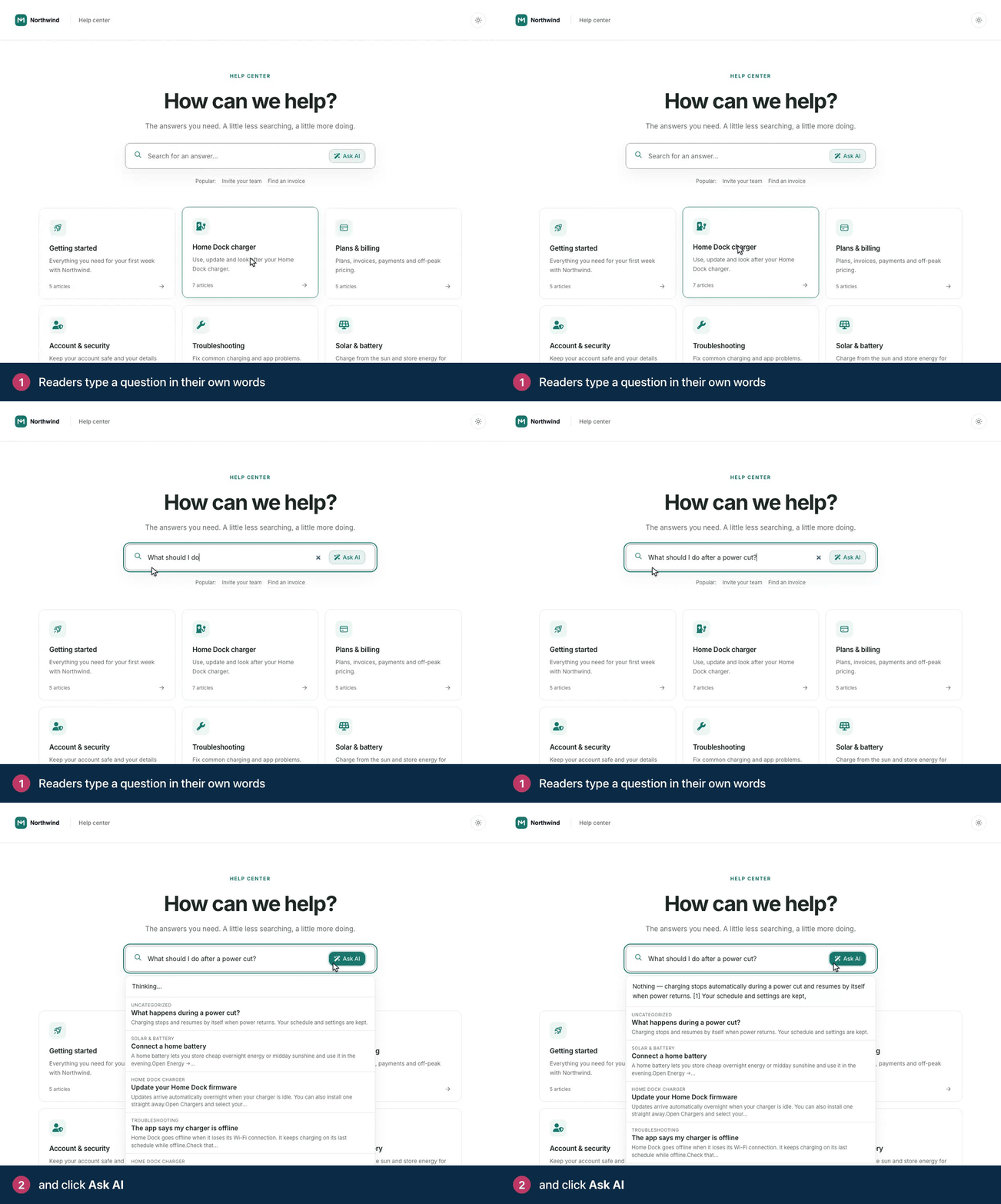
In the search bar, readers type a question and click Ask AI.
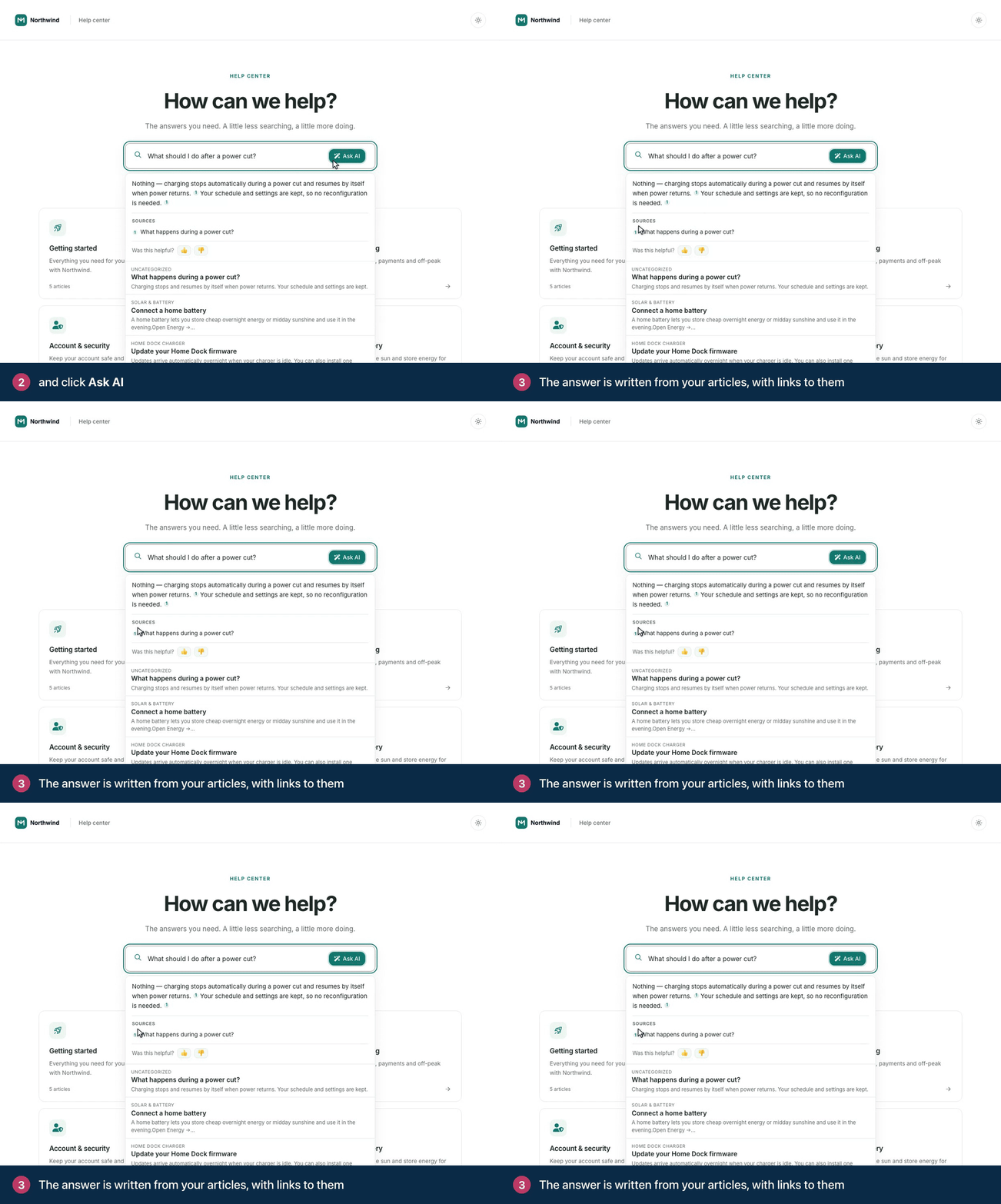
The answer appears above the matching articles. Numbered links point to the articles it came from, listed under Sources, and Was this helpful? lets readers rate the answer.
In the widget, visitors can ask the AI assistant from the search screen, ask follow-up questions and ask about the article they are reading. See What visitors see in the widget.
Hide the Ask AI button
To keep AI in the widget but remove the button from your help center's search bar:
Open the Template editor and select the Search bar.
Under Behaviour, switch off Show "Ask AI" button.
Publish your design.
See Customize the hero and search bar for the other search bar settings.
This hides the button only. While AI Answers is on, your search results page still shows an Ask AI box above the results. To take Ask AI out of your help center completely, turn AI Answers off.
Turn AI Answers off
Switch off AI Answers in the same card. You see AI Answers disabled. Ask AI disappears from the search bar, the search results page and the widget, and search goes back to matching keywords.
Good to know
Answers come only from your help center. When no article covers a question, the answer says so and suggests contacting your support team. See How AI Answers work.
Questions can be up to 200 characters. Longer questions get a message asking the reader to shorten them. Ask AI takes one question in plain words, so it turns down pasted code, SQL or markup, and several sentences at once. Readers then see "The AI assistant can only answer a single question in plain words, so it couldn't take this one. Try asking it another way, or look through the search results." in your help center, or Let's try that another way in the widget, and can rephrase the question or use the search results.
Fair-use limits apply per visitor. A visitor who asks many questions in a short time gets the same message, or You're going a little fast in the widget, and can ask again a little later.
You can see what people ask. Statistics counts helpful and unhelpful AI answers. See See what people search for.
Troubleshooting
The card says "Add AI Answers to your plan" or "AI Answers are available on higher plans". Your plan doesn't include AI Answers. Click View plans to add the AI add-on or move to Catalyst. See Add AI Answers to your plan.
Ask AI doesn't show in the search bar. Check that AI Answers is on, and that Show "Ask AI" button is on for your search bar in the published design.
The answer says it doesn't have the information. See AI Answers says it doesn't have the information.
Comments
Be the first to comment.