

AI writing help rewrites, drafts and tidies text with you in the article editor. Rewrites and drafts are proposed first, and they change nothing in your article until you accept them.
Who can do this: Owners, Admins and Editors (Translators can rewrite a selection) · Plans: Catalyst, or the AI add-on on Bootstrap and Growth
Rewrite a selection
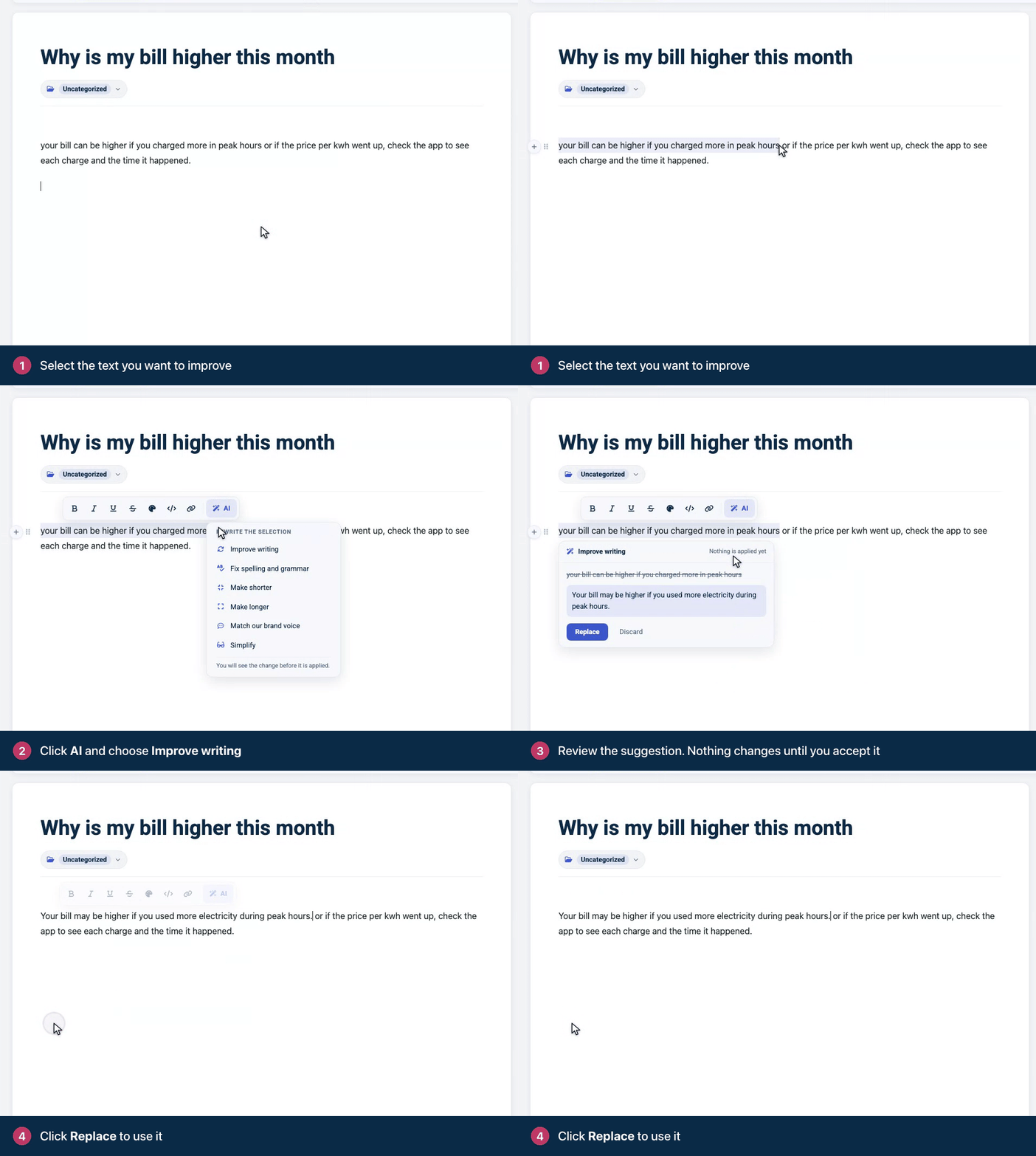
Select the text you want to improve.
In the toolbar that appears, click AI.
Under Rewrite the selection, choose an action, such as Improve writing.
Review the suggestion. It shows Nothing is applied yet until you decide.
Click Replace to use it, or Discard to keep your text.
Action | What it does |
|---|---|
Improve writing | Improves clarity, flow and word choice, keeping the meaning, the formatting and roughly the same length. |
Fix spelling and grammar | Fixes spelling, grammar and punctuation, and changes nothing else. |
Make shorter | Cuts the text to about half, keeping every essential fact. |
Make longer | Adds helpful detail, to about twice the length. |
Match our brand voice | Rewrites in a friendly, professional help center tone. |
Simplify | Uses plain language a non-technical reader understands. |
Draft new text
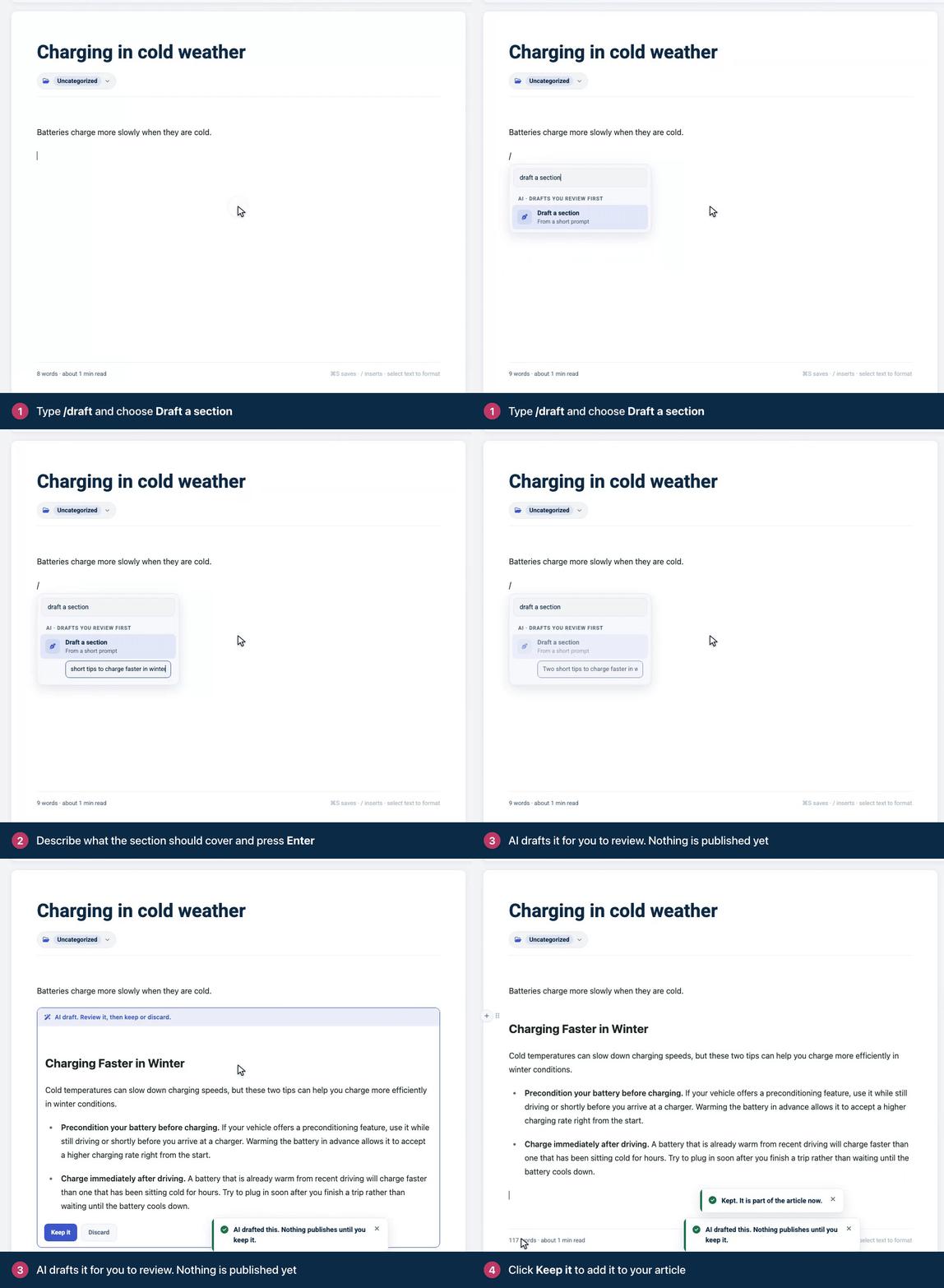
On an empty line, type / to open the insert menu. Typing /draft takes you straight to Draft a section.
Under AI · drafts you review first, choose what you need:
Continue writing picks up from the cursor.
Draft a section writes a section from a short prompt.
Summarize into an intro writes a short summary of the article.
Turn into a FAQ drafts FAQs from the article. Save the article first.
For Draft a section, describe what the section should cover and press Enter.
The draft appears in a box marked AI draft. Review it, then keep or discard. Edit it if you like, then click Keep it to add it to your article, or Discard.
A draft you haven't kept is never shown to readers, even if you publish the article. It also stays out of search and AI Answers.
More help in the side panel
The AI writing help card in the editor's side panel works on the whole article:
Draft meta title and description opens the search preview with a suggested title and description for you to edit. See Set an article's search title, description and URL.
Suggest a slug fills in a URL slug based on the article's title. Edit it if it reads oddly.
Write alt text for images adds alt text to up to four images that have none. Review it in the image toolbar.
Translate this article points you to the language bar. AI translation is part of the Catalyst plan. See Translate articles with AI.
Check structure and clarity lists suggestions for improving the article's structure.
In the Related FAQs card, Derive FAQs from this article drafts FAQs from the article. They are saved as drafts, so you review them before you publish. See Write FAQs and add them to articles.
Meta descriptions and structure checks need a title and some text to work from.
Limits
Each help center has a daily and a monthly allowance for AI writing help. When you reach it, you see a message saying the help center has reached its daily or monthly AI usage limit, and when it resets: tomorrow for the daily limit, on the 1st for the monthly one. If you send many requests in a short time, you see "Too Many Attempts." Wait a minute and try again.
AI writing help doesn't depend on the AI Answers switch. It is available whenever your plan includes AI.
Troubleshooting
The AI menu shows "Included on the Catalyst plan, or as a $29 monthly add-on." Your plan doesn't include AI writing help. Click See plans, or see Add AI Answers to your plan.
"AI couldn't finish that. Try again." The request failed. Wait a moment and try again.
Comments
Be the first to comment.