

Give each image the right size and position in your article, and add alt text so everyone understands it, including people who use screen readers.
Who can do this: Owners, Admins and Editors · Plans: All plans (AI alt text: Catalyst plan, or the AI add-on on Bootstrap and Growth)
Start with an image
If the image isn't in the article yet, type
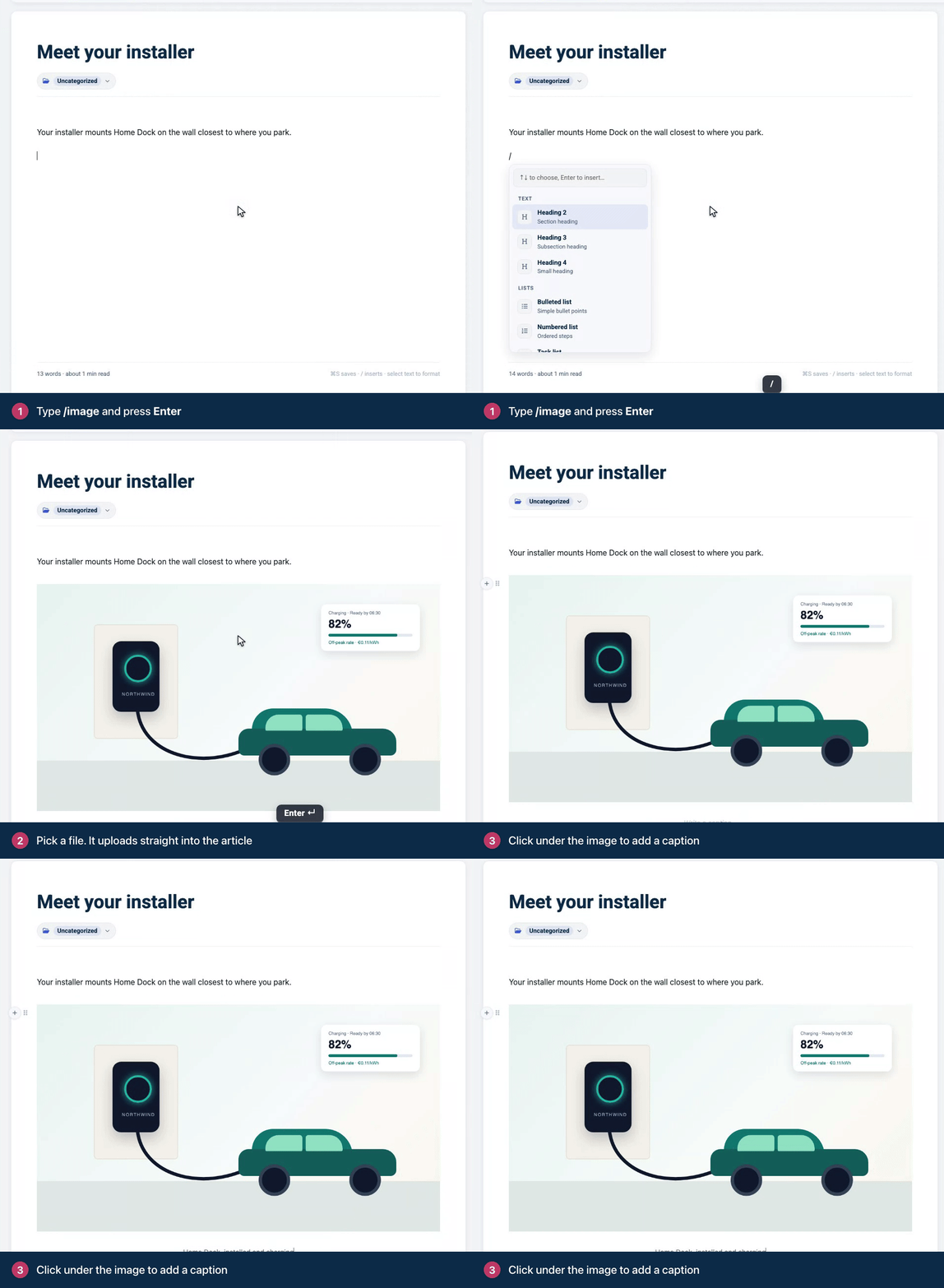
/imageon an empty line, press Enter and pick a file.Click the image. Its toolbar appears above it.
Resize an image
Click the image.
Point at its left or right edge until the pointer becomes a double arrow.
Drag inward to make the image smaller, or outward to make it bigger.
The width is saved as a share of the article's width, from 10% up to the full width, and the height follows so the image keeps its shape. On phones, images shrink to fit the screen.
Images inside a line of text
For a small image that sits inside a sentence, click it and click Size. Choose Text height to make it as tall as the words around it, Original for its own size, or type a width in pixels and click the check mark.
Align an image
Click the image, then click Align to left, Align to center or Align to right. With left or right alignment, the text flows around the image, which works well for small images next to a short paragraph.
Add alt text
Click the image, then click Alt text and title.
In Alt text, describe what the image shows.
If you like, add a Title. Readers see it as a tooltip when they point at the image.
Press Enter or click the check mark to save.
Write alt text that helps
Screen readers read alt text aloud, search engines use it to understand your images, and browsers show it when an image can't load.
Describe what matters for the reader's task. "The Settings page with the Custom domain field filled in" says more than "Screenshot".
Skip "Image of" and "Picture of". Screen readers already announce that it's an image.
Keep it to a sentence. If the text next to the image already explains it, a few words are enough.
Draft alt text with AI
In the AI writing help card, click Write alt text for images. AI writes alt text for up to four block images that don't have any yet, and adds it to them straight away. Click each image and open Alt text and title to check what it wrote. Run it again for the next four.
Comments
Be the first to comment.