

See how an article is doing without opening the editor, and fix a typo right from the article list with a quick edit.
Who can do this: Owners, Admins and Editors (Translators can view details) · Plans: All plans
See an article's details
Click Articles in the left menu.
Click an article in the list. Article details opens on the right.
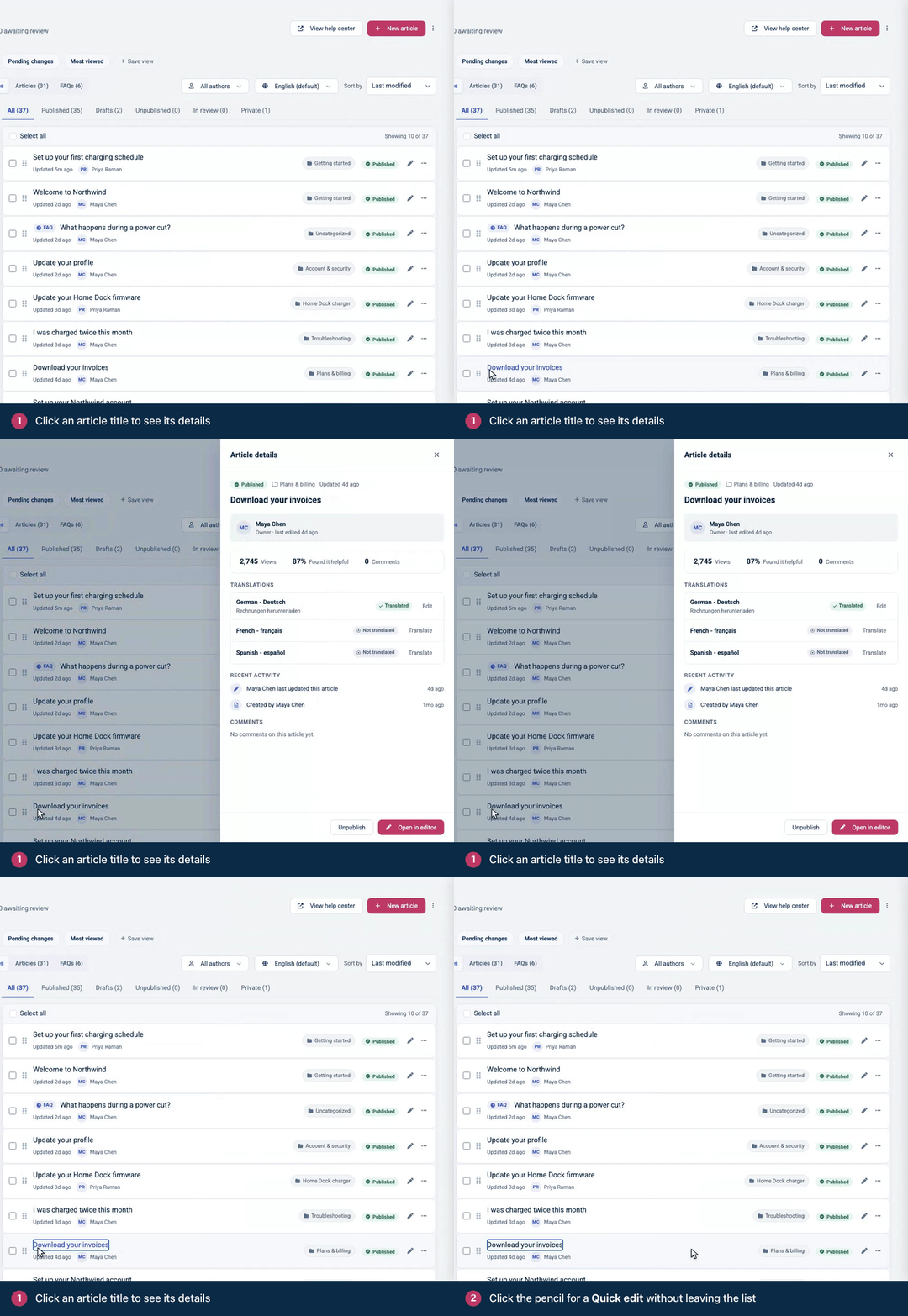
Section | What it shows |
|---|---|
Top | The article's status, its category and when it was last updated. For an unpublished article, who took it down, when and why. |
Owner | The article's author and who edited it last. If a teammate has it open, you see that they're editing it now. |
Views, Found it helpful, Comments, Avg. read | How often it was viewed, the share of reader ratings that were positive, how many reader comments it has and, when it's available, the average reading time. |
Translations | On help centers with more than one language: each language's state (Translated, Outdated or Not translated), with a button to edit or translate it. |
Recent activity | The last update, any review flag or scheduled review, when it was unpublished, and who created it. |
Comments | The reader comments on the article. |
At the bottom, Publish or Unpublish changes the article's status straight away, and Open in editor opens it for editing. For how to read the numbers, see Find your best and weakest articles.
Make a quick edit
Click the pencil icon on the article's row.
Change the Title or the text under Content. Select text to format it.
Click Save changes, or press ⌘S (Ctrl+S on Windows).
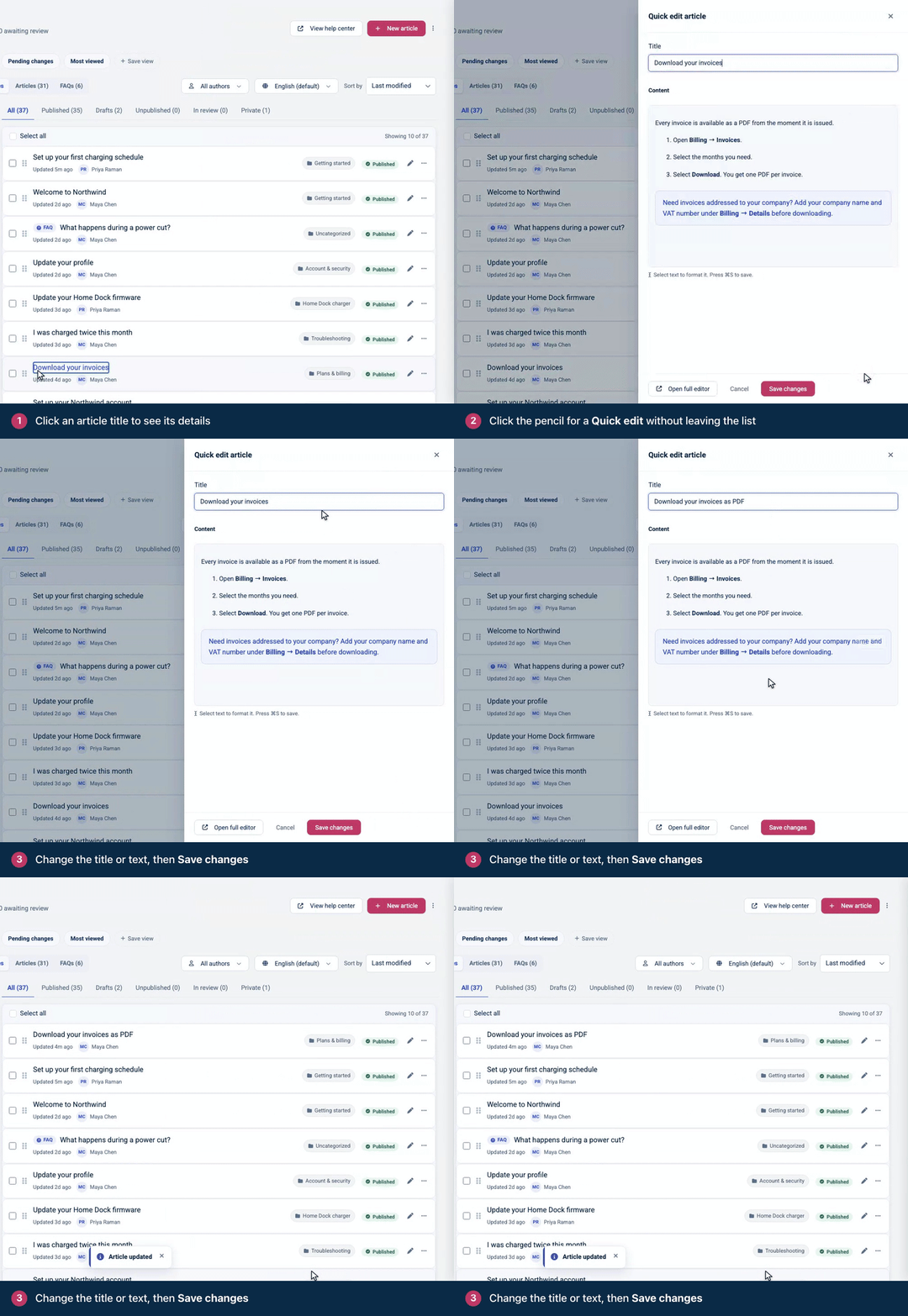
For an FAQ, the fields are Question and Answer. Quick edit changes the language that's selected in the list's language menu. For anything else, such as the category, access or search settings, click Open full editor.
Quick edit saves straight to the live article. On a published article, readers see your change as soon as you click Save changes: there's no Update step. This is also true on help centers that use staged changes, so to stage an edit, or to change an article that already has staged changes, use the full editor.
Duplicate an article
Start a new article from one you already have, for example to write a similar how-to for another product.
On the Articles page, open the article's … menu.
Click Duplicate.
The list stays where it is, and a message confirms the copy with an Edit copy button to open it. The copy is a draft with the same content and categories, titled with "Copy" after the original title. You're its author, and it gets its own URL in every language. Anyone who can create articles can duplicate one. In the editor, New → Duplicate this article does the same for the article you have open.
Troubleshooting
"A title is required before saving." Add a title, then save again.
"Your changes could not be saved. Please try again." Try once more. If it still fails, click Open full editor and make the change there.
Comments
Be the first to comment.