

Send your help center's traffic to Google Analytics 4 or Google Tag Manager, next to HelpCenter.io's built-in statistics. You add Google's code once in the template editor, and it runs on every page of your help center.
Who can do this: Owners and Admins (Editors through Customize on your help center) · Plans: All plans
Add Google Analytics 4
You need your measurement ID from Google Analytics. It looks like G-XXXXXXXXXX.
In the left menu, click Template editor, then open Advanced.
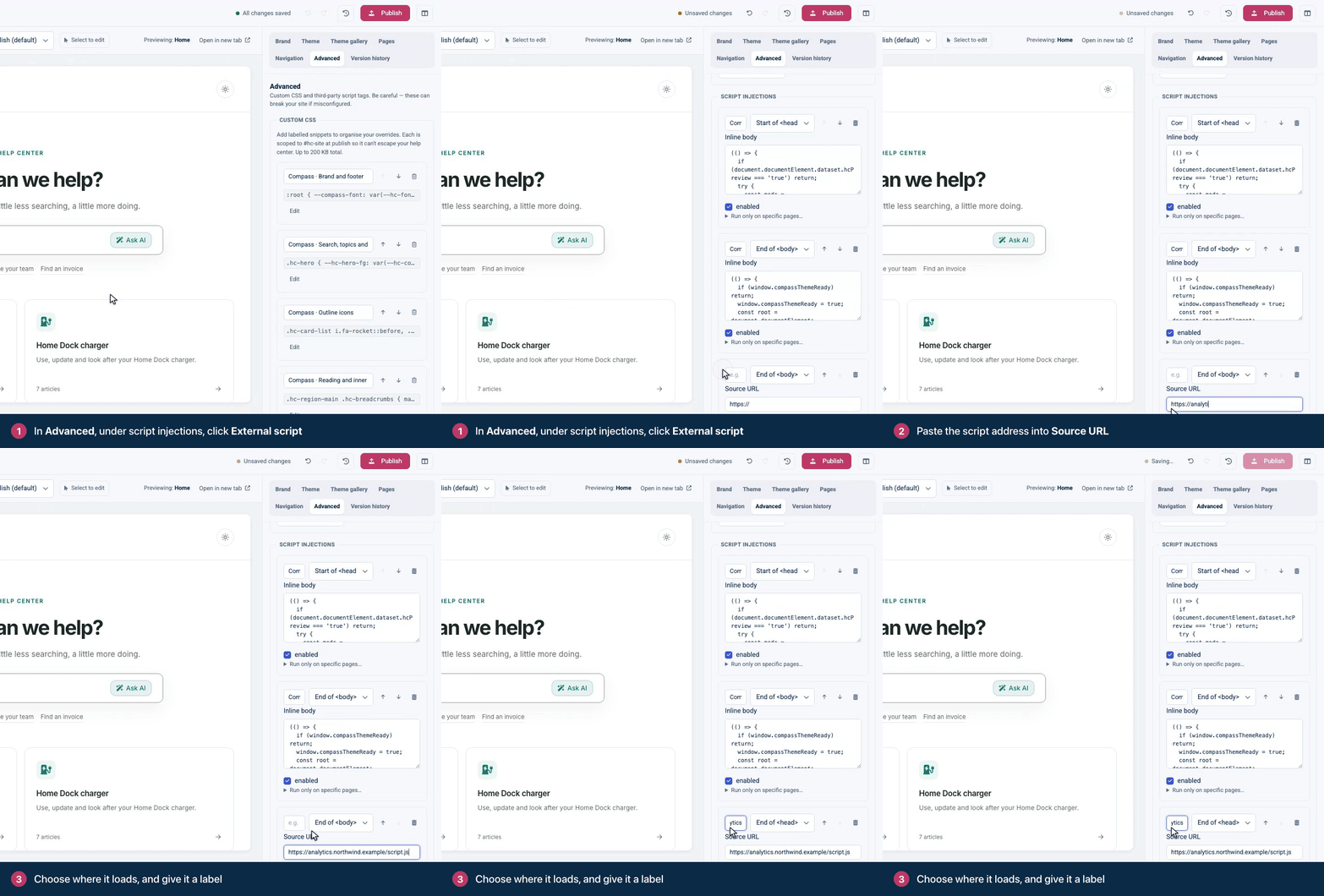
Under Script injections, click External script.
In Source URL, paste
https://www.googletagmanager.com/gtag/js?id=G-XXXXXXXXXXwith your own measurement ID at the end.In the position menu, choose End of <head>, and give the script a label, such as "Google Analytics".
Click Inline script, choose End of <head> as its position, and replace the text in Inline body with this code, using your measurement ID:
window.dataLayer = window.dataLayer || [];
function gtag(){dataLayer.push(arguments);}
gtag('js', new Date());
gtag('config', 'G-XXXXXXXXXX');
Click Publish, then Publish again to confirm.
Paste only the JavaScript in Inline body: HelpCenter.io wraps an inline script in <script> tags for you.
Prefer to paste Google's snippet exactly as Google gives it? Click HTML snippet instead of the two scripts, paste the whole snippet, and choose End of <head>. HTML snippets appear on the page exactly as you enter them.
Add Google Tag Manager
Tag Manager gives you two pieces of code. Add each as its own HTML snippet:
In the template editor, open Advanced and under Script injections, click HTML snippet.
Paste the first piece, the one that starts with
<script>, and choose Start of <head>.Click HTML snippet again, paste the second piece, the one that starts with
<noscript>, and choose Start of <body>.Publish your design.
Verify your help center in Google Search Console
Choose the HTML tag method in Search Console and copy the <meta name="google-site-verification" …> tag. In the template editor, click HTML snippet, paste the tag and keep the position End of <head>. Publish your design, then go back to Search Console and verify.
Good to know
Nothing runs until you publish. Scripts are part of your design, so they go live with your next publish. See Publish your design.
Limit a script to some pages with Run only on specific pages…: pick Home, Category, Article, Search, Contact or Not found. Leave it empty to run on every page.
Switch a script off without deleting it by unticking enabled, then publish.
Consent is up to you. Google Analytics and Tag Manager can set cookies. If your visitors must agree to analytics first, add your consent banner or consent tool along with the tags.
Built-in statistics need no setup. HelpCenter.io already counts visitors, searches, article views and ratings. See Read your help center statistics.
Troubleshooting
Google Analytics shows no data. Check that you published your design, that enabled is ticked on both scripts, and that the measurement ID is the same in the Source URL and the inline code. Then open your help center and look at the Realtime report in Google Analytics.
The inline script doesn't run. Inline body takes JavaScript only. If you pasted Google's <script> tags into it, remove them, or use an HTML snippet for code that includes its own tags.
Comments
Be the first to comment.