

Callouts are colored boxes that lift a tip, a confirmation or a warning out of the flow of an article. Use them sparingly and readers will notice every one.
Who can do this: Owners, Admins and Editors · Plans: All plans
Add a callout
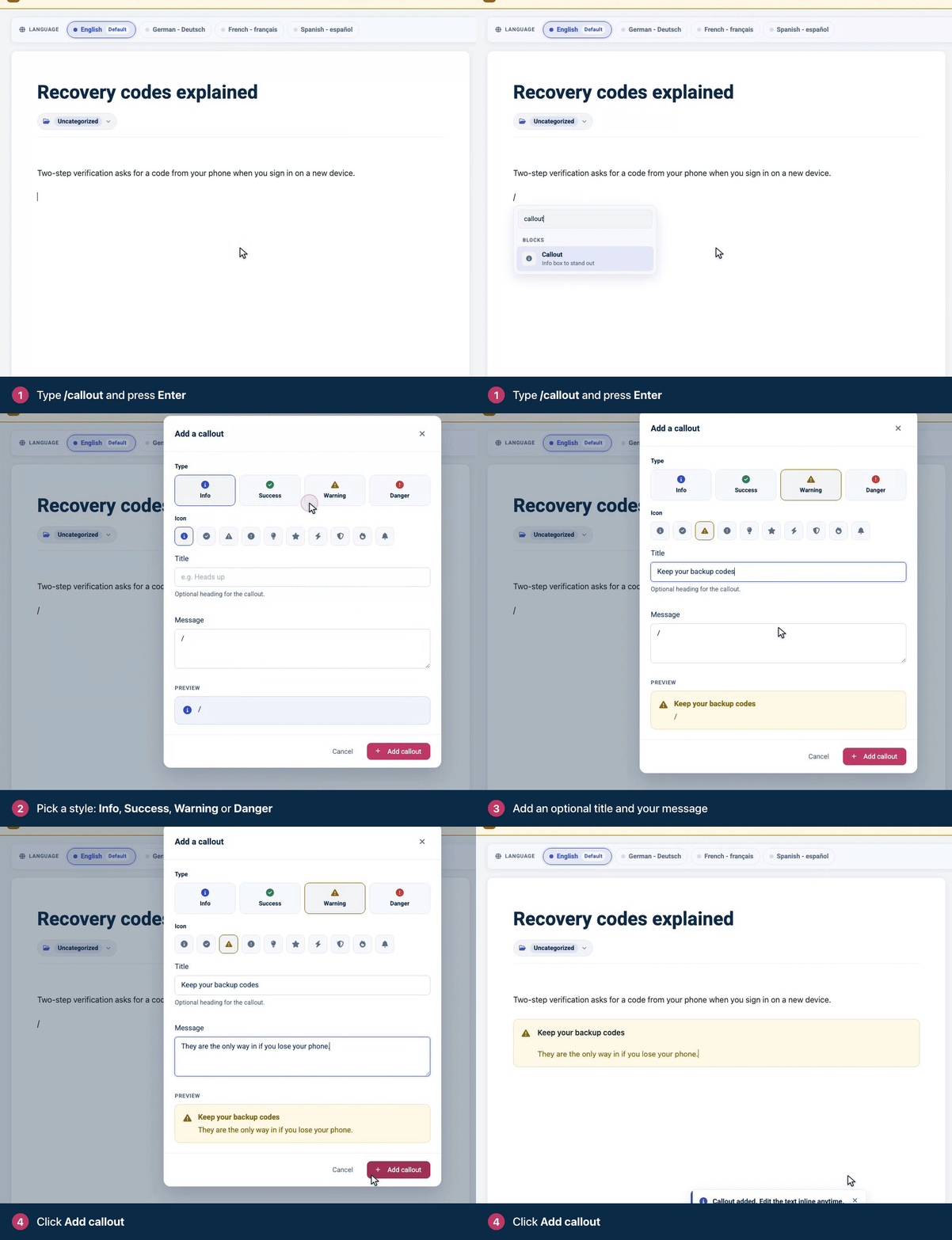
On an empty line, type
/calloutand press Enter.Under Type, pick a style: Info, Success, Warning or Danger. Each has its own icon, and you can pick a different one under Icon.
If you want a bold first line, add a Title. It's optional.
Write your text in Message. If you opened the menu by typing
/, the message box starts with that slash, so delete it first.Check the Preview and click Add callout.
To turn a paragraph you've already written into a callout, click in it, click the + to the left of the line and pick Callout. Its text is already in the message box.
The four styles
Here's how each style looks to your readers. The colors adapt to your theme, in light and dark mode.
Info adds helpful context, such as where a setting lives or what a term means.
Success confirms a good result or shares a tip that saves readers time.
Warning flags something that can trip readers up, such as a change that affects the whole team.
Danger warns about losing data, access or money. Say what would happen and how to avoid it.
Edit or remove a callout
Change the text: click in the callout and type.
Change the style, icon or title: point at the callout, click Edit, make your changes and click Save changes.
Remove the box but keep the text: click the + to the left of the callout and pick Callout again (it has a tick). The text stays as normal paragraphs.
Use callouts well
One or two per article is plenty. When everything stands out, nothing does.
Keep each callout to one to three sentences.
Place it right before the step it's about, not at the end of the article.
Keep instructions in your numbered steps. A step hidden in a callout is easy to miss.
Comments
Be the first to comment.