

When an article belongs to more than one topic, list it in each category instead of keeping copies. Readers find it wherever they look, and you have one article to keep up to date.
Who can do this: Owners, Admins and Editors · Plans: All plans
Add an article to several categories
Open the article from Articles.
Click the category under the title.
Turn on Multiple.
Click each category the article belongs in. A check mark shows the ones you picked. Click a category again to remove it.
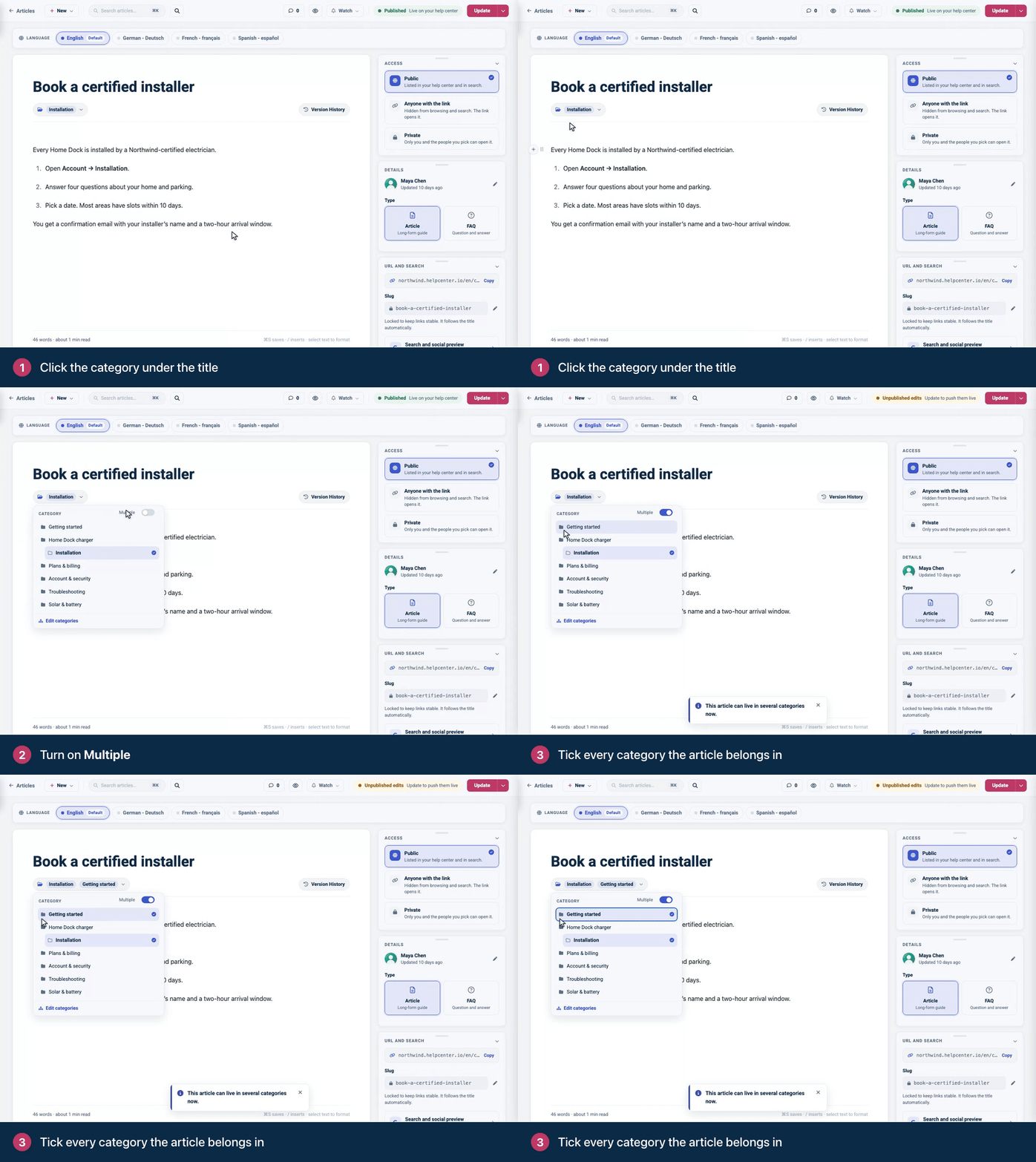
Save the article: click Update if it's live, or Save draft if it isn't.
While Multiple is on, an article needs at least one category.
From the Articles page
Choose Move to… from the article's … menu. Its current categories are already ticked. Tick the others it belongs in and click the move button, for example Move to 2 categories. For several articles at once, tick them and click Change category in the bar. Either way, the articles end up in exactly the categories that are ticked, in place of the ones they had.
What readers see
The article is listed in every category you picked, and it keeps one address.
In search suggestions that show categories (a search bar set to Detailed results), its category reads Multiple categories.
Its breadcrumb shows your help center's home and the article, without a category.
If your category pages use a custom order, the article can have its own position in each category. See Change the order of articles and categories.
If one of its categories is private and another isn't, readers can still find the article through the one they can see. See Make a category private.
Go back to one category
Turn off Multiple. The article keeps the first category in its list, and you can pick a different one. Then save the article.
A second category or a link?
If an article only touches on another topic, a link to it from a related article may serve readers better than a second category. See Link to another article or a website.
Comments
Be the first to comment.