

Searches tell you, in your readers' own words, what they came to find. Failed searches show what your help center doesn't answer yet, which makes them the best list of articles to write next.
Who can do this: Owners, Admins and Editors · Plans: All plans
See your searches
In the left menu, click Statistics and pick a period.
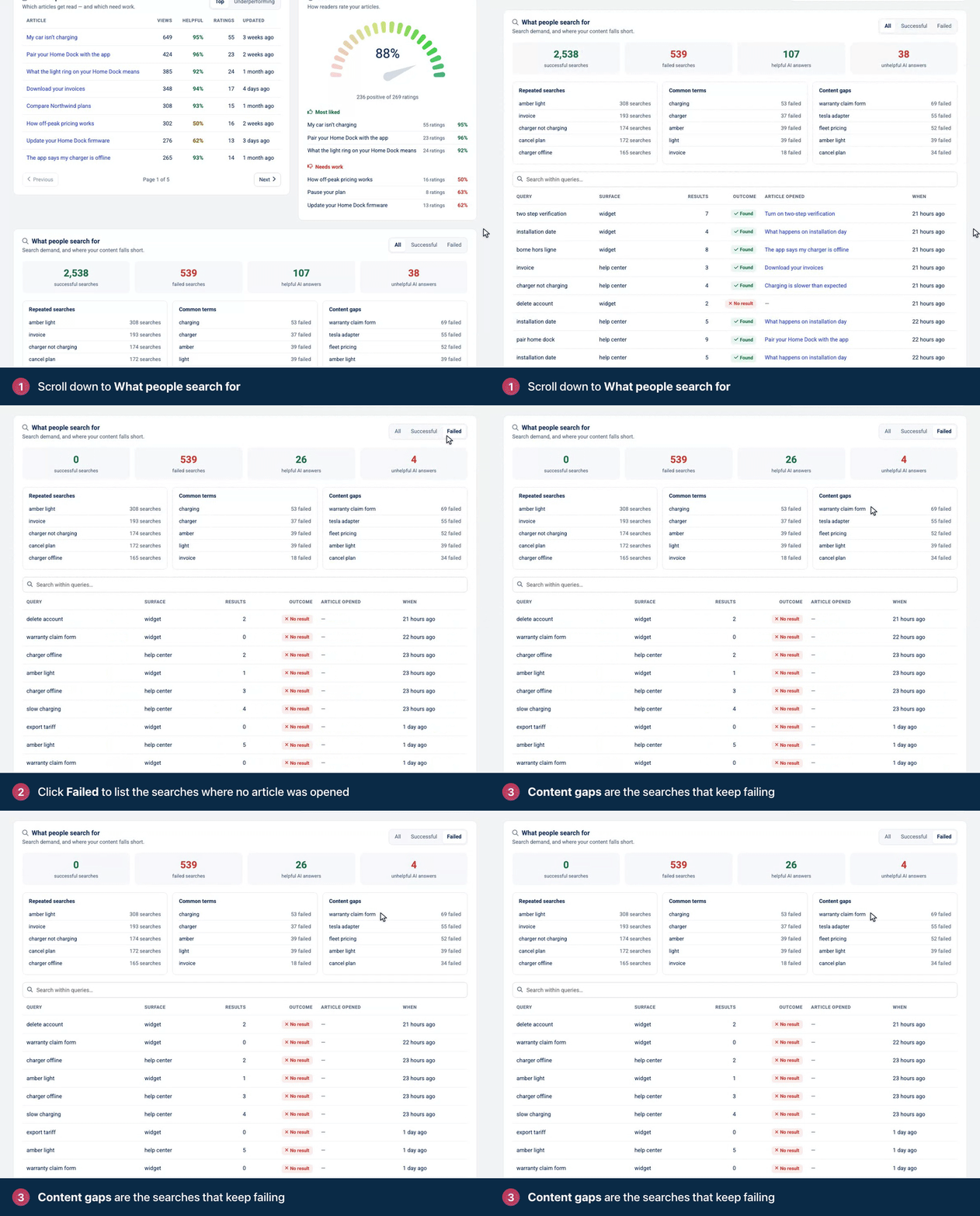
Scroll down to What people search for.
Click All, Successful or Failed to choose which searches to list.
What counts as successful
A search is successful when the reader opens an article from the results. It fails when they don't open any, either because nothing matched or because nothing looked like the answer.
The counts at the top follow the tab you pick, so keep All selected to compare successful and failed searches side by side.
The lists
List | What it shows |
|---|---|
Repeated searches | Searches people make again and again, with how many times. |
Common terms | Words that come up most often in searches, with how many of those searches failed. |
Content gaps | Searches that keep failing. Each one is an article you haven't written yet, or one readers can't recognize from its title. |
The search table
Below the lists, a table shows every search in the period. Type in Search within queries… to find a word.
Column | What it shows |
|---|---|
Query | What the reader typed. |
Surface | Where they searched, such as your help center or the widget. |
Results | How many articles the search returned. |
Outcome | Found when the reader opened an article, No result when they didn't. A search can show results and still read No result, because nobody opened one. |
Article opened | The article the reader opened from the results. |
When | When the search happened. |
Questions readers ask AI
With AI Answers on, you also see:
helpful AI answers and unhelpful AI answers, counted from how readers rated the answers they got.
The What people ask AI about your articles card, which lists questions readers asked about a specific article, how many times and by how many visitors, and how often they were Answered well.
Turn failed searches into articles
Click Failed and look at Content gaps.
For each gap, check Results in the table. If a search returned nothing, write the missing article. If it returned articles that nobody opened, the article probably exists: give it a title and opening lines that match what readers typed.
Use your readers' words. If they search for "invoice" and your article says "billing statement", add "invoice" to the title or the first paragraph.
Check the same list again in a week or two to see the gap close.
For a routine that keeps your help center current, see Keep your help center up to date. To pull content gaps into your own tools, see Analytics on the developer portal.
Comments
Be the first to comment.