

The dashboard is where your team writes articles, designs your help center and manages its settings. Here's what's where, so you can get anywhere in a click or two.
Who can do this: Everyone on your team (what you see depends on your role) · Plans: All plans
The left menu
Menu item | What you do there |
|---|---|
Articles | Write, edit, organize and publish articles and categories. |
Change sets | Group changes to many articles and publish them together. Part of the Catalyst plan. |
Template editor | Design your help center: theme, logo, colors, pages and navigation. |
Statistics | See visitors, searches, article views and ratings. |
Comments | Approve and answer reader comments. It appears once you publish a design that has the Comments component. |
Trash | Restore articles you deleted. |
At the bottom of the menu:
The gear icon opens Settings (visibility, custom domain, AI features, API keys, integrations and more), Localization (languages and interface texts), Users (your team) and Embeddables (the widget, proactive messages and FAQ sections).
Send feedback lets you tell us what's working and what could be better.
What's New shows recent product updates.
Your avatar opens Account Settings (your profile, password and two-factor authentication), Billing & Invoices, Need Help? (this help center) and Log out.
Switch help centers
Hover over the logo at the top of the left menu to see which help center you're in. Click the arrow to list your other help centers, then pick one. You stay in the same section, so if you're on Statistics, you land on Statistics.
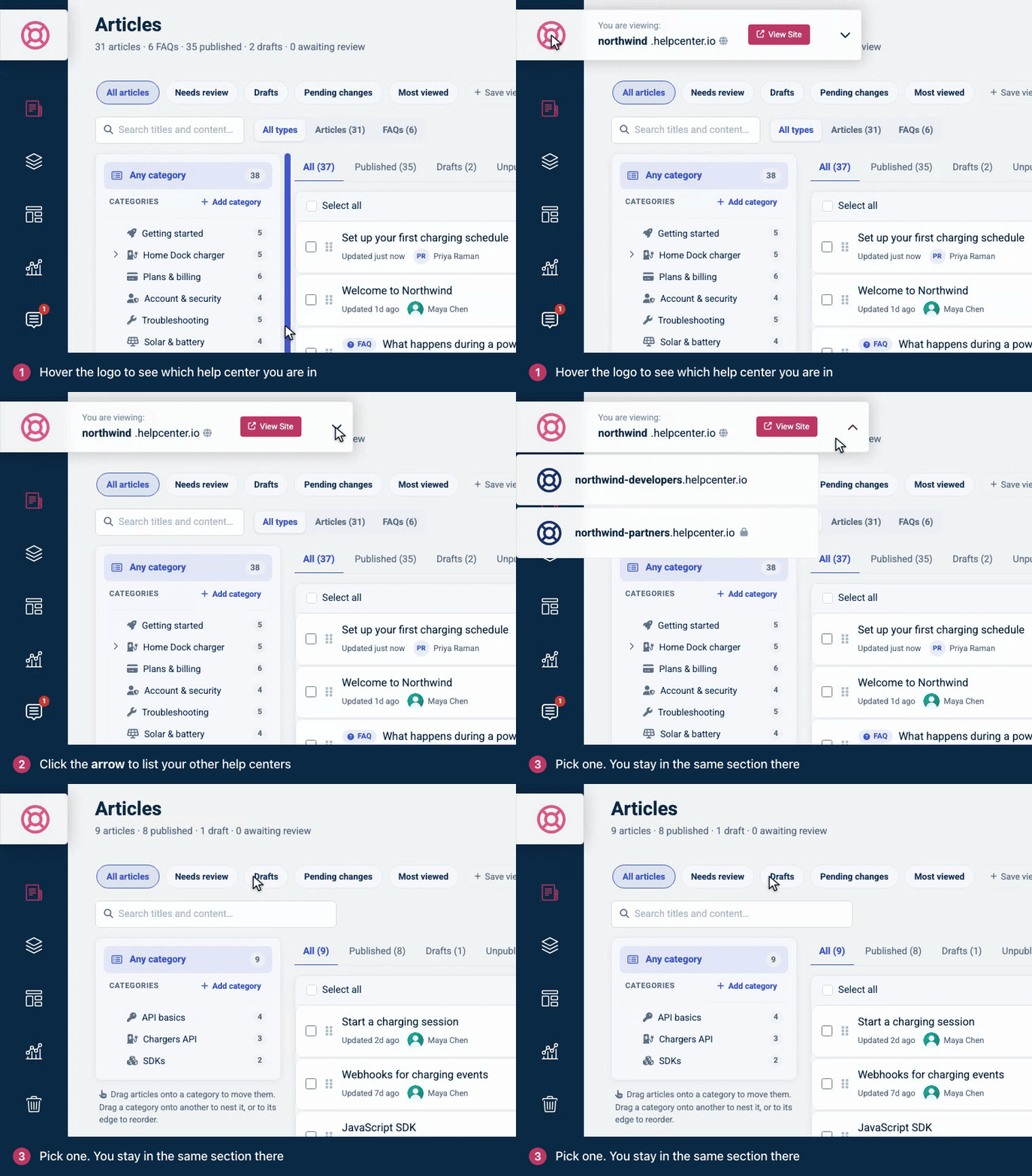
See Switch between your help centers for more.
The Articles page
Categories sit on the left. Click one to filter the list, or drag articles onto it to move them.
Views run across the top, such as All articles, Drafts and Most viewed. Click Save view to keep your current filters one click away.
Search looks through titles and content.
Status tabs narrow the list: All, Published, Drafts, Unpublished, In review and Private.
Article details open when you click an article: its status, statistics and translations. New article and View help center are at the top right.
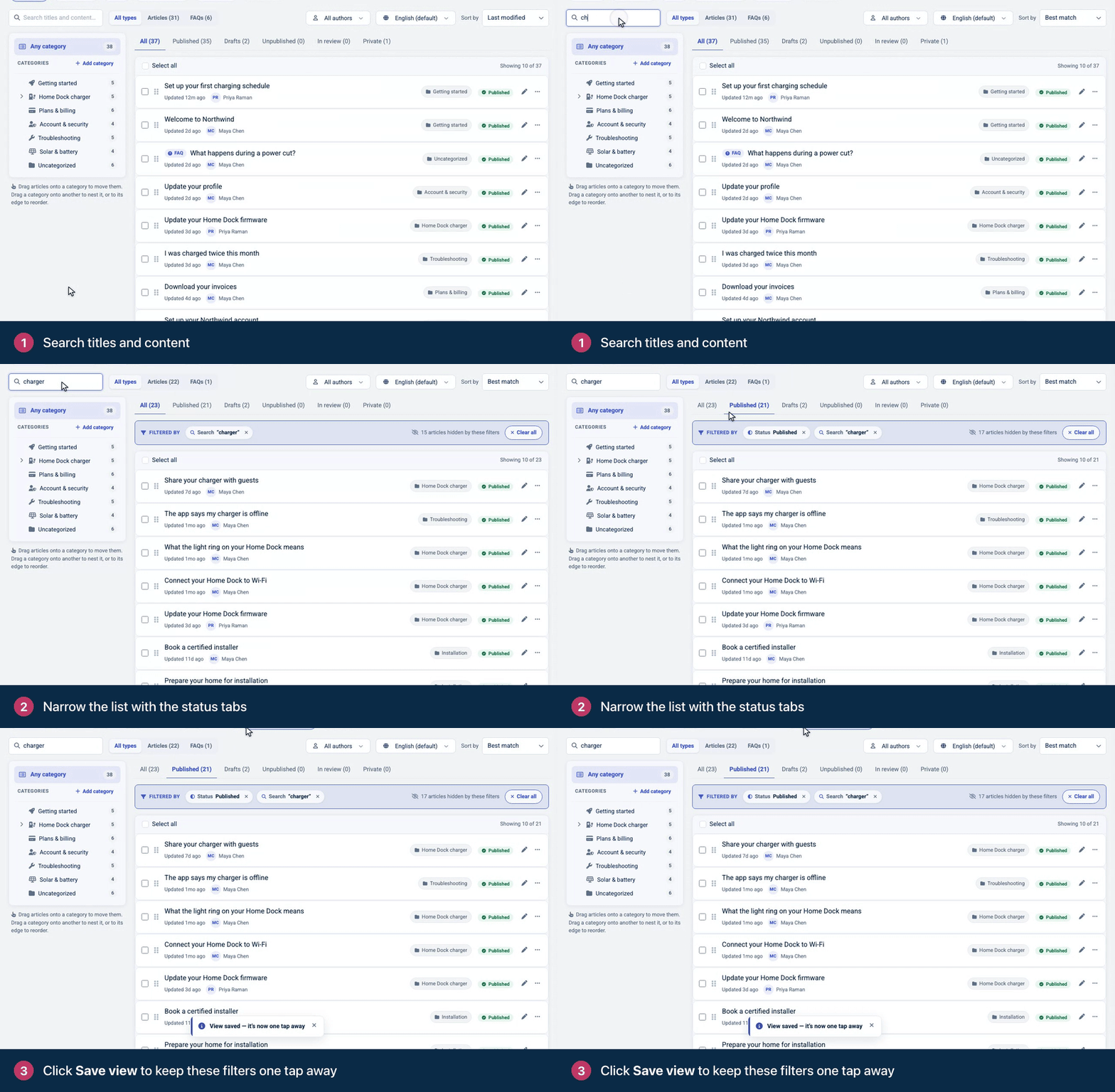
See Find articles with search and filters for every filter and sort option.
What each role sees
Role | What's in their menu |
|---|---|
Owner and Admin | Everything above, including Template editor and the gear menu. |
Editor | Articles, Change sets, Statistics, Comments and Trash. Editors reach the template editor with Customize on your help center. |
Translator | Articles, to translate them into your other languages. |
Viewer | No dashboard. Viewers read the help center itself. |
Only the account owner can manage a help center's subscription under Billing & Invoices. See Roles and permissions for everything each role can do.
Get around faster
From your help center. When Owners, Admins and Editors open their help center while signed in, a toolbar in the bottom right corner links to the Dashboard, to Customize and, on article pages, to Edit article.
With shortcut links. Links such as helpcenter.io/app/settings, helpcenter.io/app/team and helpcenter.io/app/statistics open that section. If you have several help centers, you pick one first.
Comments
Be the first to comment.