

A change set groups edits to live articles, new articles and hidden categories into one named release. Publish it in one click, or schedule it, so your help center changes at the moment your feature launches.
Who can do this: Owners, Admins and Editors · Plans: Catalyst (early preview)
Change sets are in early preview. Every Catalyst help center has staged changes. Change sets are being turned on one help center at a time. To ask for access, click Change sets in the left menu and then Request access, or contact our support team.
Create a change set
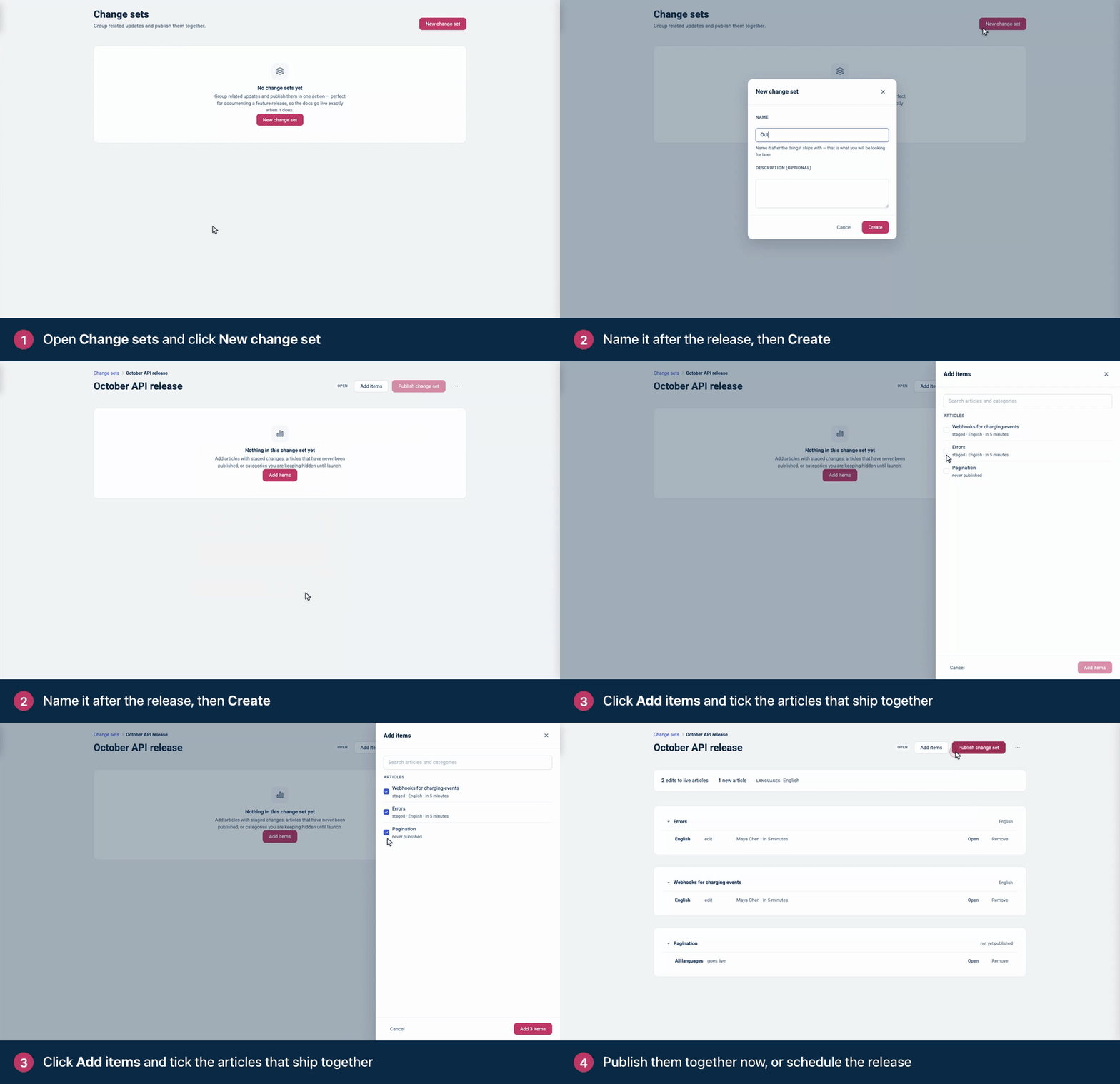
Click Change sets in the left menu, then New change set.
Enter a Name. Name it after what it ships with, for example "September release", so you can find it later. Add a Description (optional) if it helps.
Click Create.
Click Add items, tick the articles and categories that ship together, and click the add button at the bottom.
What you can add
Item | What happens when the change set publishes |
|---|---|
Articles with staged changes | The staged edits go live. See Edit live articles safely with staged changes. |
Articles that have never been published | They're published and become visible. |
Hidden categories | Categories that aren't shared with everybody become visible to everybody. |
You can also add articles from the Articles page (tick them, then Add to change set) or from the staged changes banner in the editor (Add to change set). Pick a change set, or + New change set… to start one.
Once an article's staged changes belong to a change set, the editor tells you they publish with that change set, and you manage them from the change set's page.
Check that it's ready
The change set's page lists every item and sums up the release: edits to live articles, new articles, categories and languages.
A red banner saying items need attention means something can't be applied: for example, an article was deleted, or a live article changed after its edits were staged. Open the article to compare, then publish or discard its staged copy, or Remove the item. Publish change set stays unavailable until those items are fixed or removed.
Worth a look before you publish lists things only you can judge, such as an article with no changes in one of your languages, which will publish untranslated. These don't stop the release.
Publish or schedule the release
Click Publish change set. The dialog lists what's about to happen.
Add a Release note (optional) if you like.
Under When, choose Publish now, or choose Schedule for and pick a date and time. Times use your computer's time zone.
Click the publish button, which shows how many items will go live, or Schedule release.
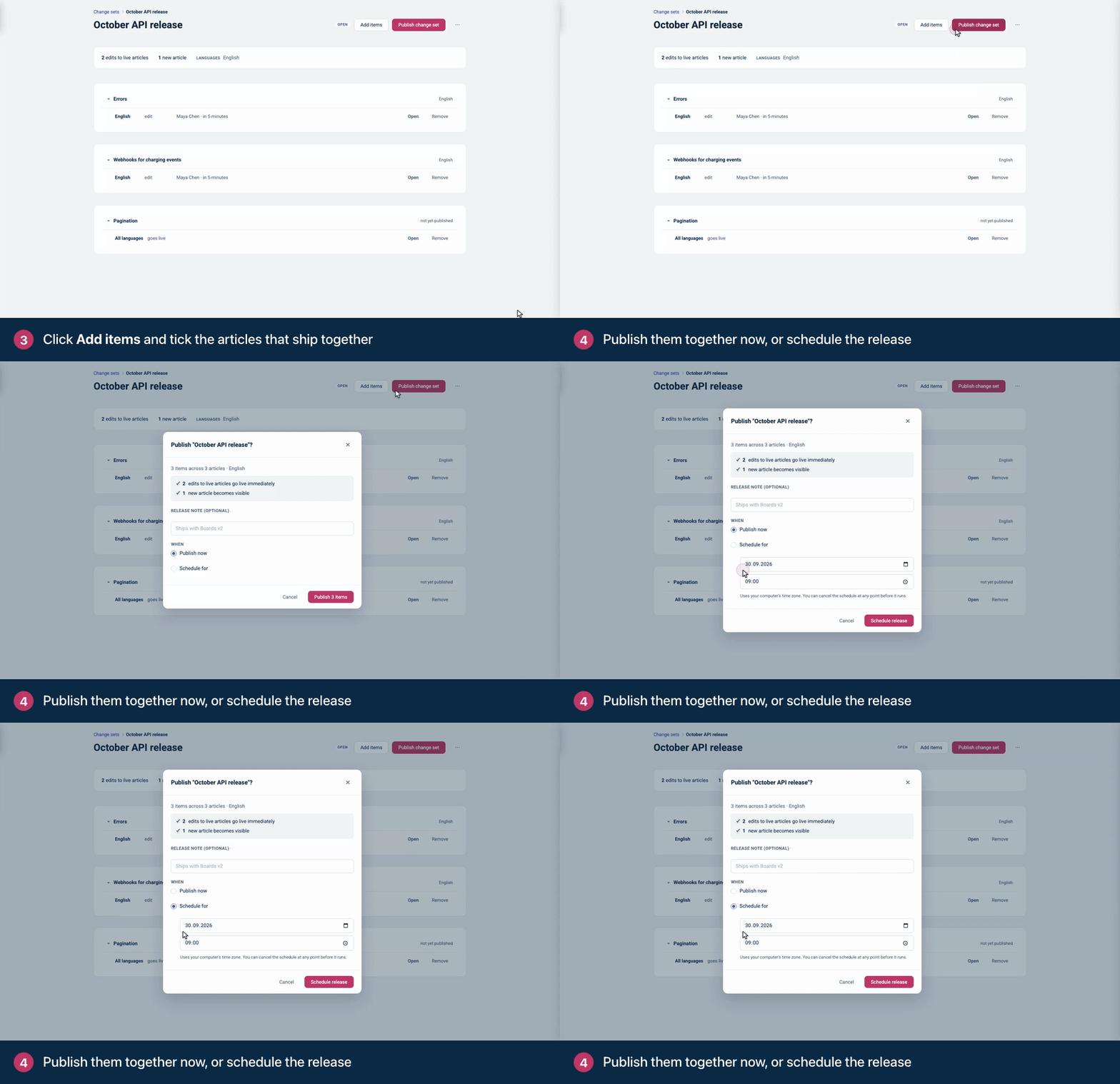
A scheduled change set shows when it will publish, and everything in it goes live automatically at that time. To stop it, click Cancel schedule any time before then. Change sets are the way to schedule publishing in HelpCenter.io.
After publishing
When everything is live, the change set shows Published. If some items couldn't be published, it shows Needs attention: the items that worked are live, so fix the others and click Retry remaining items. Items that are already published are skipped, and watchers aren't emailed twice. A retry publishes right away: only a change set that hasn't been published yet can be scheduled.
Change or delete a change set
Remove takes an item out of the release. The work itself is kept.
The … menu on the change set's page has Rename… and Delete change set. Deleting removes only the grouping: staged changes stay staged, and unpublished articles stay unpublished.
A change set holds up to 500 items, and you can have up to 25 open change sets at a time.
Change sets over the API
You can build and publish releases with the HelpCenter.io API too, with an API key. Connected apps, AI agents included, can't use change sets. See Publish release notes with change sets and the Change sets reference on the developer portal.
Comments
Be the first to comment.