

New help centers start private, so you can set yours up before anyone sees it. When you're ready for customers, make it public: anyone can then find and read your published articles.
Who can do this: Owners and Admins · Plans: All plans
Before you start
Two things come first, both on the account owner's side:
A verified email address. Until it's verified, the Public option reads "Available once your email is confirmed" and Settings shows a Confirm your email address notice. Open the verification email we sent when you signed up and click its link, or get a new one from Account Settings with Resend.
An activated plan. Public is available once the owner activates a subscription. Until then, the Public option reads "Available once your plan is activated" and Settings shows Go public when you activate your plan, with an Activate your plan button. You can activate during the free trial without losing the days you have left, so nothing is charged before the trial ends. See Choose a plan and start your subscription.
Until then, you can keep building and preview every page while signed in with Preview your help center, and Private and Password work as usual. If you're an Admin, the option reads "Available once the owner activates a plan": ask the owner to activate it.
Make it public
In the left menu, click the gear icon, then Settings.
In the General card, go to Access & visibility.
Choose Public.
Click Save changes.
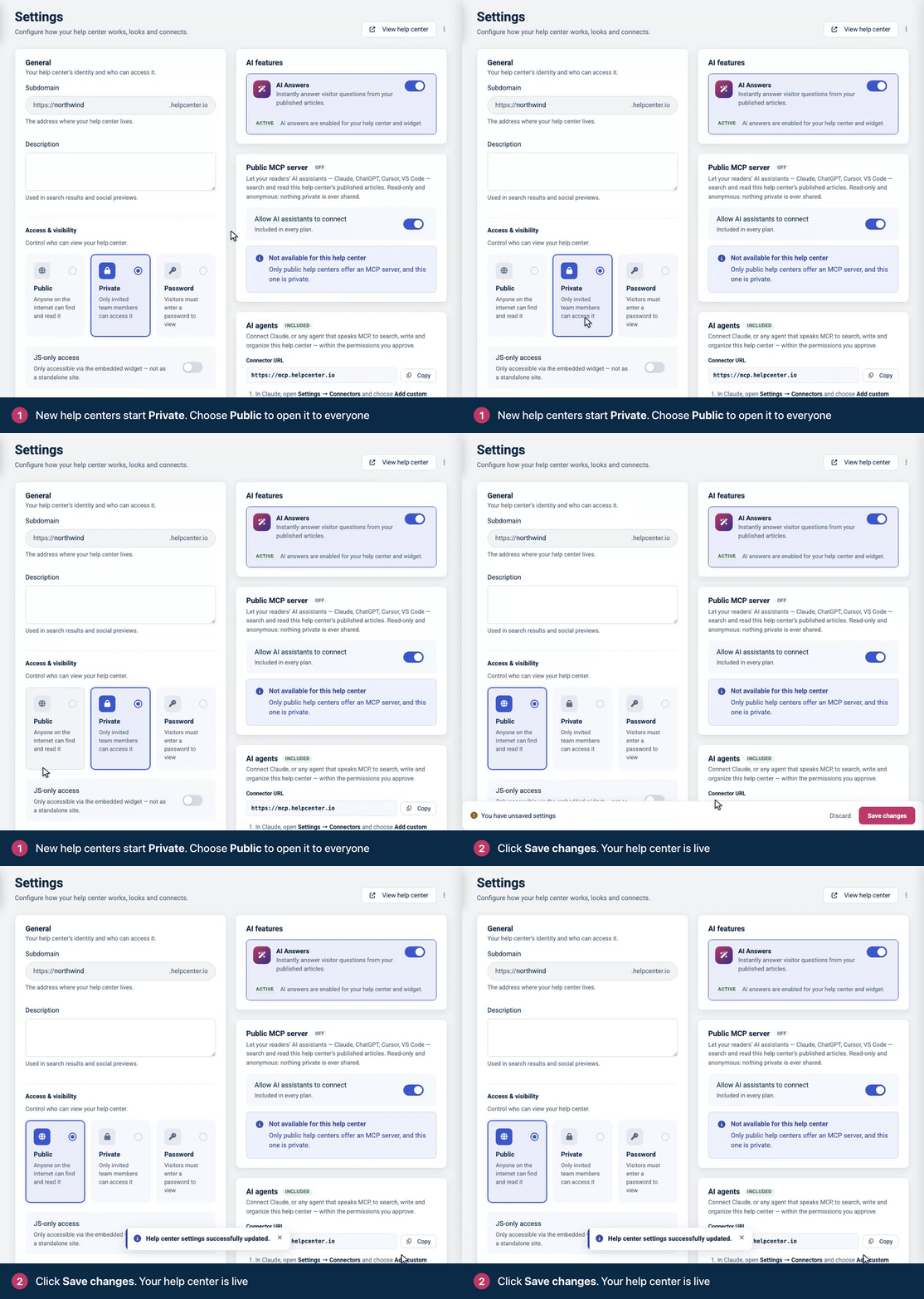
You see "Help center settings successfully updated." and your help center is live.
What changes when you go public
Anyone can open your help center and read your published articles without signing in.
Drafts, private articles and private categories stay hidden from readers.
Search engines can list your help center, because Search engine indexing is on by default. It's in the same card. See Hide your help center from search engines.
Readers can connect your help center to their own AI assistant through its public MCP server, which is on by default. See Let readers use your help center in their AI assistant.
Other ways to share it
Option | Who can read it | Good for |
|---|---|---|
Public | Anyone on the internet. | Help for your customers. |
Private | People you invite to your team, in any role. They sign in with HelpCenter.io. | Internal knowledge bases, and help centers that aren't ready yet. |
Password | Anyone who has the password you set under Access password. | A small group who don't have HelpCenter.io accounts. |
See Control who can see your help center for every option, including single sign-on and IP restrictions.
Troubleshooting
You can't choose Public. The option is locked until the owner's email is verified and their plan is activated. The text under Public says which one is missing. See Before you start above.
"Please set a password before switching the help center to password-protected visibility." Enter a password under Access password, then save.
Visitors are still asked to sign in. Check that you clicked Save changes, then reload the page.
Comments
Be the first to comment.