

Choose who can see a whole category and every article in it. Keep internal guides for your team, or share early documentation with a few people, while the rest of your help center stays open.
Who can do this: Owners, Admins and Editors
Choose who can see a category
Click Articles in the left menu and select the category in the Categories panel.
Click Edit category.
Under Share with, choose who can see it.
Click Update category.
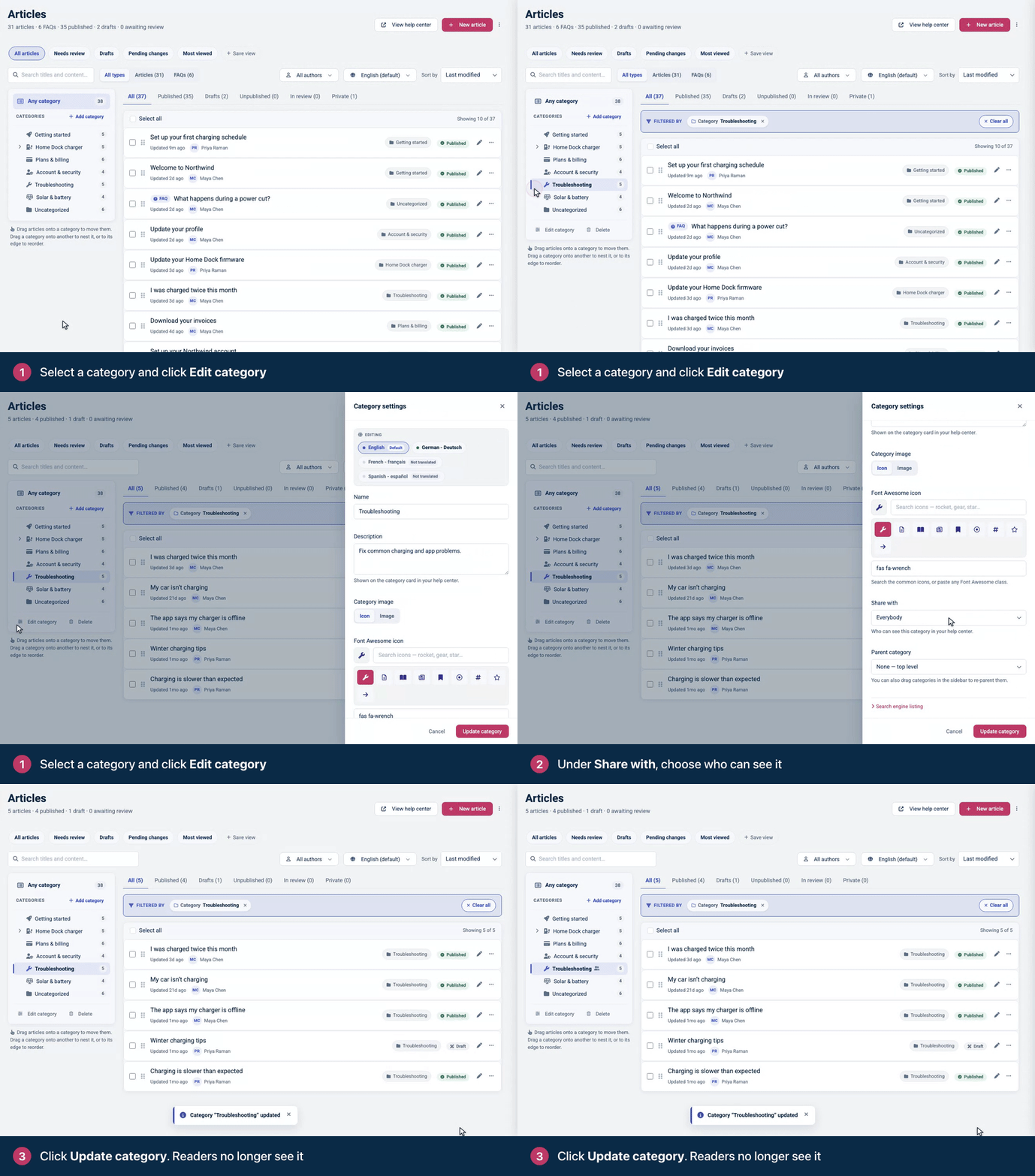
If you choose Me and selected team members, pick each person under Choose a team member… and click Add before you save. Under Category is shared with: you see everyone who has access. Private categories are always shared with whoever created them.
The Share with options
Option | Who can see the category and its articles |
|---|---|
Everybody | Everyone who can read your help center. This is the default. |
Everybody with a link (hidden from navigation) | Anyone who has a link to the category or its articles. The category is left out of your help center's navigation, and its articles don't show in search results or article lists. |
Team members only | Everyone on your team, whatever their role, while they're signed in to HelpCenter.io. |
Me and selected team members | You and the teammates you add. Nobody else on your team can see it on your help center, and it's hidden from them in the dashboard too, except a subcategory: its name still shows in the Categories panel for the whole team. |
In the Categories panel, a lock marks categories shared with selected team members, and a people icon marks categories for team members only.
What readers without access see
The category disappears from your home page and navigation.
Its articles drop out of search results, article lists, the widget and AI Answers.
A link to the category or to one of its articles shows a not-found page.
Good to know
Articles in several categories stay visible through any category the reader can see. To hide such an article, remove it from its other categories, or set the article's own access to Private. See Choose who can read an article.
Subcategories follow their parent. Readers who can't see a category can't see anything inside it either: its subcategories and their articles are hidden from them too, whatever their own Share with says. A subcategory's own setting can only narrow who sees it. Under a category shared with Everybody with a link, subcategories leave the navigation too, but a direct link still opens them.
Readers who sign in with single sign-on aren't on your team, so they don't see categories set to Team members only or Me and selected team members.
To hide your whole help center, make it private or password-protected instead. See Control who can see your help center.
Troubleshooting
A teammate can't see the category. If it's set to Me and selected team members, add them in the category's settings. They also need to be signed in to HelpCenter.io. See Someone can't see an article or the help center.
Readers can still find one of its articles. The article is probably in another category too. Open it and check the categories under its title.
Comments
Be the first to comment.