

Publish, move, flag or delete a batch of articles in one go, instead of opening them one by one.
Who can do this: Owners, Admins and Editors · Plans: All plans
Change several articles
Click Articles in the left menu. Narrow the list with search, tabs or filters if that helps.
Tick the box next to each article you want to change. A bar appears at the bottom with the number you selected.
Click an action in the bar, for example Change category.
Tick the category the articles should move to, untick any they should leave, and click Move.
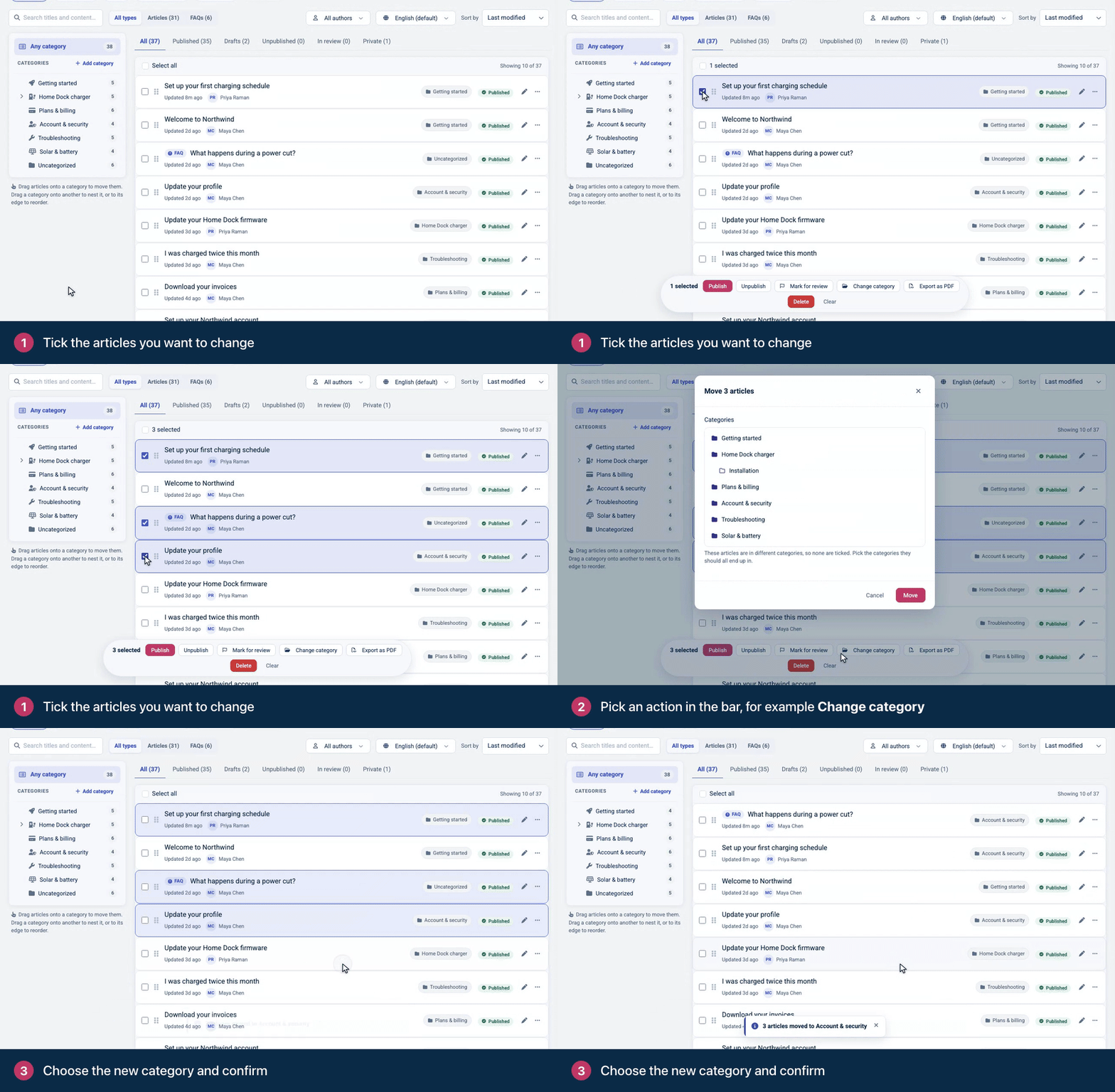
To pick every article in the list, tick Select all at the top. It selects the articles that are loaded, so scroll down or click Load more first if you need the rest.
Actions in the bar
Action | What it does |
|---|---|
Publish | Publishes the drafts. For live articles with staged changes, it publishes those changes. Live articles with nothing staged stay as they are. |
Unpublish | Takes the articles off your help center and back to draft. |
Mark for review | Flags the articles for review, so they show under In review. Nobody is assigned or emailed. See Flag articles for review. |
Change category | Puts the articles in exactly the categories you tick, in place of the ones they had. The list opens with their current categories ticked when they all share them. Tick several to use more than one category, or none to make them uncategorized. |
Export as PDF | Emails you a link to download the articles as PDFs. See Export articles as PDF. |
Add to change set | Adds the articles to a release that publishes later. It appears on help centers that use change sets (Catalyst, in early preview). See Release many changes together with change sets. |
Delete | After you confirm, moves the articles to Trash. See Delete and restore articles. |
Clear | Clears your selection. |
When an action finishes, a message sums up what happened, for example "3 articles published · 1 already live."
Moving or deleting more than 100 articles at once runs in the background. A notice counts the articles as they're done, for example "120 of 250 articles moved to trash.", and the ones still waiting stay in the list marked Moving to trash… or Moving category… You can keep working, or leave the page, while it finishes.
Drag to move
You can also drag selected articles onto a category in the Categories panel to move them there.
Troubleshooting
The message says some articles need attention because the live article changed after the edits were staged. Open each of those articles, compare the staged changes with the live version, then publish or discard them. See Edit live articles safely with staged changes.
The notice says some articles could not be changed. The rest of the move or delete went through. Check the articles that are still where they were, then select them and try again.
The message says some articles could not be saved. Select those articles and try the action again.
Some articles weren't added to a change set. Only articles with staged changes, or articles that have never been published, can join a change set.
Comments
Be the first to comment.