

Categories group your articles by topic, so readers can browse your help center instead of guessing what to search for. You create and arrange them on the Articles page.
Who can do this: Owners, Admins and Editors · Plans: All plans, with no limit on the number of categories
Add a category
Click Articles in the left menu. Your categories are in the Categories panel beside the article list.
Click Add category.
Type a name and press Enter.
To make it a subcategory, drag it onto the category it belongs in.
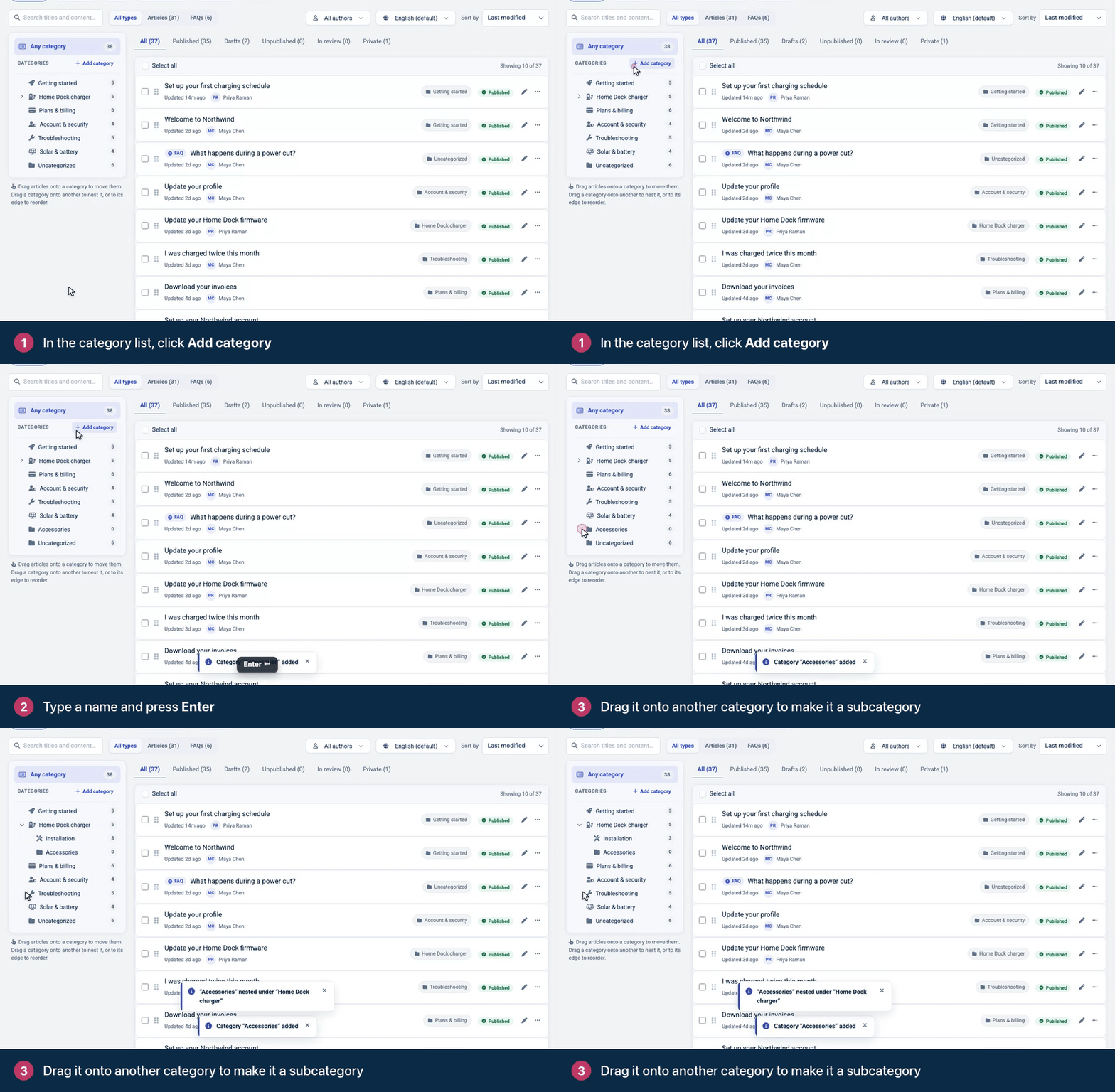
New categories start at the top level and are visible to everybody. To limit who can see one, see Make a category private.
Nest and arrange categories
Nest: drag a category onto another one. It becomes a subcategory.
Reorder: drag a category to the top or bottom edge of another one instead of onto it. See Change the order of articles and categories.
Pick a parent from a list: select the category, click Edit category, choose a Parent category and click Update category.
A category can't be moved into one of its own subcategories. You can nest as deep as you like, but readers find their way faster with no more than two levels. See Plan your help center's structure.
Put articles in a category
In the editor: click the category under the article's title and pick one.
On the Articles page: drag articles onto a category in the panel, or choose Move to… from an article's … menu.
An article can sit in more than one category. See Show an article in more than one category.
Click a category in the panel to list only its articles. Any category shows them all again.
Add or arrange categories from the editor
You can add a category or tidy the list without leaving the article you're writing.
In the editor, click the category under the article's title.
Click Edit categories at the bottom of the list.
To add a category, type its name in Category name and click Add. For a subcategory, first click the + beside the category it belongs in.
To reorder, drag a category by its handle. To nest it, drop it toward the right of the category it belongs in.
Click Done editing, then click the new category to put the article in it.
A new category is named in your default language, and the article isn't in it until you click it. A new order or nesting shows on your help center right away.
Rename a category
Select the category in the panel and click Edit category.
Change the Name and click Update category.
The same panel is where you add a description and an icon or image. See Add a category icon, image and description.
Delete a category
Select the category in the panel.
Click Delete under the category list, then Delete category to confirm.
Your articles are kept. An article that is also in another category stays there, and only an article left with no category becomes uncategorized, so readers can still open it. Its subcategories move to the top level.
A Category deleted message sums up what happened, for example "3 articles moved to Uncategorized · 1 subcategory moved to the top level".
Undo a delete
Click Undo in that message. The category comes back with its articles, their order and its subcategories, as they were. Anything you changed after the delete stays as it is, and the message tells you how many items that was.
Undo is offered only in the message that appears right after the delete, for about ten seconds. Once it's gone, the delete can't be undone.
Articles without a category
Articles that aren't in any category are grouped under Uncategorized in the panel. If they're published, readers can still open them and find them with search, but they aren't listed under any category on your help center.
How categories appear on your help center
Top-level categories show in the category list on your home page, in the same order as the panel.
Subcategories show on their parent category's page.
Empty categories still show, unless you turn on Hide empty categories for the category list in the template editor. See Customize category and article lists.
Comments
Categories can be rearranged via drag and drop from the categories management sidebar using the drag handle that appears on hover.
Reply