

As your help center grows, the Articles page helps you find any article in seconds. Search by words, narrow the list by status, category or author, and save the views you use every day.
Who can do this: Owners, Admins, Editors and Translators · Plans: All plans
Find an article
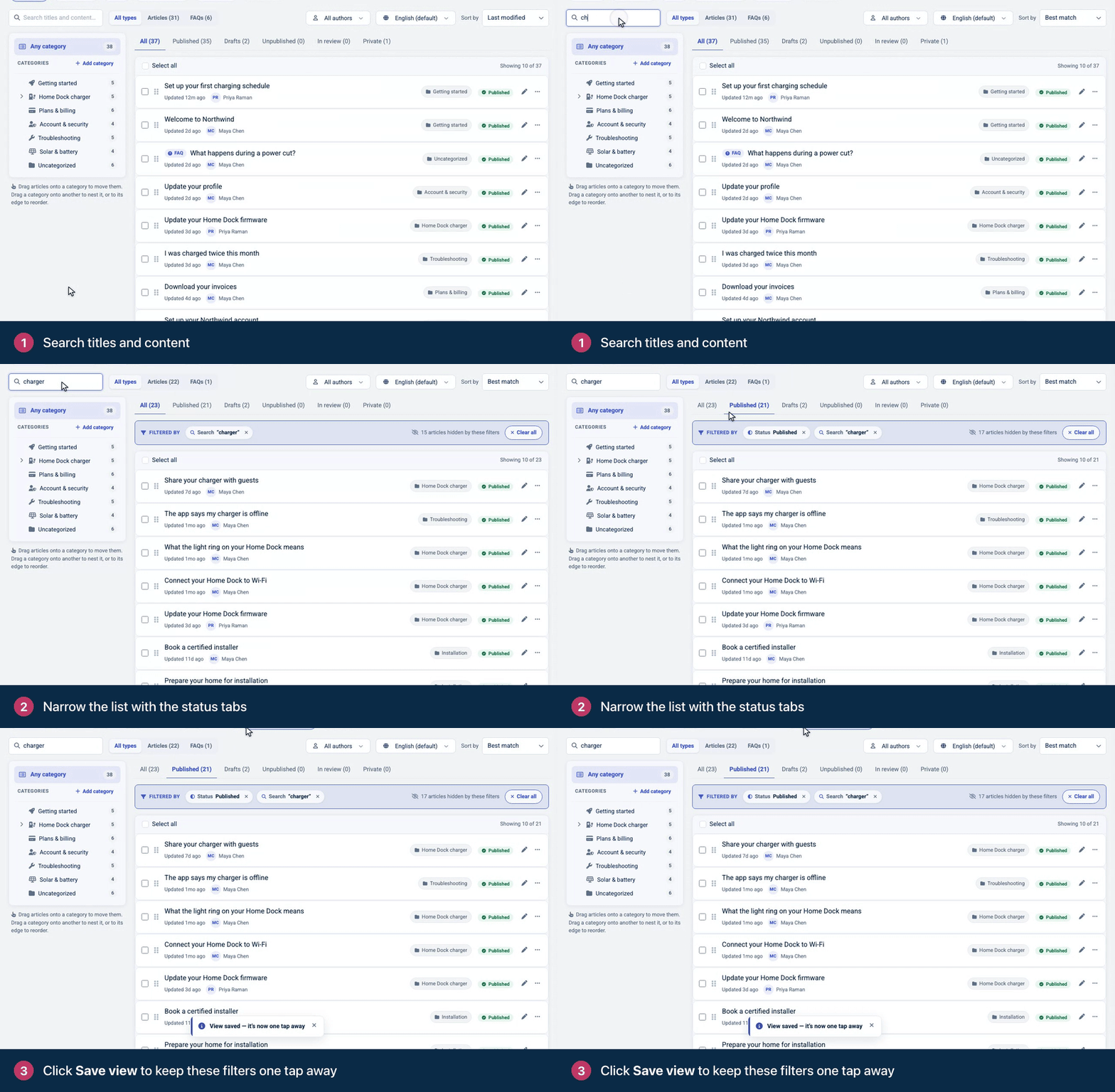
Click Articles in the left menu.
Type in the Search titles and content… box. The list updates as you type, and Sort by switches to Best match.
Click a status tab, such as Published, to narrow the list.
To keep this combination for later, click Save view.
Search also finds text in staged changes that aren't published yet, on help centers that use staged changes.
Status tabs
Tab | Shows |
|---|---|
All | Every article. |
Published | Articles that are live on your help center. |
Drafts | Articles that have never been published. |
Unpublished | Articles that were live and have been taken down. |
In review | Articles flagged for review, or past their scheduled review date. |
Private | Articles whose access is Private or Anyone with the link. |
Each tab shows how many articles it holds.
Narrow the list
By category: click a category in the Categories panel. Any category clears it.
By author: open All authors and pick a teammate.
By type: choose Articles or FAQs. This switch appears once your help center has FAQs.
By language: on a help center with more than one language, pick a language from the language menu to work on its translations. Then show Translated or Missing articles, and look for rows marked Not translated or Outdated.
By staged changes: on help centers that use staged changes, choose Has staged changes or No staged changes. You can also filter by change set.
Every filter you use shows as a chip next to Filtered by. Click the × on a chip to remove that filter, or Clear all to start over. When filters hide some articles, a note says how many.
Sort the list
Use Sort by to order the list by Last modified, Alphabetical, Most viewed or Most comments. Custom order lets you drag articles into place inside a category. See Change the order of articles and categories.
Views
The views above the list give you common lists in one click: All articles, Needs review, Drafts, Pending changes (articles with staged changes) and Most viewed.
Save view saves your current search, tab, category, author and sort as a view of your own, named after what it filters. To remove a saved view, click the × next to its name.
Your saved views, and the filters you used last, are kept in this browser. Teammates don't see them, and they don't follow you to another computer.
Long lists
More articles load as you scroll down. You can also click Load more at the bottom of the list.
What next
Click an article to see its details, or click its pencil icon to make a quick edit. See See article details and make quick edits.
Tick several articles to publish, move or delete them together. See Change many articles at once.
Comments
Be the first to comment.