

Decide who can read your help center: anyone on the internet, only your team, or anyone who knows a password. New help centers start as Private, so you can get your content ready before anyone else sees it.
Who can do this: Owners and Admins
The three options
You'll find them in Settings, under General → Access & visibility.
Option | Who can read it | How they get in |
|---|---|---|
Public | Anyone on the internet. Search engines can list it. | No sign-in needed. |
Private | People on your team, in any role, including Viewers. | They sign in with their HelpCenter.io account. |
Password | Anyone you give the password to. | One shared password. No account needed. |
Make your help center private
In the left menu, click the gear icon, then Settings.
Under Access & visibility, choose Private.
Click Save changes.
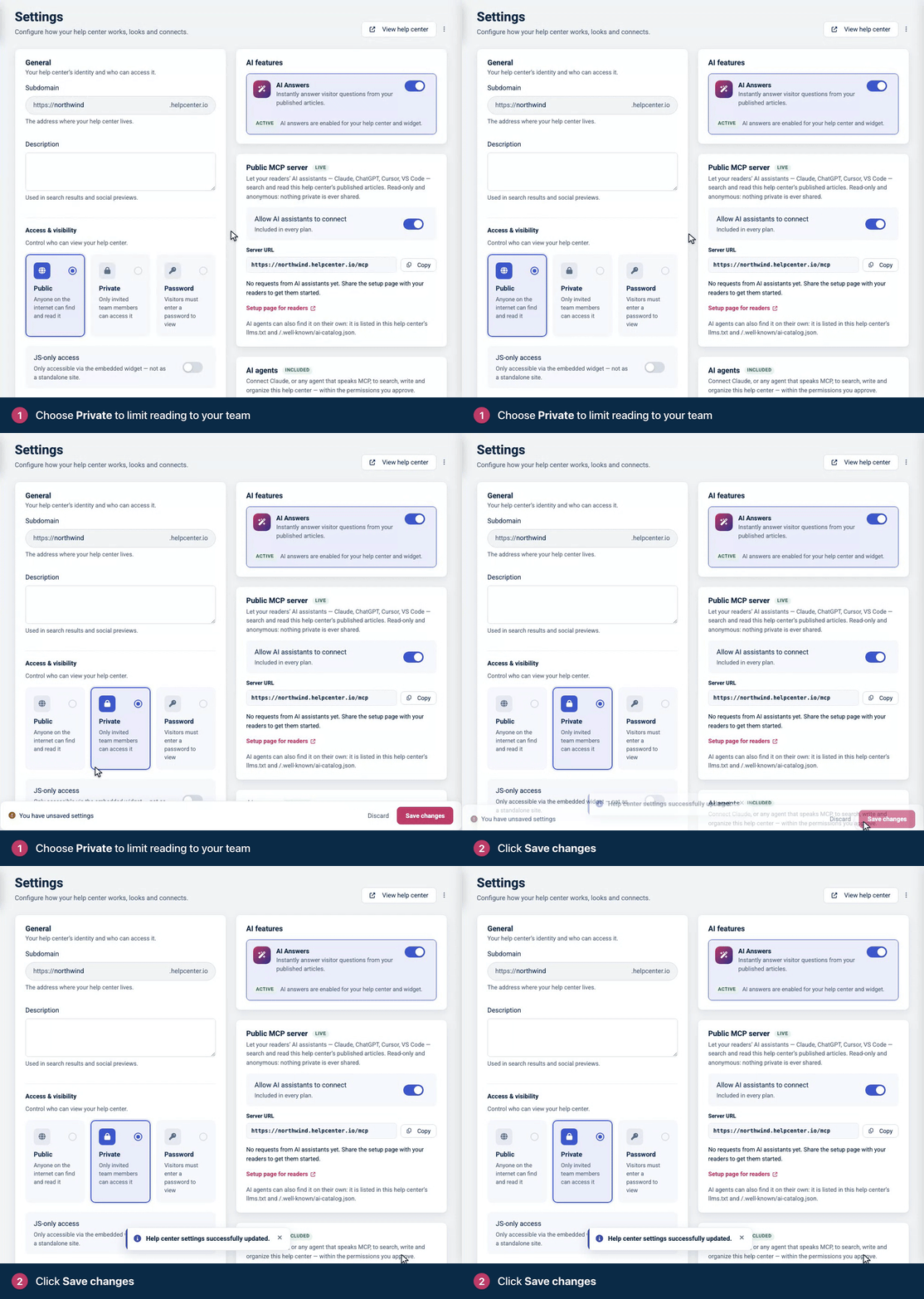
To let someone read a private help center, invite them to your team. The Viewer role is for people who only need to read. See Invite your team.
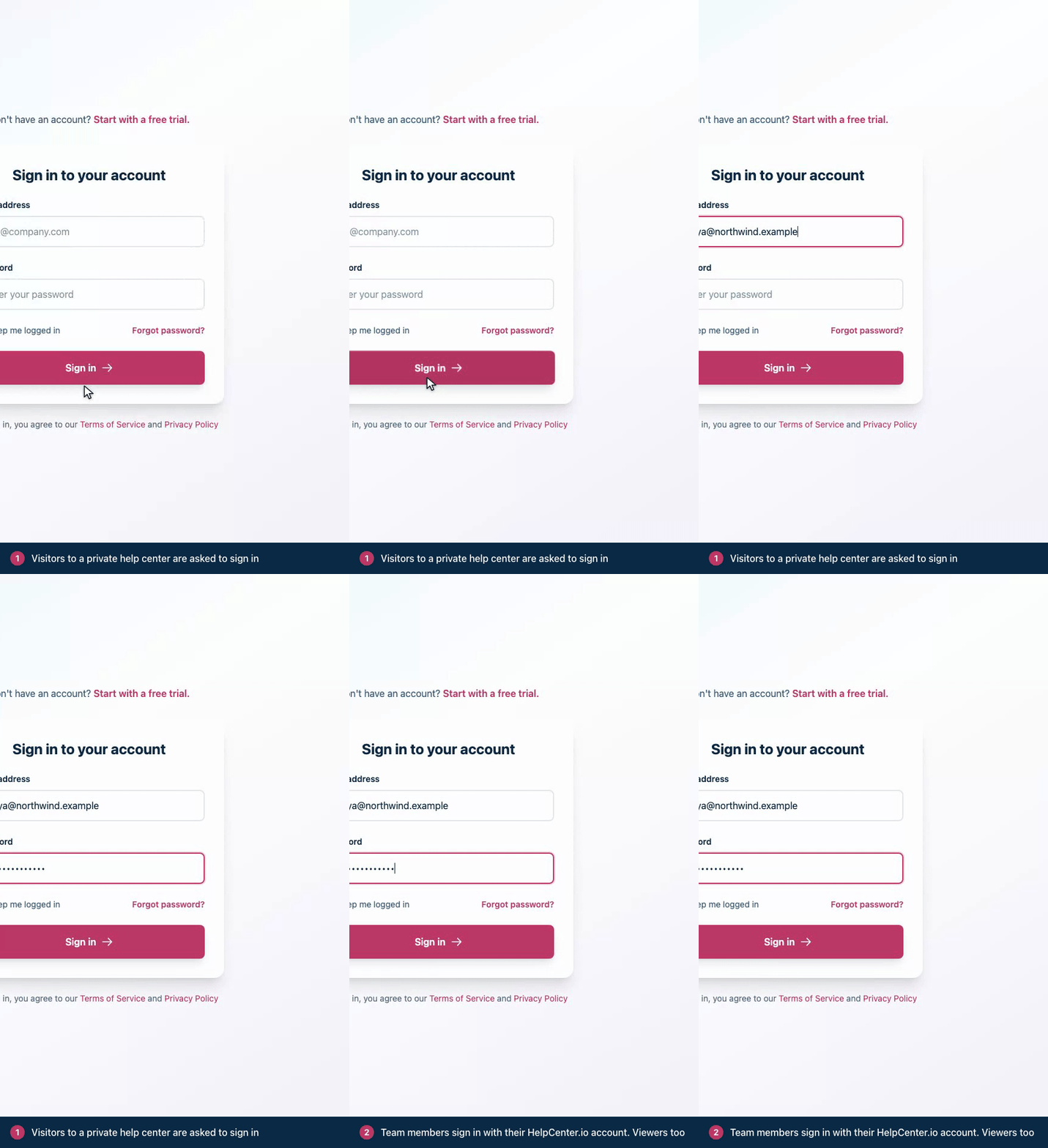
Anyone who opens a private help center without being signed in is asked to sign in with their HelpCenter.io account. After they sign in, they go straight back to the page they were trying to open. If you use JWT single sign-on, visitors go to your own login instead.
Protect it with a password
In the left menu, click the gear icon, then Settings.
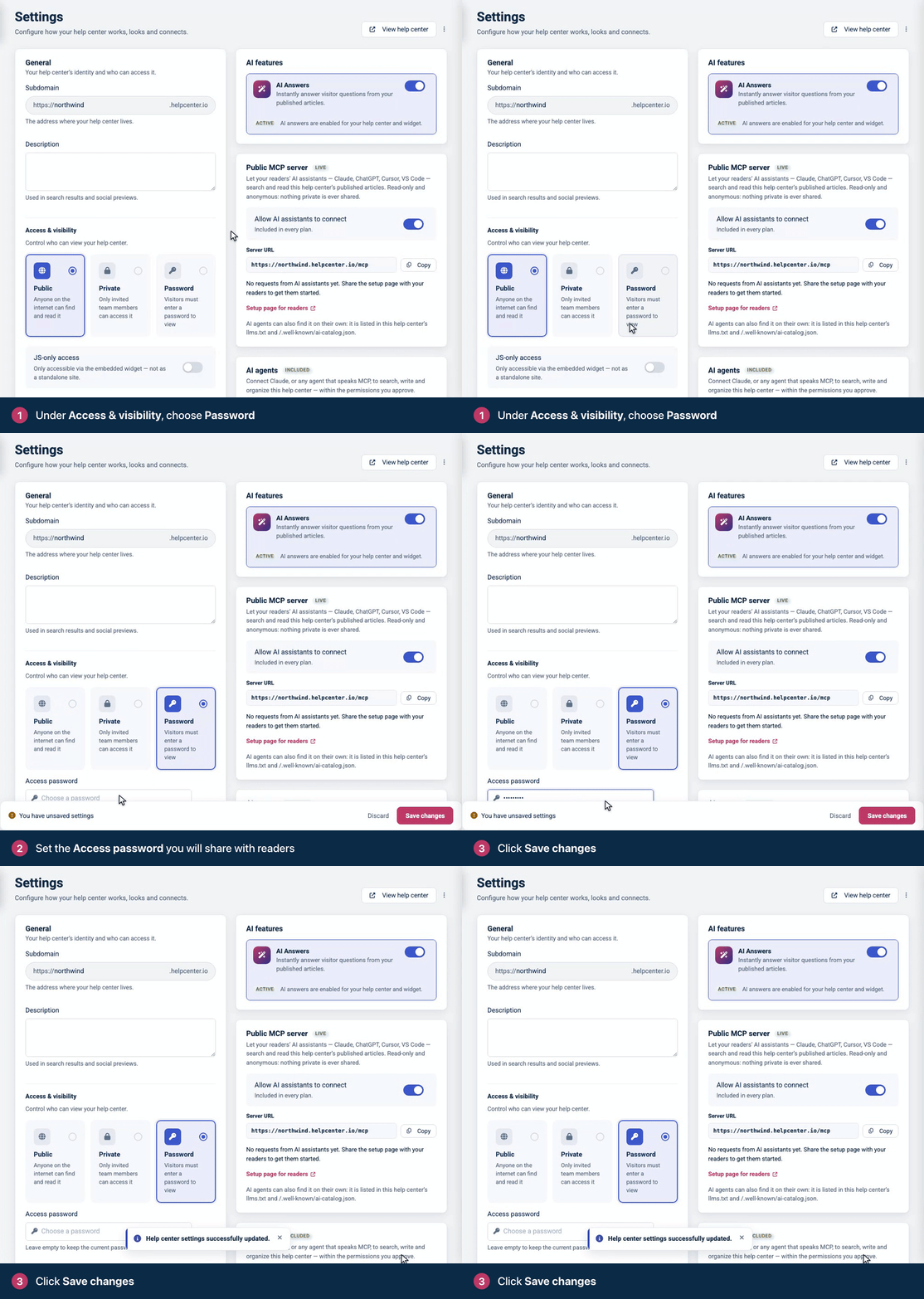
Under Access & visibility, choose Password.
Enter the Access password you'll share with readers.
Click Save changes.
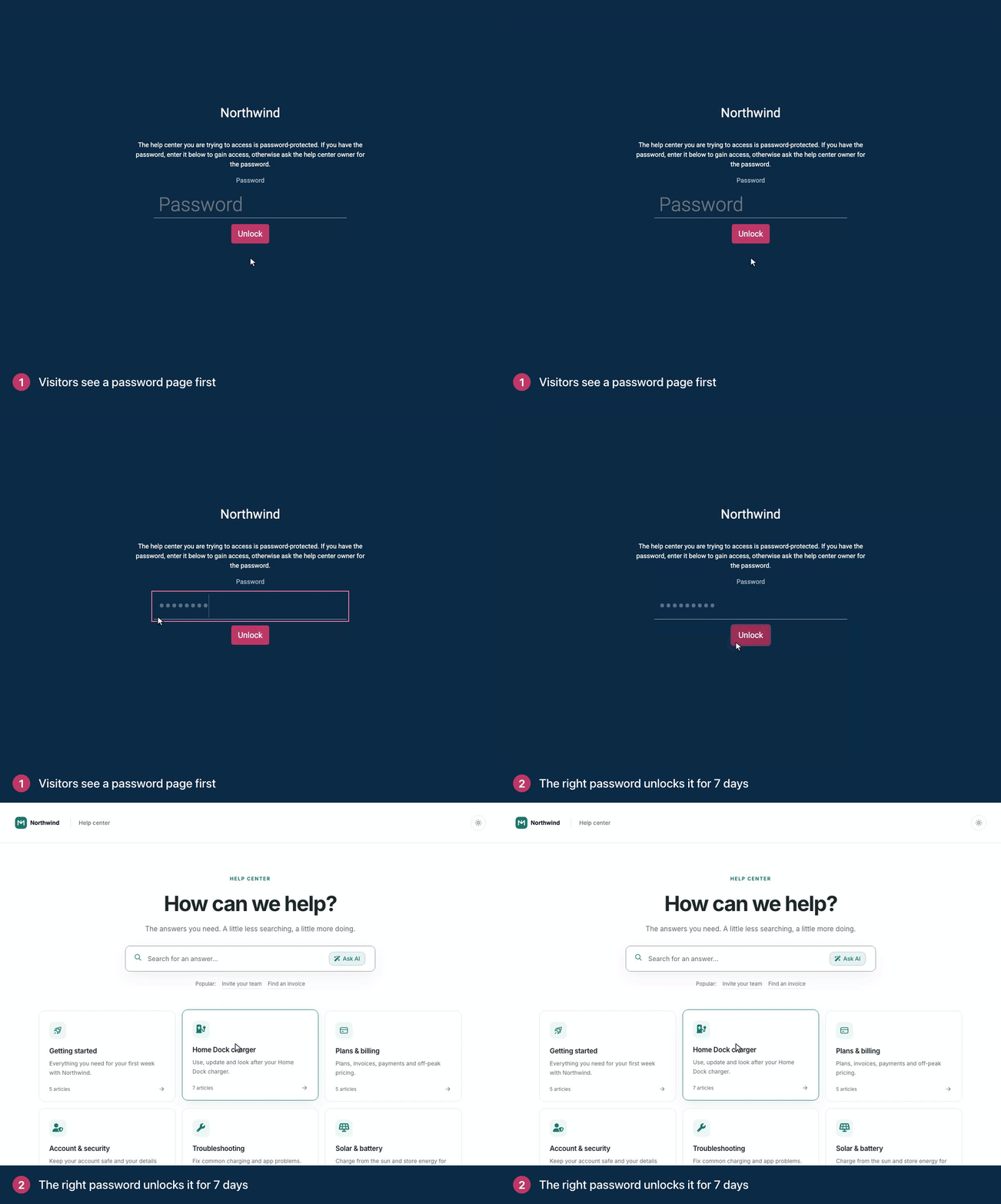
Visitors now see a password page first. After they enter the right password, the help center stays open in that browser for up to 7 days. Team members who are signed in to HelpCenter.io skip the password page.
To change the password, type a new one in Access password and save. Everyone who used the old password is signed out and needs the new one.
To keep the current password while you change other settings, leave the field empty.
You have to enter a password the first time you choose this option. Otherwise saving fails with "Please set a password before switching the help center to password-protected visibility."
Make it public
In Settings, under Access & visibility, choose Public.
Click Save changes.
Public is available once the account owner has confirmed their email address and activated a plan. Until then, the Public option is locked and says which step is missing. The owner can activate during the free trial and keep the days left. Private and Password work on the trial too. See Make your help center public.
If your help center is public already, it stays public and you can keep saving your settings. If you switch it away from Public before the plan is activated, Settings warns you first: "Once you save, making it public again needs an activated subscription plan."
Which to choose
You want | Use |
|---|---|
Help for customers and prospects that anyone can find | Public |
An internal knowledge base for your team | Private. See Use a private help center as an internal knowledge base. |
A customer portal for people who sign in to your product | Private with JWT single sign-on, so readers use their existing login (Catalyst plan). See Sign readers in with your own login. |
A preview before launch, or access for a few partners without accounts | Password |
Help that appears only inside your product | JS-only access. See Show your help center only inside your app. |
Access only from your office network or VPN | IP whitelisting, on top of any option above. See Restrict access by IP address. |
To keep a help center public but hide some of its content, make individual categories or articles private instead. See Make a category private and Choose who can read an article.
Search engines and AI assistants
Private and Password help centers never appear in search results, because search engines can't get past the sign-in or password page. They also have no public MCP server, so readers can't connect them to an AI assistant. To keep a public help center out of search results, see Hide your help center from search engines.
Comments
Be the first to comment.