

Deleting an article moves it to Trash, so a slip is never final. Restore it with its history whenever you need it, or delete it for good.
Who can do this: Owners, Admins and Editors (deleting permanently and redirects: Owners and Admins) · Plans: All plans
Delete and restore an article
On Articles, open the … menu on the article and choose Delete.
Click Delete to confirm. The article moves to Trash.
To bring it back, click Trash in the left menu.
Open the … menu on the article and choose Restore.
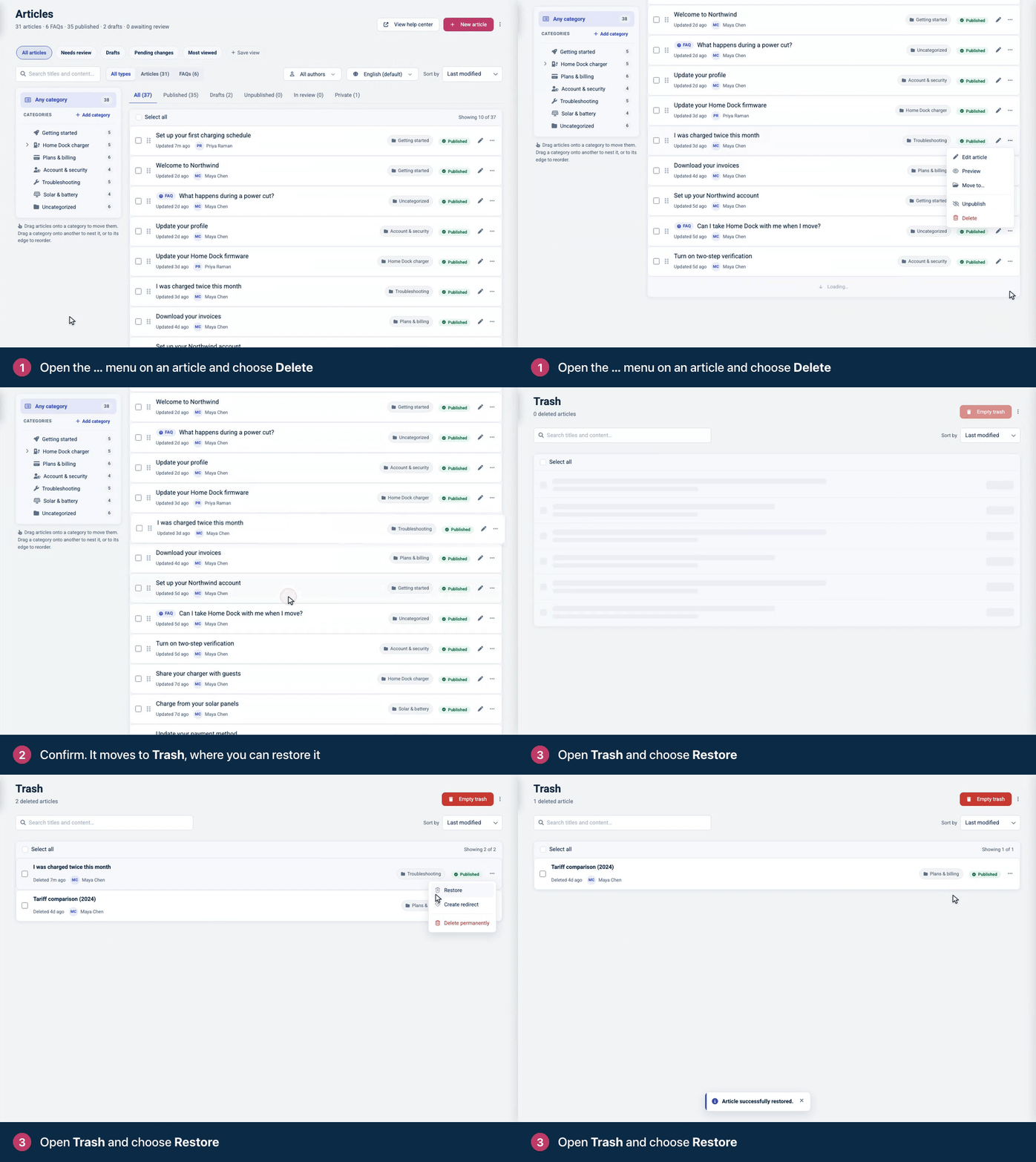
A restored article comes back with its content, category, settings and version history. If it was published when you deleted it, it's live again as soon as you restore it. A draft comes back as a draft.
You can also delete an article from the editor (the arrow next to Publish or Update, then Move to trash), or tick several articles and click Delete in the bar.
What happens to a deleted article
Readers get a not-found page at its address.
It drops out of your help center's search, the widget and AI Answers.
It stays in Trash, with its history, until an Owner or Admin deletes it permanently.
Send visitors to another page
In Trash, open the … menu on the article and choose Create redirect.
Under Redirect to, enter the full address of the page that replaces it, starting with https://.
Click Create.
Anyone who opens the deleted article's address now lands on that page. For other old addresses, see Redirect old links to the right page.
Delete permanently
One article: in Trash, open the … menu, choose Delete permanently and confirm.
Everything in Trash: click Empty trash, type your password and click Empty trash.
Permanently deleted articles can't be recovered, and neither can their version history.
Troubleshooting
Delete permanently or Create redirect doesn't work for me. These need an Owner or Admin. Empty trash only shows for them too.
A restored article went live straight away. It was published when it was deleted. If it shouldn't be live, unpublish it. See Unpublish an article.
Comments
Be the first to comment.