

Fix a typo, add a step or rewrite a section of a live article. Readers keep seeing the published version while you work, and see your changes as soon as you click Update.
Who can do this: Owners, Admins and Editors · Plans: All plans
Update a live article
Open the published article from Articles.
Make your changes. The status pill switches to Unpublished edits (Update to push them live), and readers still see the published version.
Click Update.
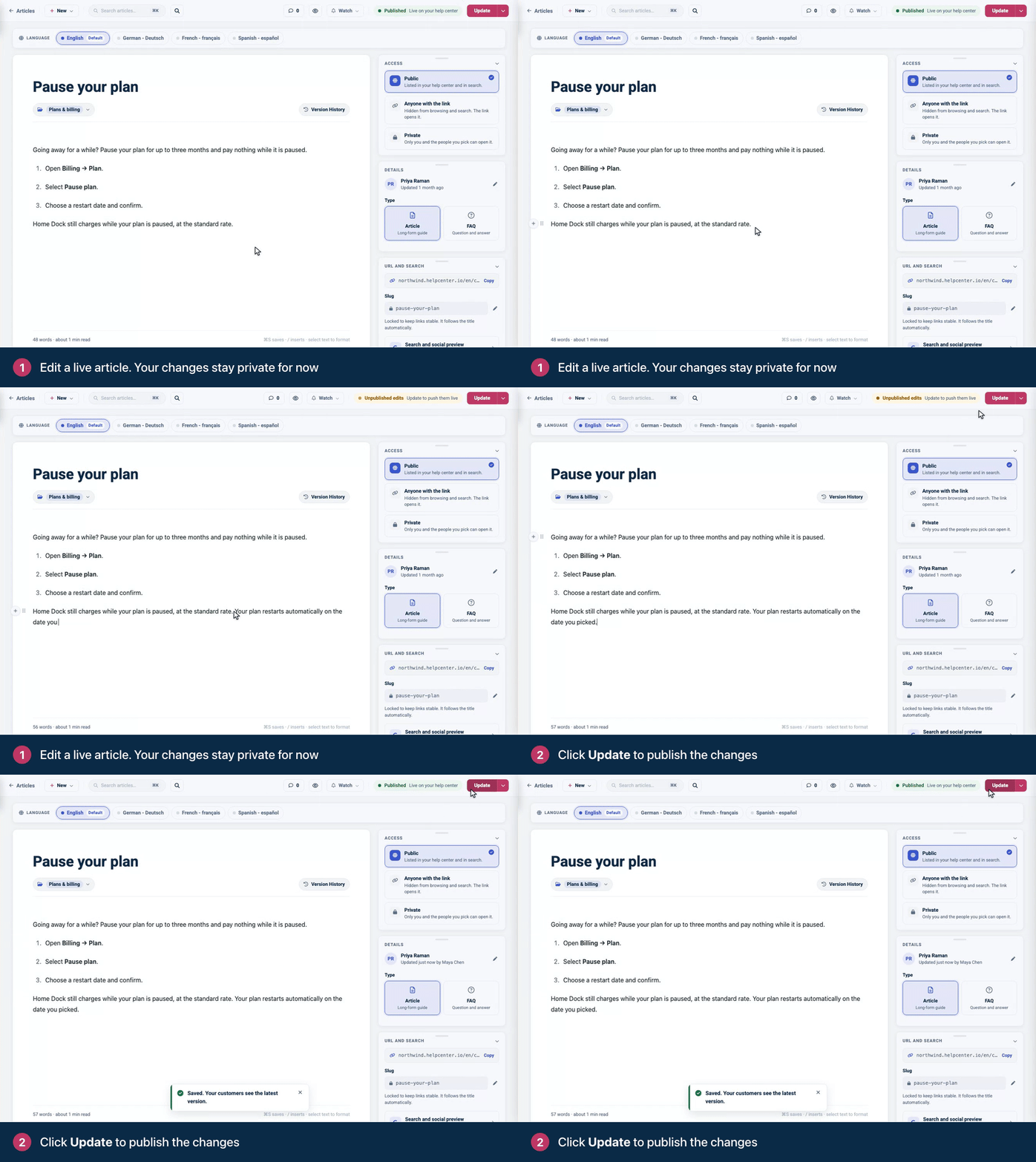
You'll see "Saved. Your customers see the latest version." Your changes are now live.
Where your edits wait until you click Update
Until you click Update, your edits are kept in this browser only. That means:
Your teammates don't see them.
They don't follow you to another computer, and clearing your browser data removes them.
If you come back to the article in the same browser, the editor restores your changes to the text and tells you "The draft in this browser differs from the version on our servers." Keep editing to use them, or click Discard local draft. Other changes, such as a new title, aren't kept when you leave the page.
A live article has no separate draft to save, so pressing ⌘S (Ctrl+S on Windows) reminds you to click Update instead. On help centers that use staged changes, it works differently: your edits are saved to a staged copy in your account, and the button reads Publish changes.
Working on a bigger rewrite
If the changes will take more than one sitting, you have two options:
Unpublish it while you work. Choose Unpublish (back to draft) from the menu next to Update. Readers can't see the article until you publish it again. See Unpublish an article.
Stage your changes (Catalyst). Your edits are saved to your account as a staged copy while readers keep the live version, and you publish them when they're ready. See Edit live articles safely with staged changes.
What gets recorded
Every update is kept in the article's Version History: who changed the content, title, URL, category or status, and when. You can compare changes and restore an earlier one. See See and restore earlier versions of an article.
Teammates who watch the article get an email when you change something they watch. See Get notified when an article changes.
If you change a live article's URL, its old address redirects to the new one, so existing links keep working.
Troubleshooting
My changes don't show on my help center. Check the status pill. If it still reads Unpublished edits, click Update. If it reads Published, refresh your help center after a moment. See My changes don't show on my help center.
Edits I made earlier are gone. Text edits you haven't published stay in the browser where you made them. Open the article in that browser, check your changes, then click Update.
Comments
Be the first to comment.