

Ask a teammate to double-check an article, or set a reminder to re-check it later. Reviews help you catch outdated steps before your readers do.
Who can do this: Owners, Admins and Editors · Plans: All plans
Flag an article for review
Open the article from Articles.
Click the arrow next to Update (or Publish on a draft) and choose Flag for review.
Under Assign to (optional), pick a teammate, or leave it on Anyone on the team.
Under Note (optional), say what needs checking.
Leave Notify the assignee by email on, and click Flag for review.
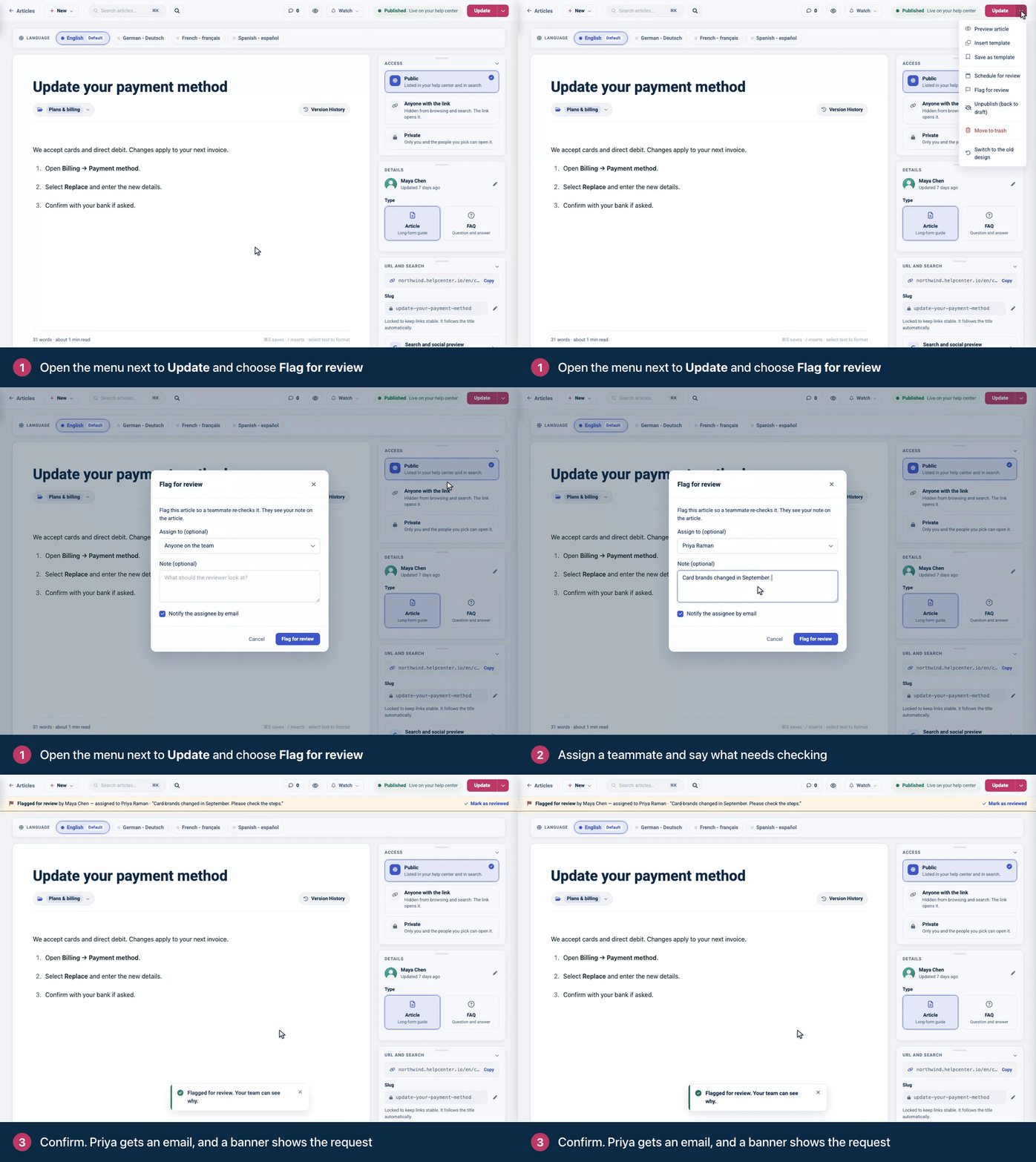
On the Articles page, the article is marked For review with the reviewer's name, and it's listed under the In review tab. In the editor, a banner shows who flagged it, who it's assigned to and your note. The person you assigned gets an email with the subject "You have been assigned to review an article".
Complete a review
Open the flagged article and click Mark as reviewed in the Flagged for review banner. You can also choose Complete review from the menu next to Update.
Add a Comment (optional) for the person who flagged it.
Leave Notify the person who flagged it on to email them, and click Mark as reviewed.
The flag is cleared. A flag doesn't lock the article: anyone who can edit it can still update or publish it while it's in review.
Schedule a review
For articles that go stale, such as pricing details or screenshots of your product, set a reminder:
Click the arrow next to Update (or Publish) and choose Schedule for review.
Enter the number of days. The dialog shows the date it falls on.
Click Schedule.
On that date, the article's author gets an email listing their articles that are due for review, and the article moves to In review. To change the date, choose Change review schedule from the same menu. Clear schedule removes it.
Clicking Update on a live article clears its review date, so set the next one after you update the article.
See an article's review history
Check who asked for a review, what they asked for and how it was answered, for every review the article has had.
Open the article in the editor.
Click the arrow next to Update (or Publish) and choose Review history. While the article is flagged, you can also click History in the Flagged for review banner.
The Review history panel lists every review, newest first. Each one shows whether it's Pending or Reviewed, who flagged it and when, who it was assigned to and the note. A completed review also shows who reviewed it, when, and their comment. If the article has never been flagged, the panel says "No reviews yet."
Flag many articles at once
On Articles, tick the articles and click Mark for review in the bar. They're flagged without an assignee or a note, and nobody gets an email.
Find articles that need review
On Articles, click the In review tab or the Needs review view. Both list flagged articles and articles that are past their review date.
Troubleshooting
The reviewer didn't get an email. Emails go out only when you assign someone and leave Notify the assignee by email on, and never when you assign yourself. Ask them to check their spam folder. See I'm not getting emails from HelpCenter.io.
An article still shows For review after you mark it as reviewed. It also has a review date that has passed, for example because it was flagged with Mark for review in the bar. Choose Change review schedule from the menu next to Update (or Publish) and click Clear schedule.
Comments
Be the first to comment.