

Change your password any time from Account Settings. If you've forgotten it, reset it from the sign-in page instead.
Who can do this: Everyone, for their own account · Plans: All plans
Change your password
At the bottom of the left menu, click your avatar, then Account Settings. You can also go to helpcenter.io/app/account.
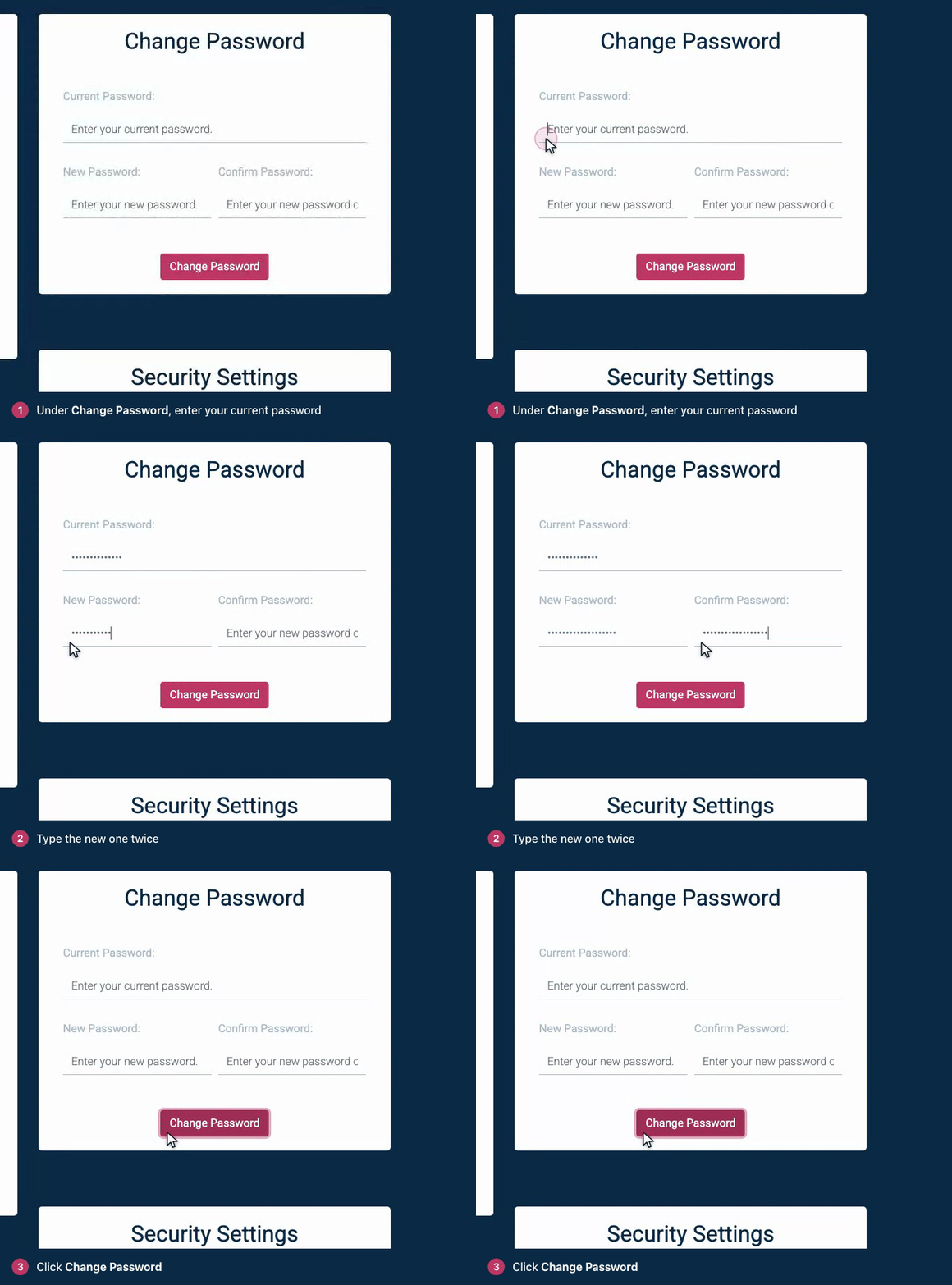
Under Change Password, enter your Current Password.
Enter a New Password of at least 6 characters, and type it again in Confirm Password.
Click Change Password. You see "Password successfully changed."
If you signed up with Google
An account created with Google has no password yet. Account Settings shows Set a Password instead of Change Password, and doesn't ask for a current password: enter a New Password, confirm it and click Set Password. After that you can sign in with Google or with your email and password.
Connect or disconnect Google
In Account Settings, Sign-in Methods lists Google.
Click Connect and pick your Google account to sign in with Continue with Google from then on. The Google account's address doesn't have to match your HelpCenter.io email address. The card then reads Connected as followed by that address.
Click Disconnect to go back to signing in with your email and password only.
Google can't be disconnected while it's your only way to sign in. Set a password first.
Reset a forgotten password
Click Forgot password? on the sign-in page.
Enter your Email and click Send the reset link. You see "If an account exists for that address, we've emailed a password reset link."
Open the email and click the reset link. It works for 60 minutes.
On Reset your password, enter your email address, then your new password in New password and Confirm the new password.
Click Reset password.
A reset needs a password of at least 8 characters, while Account Settings accepts 6. Choose 8 or more and your password works in both places.
Keep your account safe
Use a password you don't use anywhere else. A password manager makes that painless.
Add a second step to signing in with two-factor authentication.
Troubleshooting
"The current password you've entered seems to be incorrect." Type your current password again. If you don't remember it, reset it instead.
The reset email doesn't arrive. Wait a few minutes and check your spam folder. The page shows the same confirmation for every address, so check that you entered the one on your account. If you asked for a link less than a minute ago, wait a minute before asking again.
"Set a password before disconnecting Google, or you would have no way to sign in." Set a password under Set a Password, then disconnect Google.
"That Google account is already connected to a different HelpCenter.io account." A Google account signs in to one HelpCenter.io account. Disconnect it from the other account first, or pick another Google account.
"This password reset token is invalid." The link has expired or was already used. Request a new one.
Comments
Be the first to comment.