

Every help center has its own address on helpcenter.io, like yourbrand.helpcenter.io. The first part is your subdomain, and you can change it whenever your name changes. Read what happens to the old address before you do.
Who can do this: Owners and Admins · Plans: All plans
The old address stops working the moment you save. It isn't redirected to the new one, and it becomes free for anyone else to take. Links, bookmarks and search results that use it show a "This Help Center Doesn't Exist" page.
Change your subdomain
In the left menu, click the gear icon, then Settings.
Under General, type the new name in Subdomain.
Click Save changes.
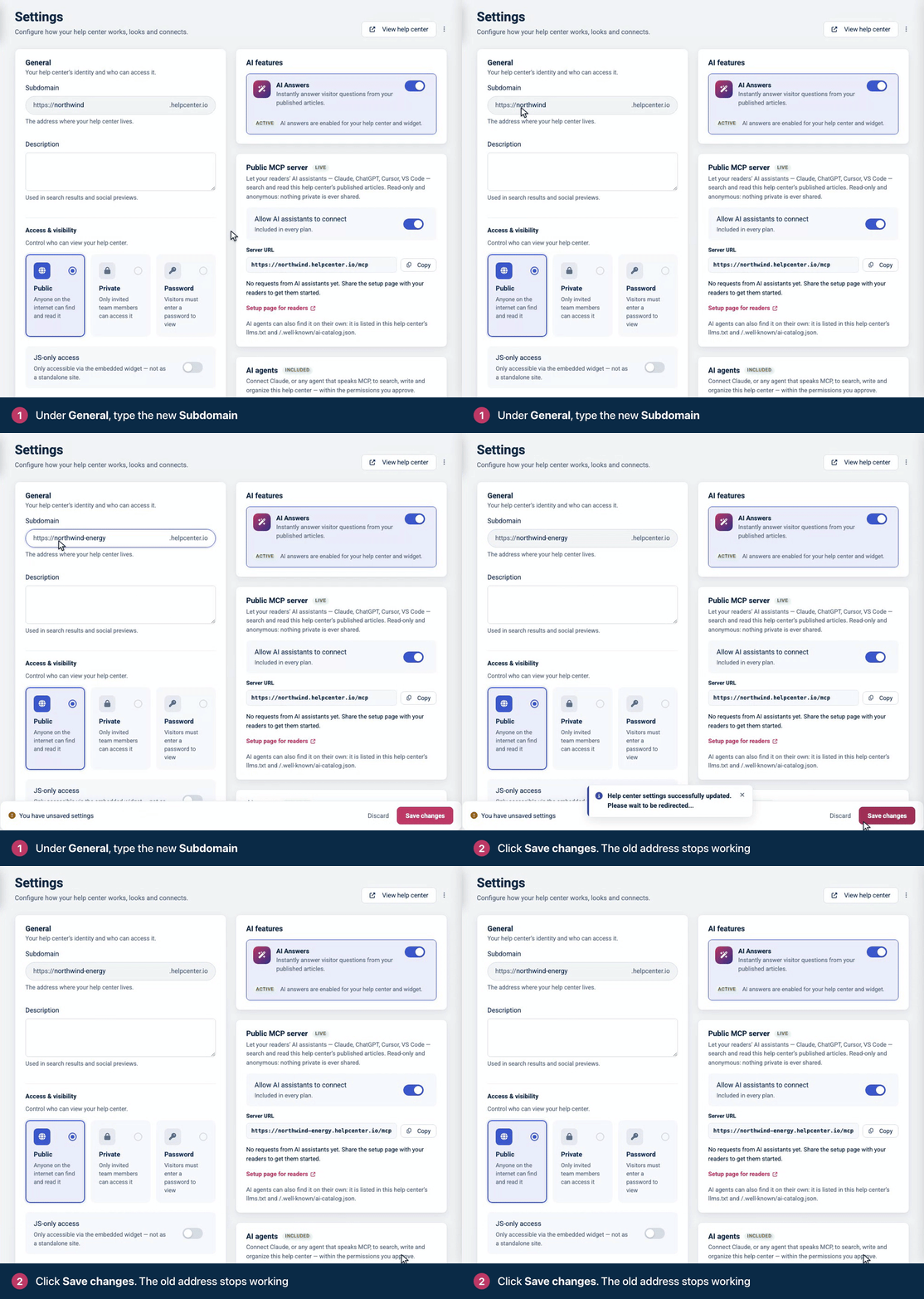
You'll see "Help center settings successfully updated. Please wait to be redirected..." and the Settings page opens again at its new address.
Update everything that uses the old address
Links and bookmarks. Update links on your website, in your product, in emails and in saved support replies. Bookmarks to dashboard pages include the old name too.
Your custom domain. If you use one, change the value of its CNAME record to the new address (newname.helpcenter.io) right away, then click Verify DNS under Settings → Custom domain. Links that use your own domain keep working once the record points to the new name. See Use your own domain.
Subfolder hosting. If your help center is served from a path of your website, change your proxy to forward to the new address (newname.helpcenter.io) right away. Until you do, your help center doesn't load at that path. Settings → Subfolder hosting shows the rules with the new address. See Host your help center in a subfolder of your website.
Single sign-on. If your login endpoint sends readers back to the old address, point it at the new one.
Iframes and embeds. Anything that loads your help center by its address, such as an iframe, needs the new address.
AI assistants. Without a custom domain, your help center's public MCP server moves to the new address too. Readers who connected it to their AI assistant need the new URL.
The widget keeps working without changes: its code finds your help center by its widget ID, not by its address.
Custom redirects can't send the old address anywhere, because it no longer belongs to your help center. They only handle paths on your current address. See Redirect old links to the right page.
Subdomain rules
3 to 63 characters.
Letters, numbers and dashes. Capital letters are saved as lowercase, and underscores become dashes.
Not a reserved word. Common names such as www, help, support, docs, kb, api, app, admin, blog and status are reserved.
Not already used by another help center.
Choose a good subdomain
Your subdomain is how people find and remember your help center, especially if you don't use a custom domain. Pick one that clearly stands for your business, brand or project. Most companies use their name in lowercase, with dashes instead of spaces: a help center for "My Company" becomes my-company.helpcenter.io.
For a private help center, a short, memorable name makes it easier for your team to come back to it.
Troubleshooting
"Subdomain must contain only letters, numbers, and dash (-)." Remove spaces, dots and other symbols.
"The subdomain you have chosen is a reserved word. Please choose another one." Add something that makes it yours, such as your company name.
"The subdomain has already been taken." Another help center uses that name. Try a variation.
Your custom domain stopped verifying after the rename. Its CNAME record still points to the old address. Update the record's value to your new helpcenter.io address.
Comments
Be the first to comment.