

Show your help center inside HubSpot tickets, so your team can find and share answers without leaving HubSpot. Connect it in a few clicks with HubSpot's own sign-in.
Who can do this: Owners and Admins · Plans: All plans (suggested articles need the Catalyst plan, or the AI add-on on Bootstrap and Growth)
Connect HubSpot
In the left menu, click the gear icon, then Settings.
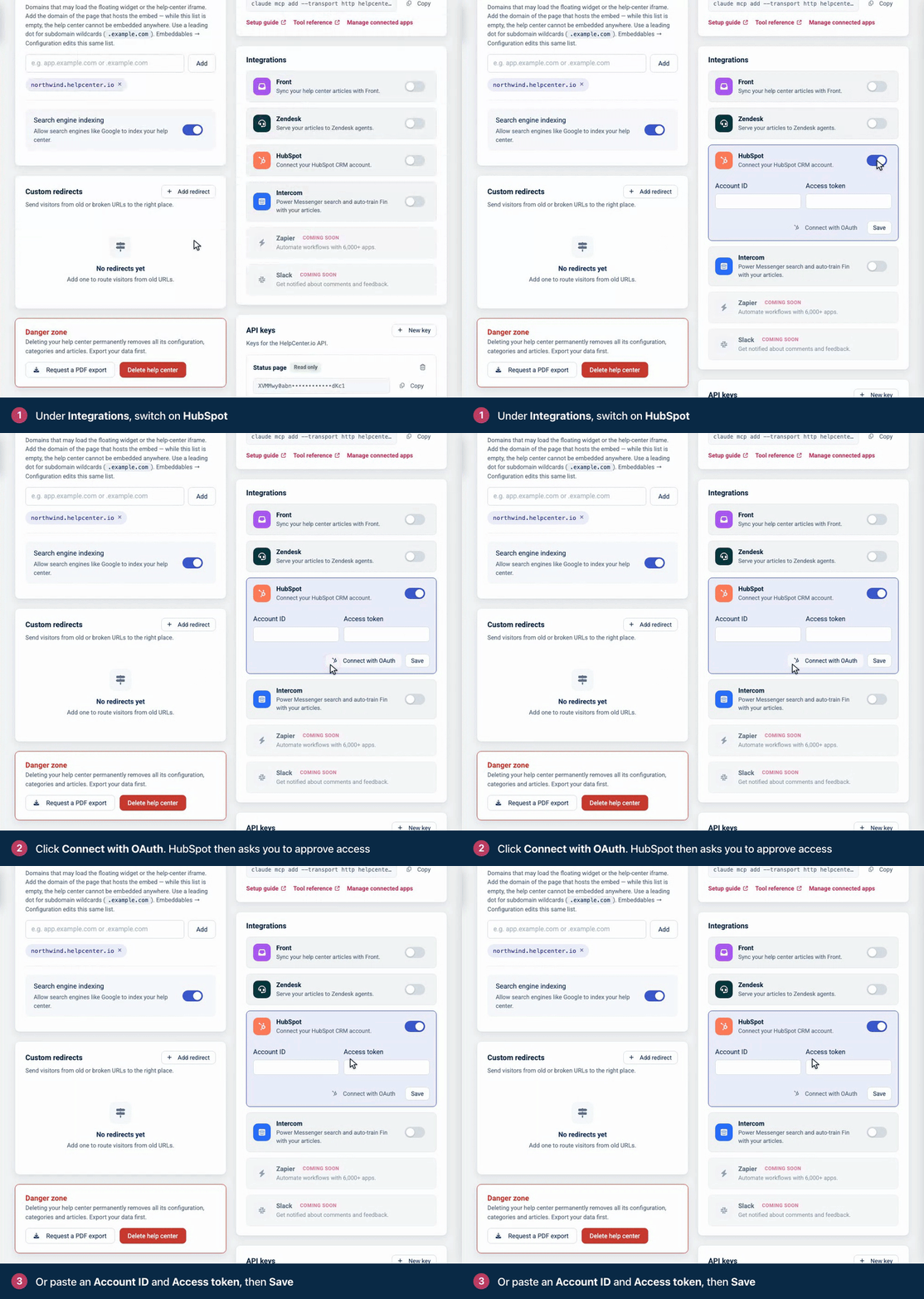
Under Integrations, switch on HubSpot.
Click Connect with OAuth. HubSpot opens.
Approve access for your HubSpot account. You come back to Settings, connected.
Connect with an account ID and access token instead
If you'd rather not use OAuth, enter your HubSpot Account ID and an Access token on the HubSpot card, then click Save. Both fields are required. A message confirms HubSpot connected.
What your team sees in HubSpot
On a ticket, the HelpCenter.io card lets your team:
Browse your categories and search your articles.
See articles that match the latest message on the ticket (Catalyst plan or the AI add-on).
Rate an article with a thumbs up or down. The rating counts toward that article's reader ratings and your Satisfaction score in Statistics, just like a rating from a reader.
Disconnect HubSpot
Switch off HubSpot under Settings → Integrations. HelpCenter.io removes the account ID and access token straight away, and a message confirms HubSpot disconnected.
Troubleshooting
"Both Account ID and Access Token are required for HubSpot integration." Fill in both fields before you click Save, or use Connect with OAuth instead.
The card in HubSpot shows no articles. Check that HubSpot is still switched on under Settings → Integrations, and that the Account ID belongs to the HubSpot account you're using. Connecting again with OAuth refreshes both values.
No suggested articles. Suggestions need the Catalyst plan or the AI add-on. If you added AI recently, switch on AI Answers once under Settings → AI features, so your existing articles are prepared for suggestions.
Comments
Be the first to comment.