

Change what a teammate can do, or take away their access, from the Users page. Both take effect right away.
Who can do this: Owners and Admins · Plans: All plans
Change someone's role
In the left menu, click the gear icon, then Users.
Find the person under Team members. On a big team, use Search members… to look them up by name or email.
Pick a new role in the dropdown next to their name: Admin, Editor, Translator or Viewer. On the Catalyst plan, your custom roles are listed too. See Create custom roles for your team.
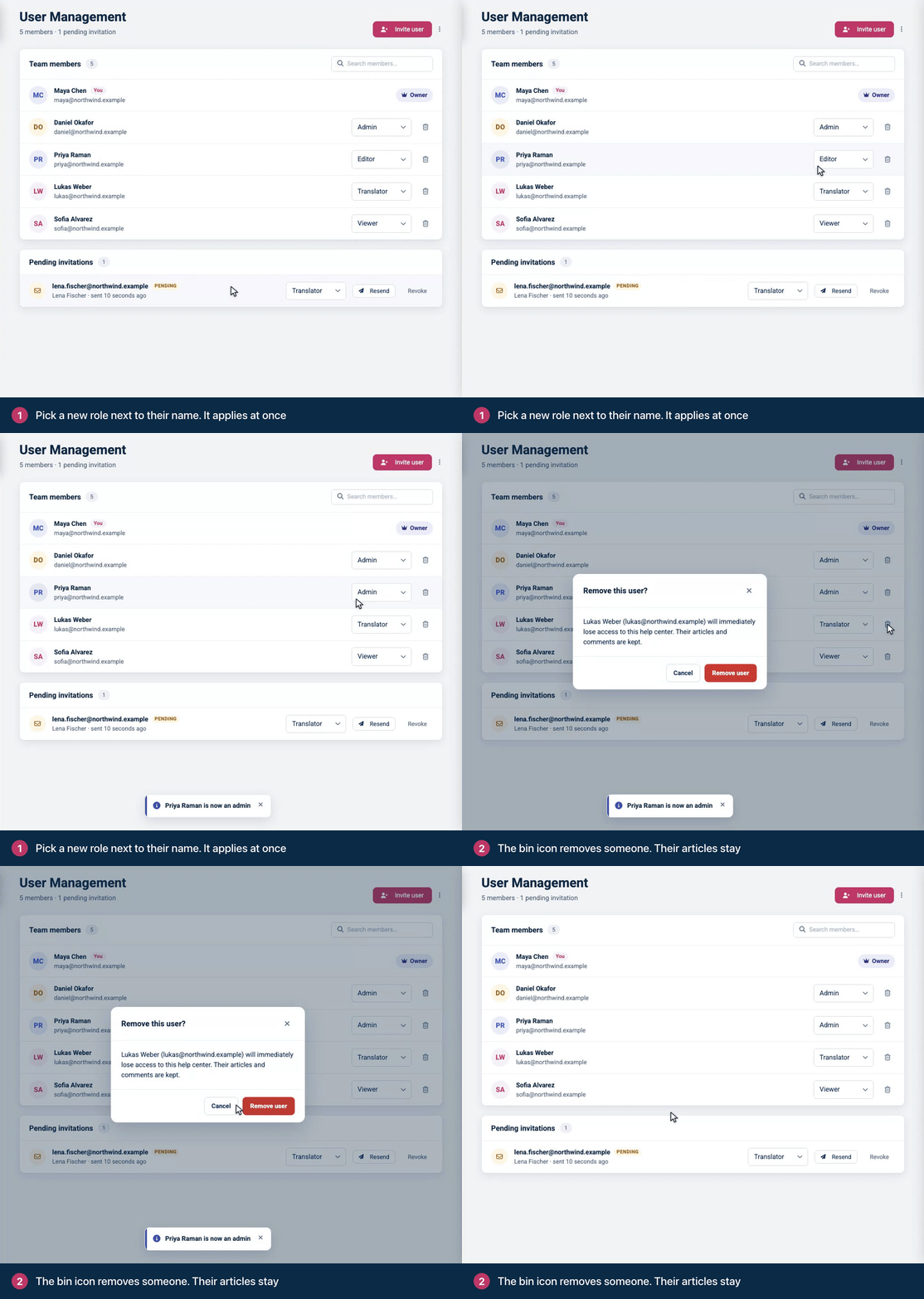
The new role applies at once, and a message confirms the change. Not sure which role to pick? See Roles and permissions.
Someone hasn't accepted their invitation yet? Change the role in the invitation's dropdown under Pending invitations. It applies when they join.
Remove someone
On the Users page, click the bin icon next to the person's name.
In Remove this user?, click Remove user.
They lose access to this help center immediately. Their articles and comments stay, and their seat is free for someone else. Their HelpCenter.io account isn't deleted, and they keep access to any other help centers they're on.
Removing an Admin or changing their role? The API keys they created stop working as soon as they're no longer an Owner or Admin. First switch any integration that uses one of their keys to a key created by an Owner or Admin who stays. See Create an API key.
To cancel an invitation nobody has accepted yet, click Revoke next to it under Pending invitations, then Revoke invitation.
The owner
The owner has a crown next to their name instead of a role dropdown, because the owner's role can't be changed. To hand a help center over to someone else, contact support. See Change your email, transfer ownership or delete your account.
Troubleshooting
"The role could not be changed. Please try again." Reload the page and try again. Only Owners and Admins can change roles.
A removed person can still read the help center. If your help center is public, anyone can read it. Removing someone takes away their dashboard access and their access to a private help center.
Comments
Be the first to comment.