

Your contact page, the links to it, the "Ask us" button of the Contact CTA and the widget's message form all stay hidden until messages have somewhere to go. Here's how to switch them on.
Add a Recipient email
This is the fix in most cases. Every theme starts with an empty Recipient email, so nothing shows until you fill it in.
In the left menu, click Template editor, then open Pages.
Switch to the Contact page and click Contact form to edit it.
Under Behaviour, enter the address that should receive messages in Recipient email.
Click Publish, then Publish again to confirm.
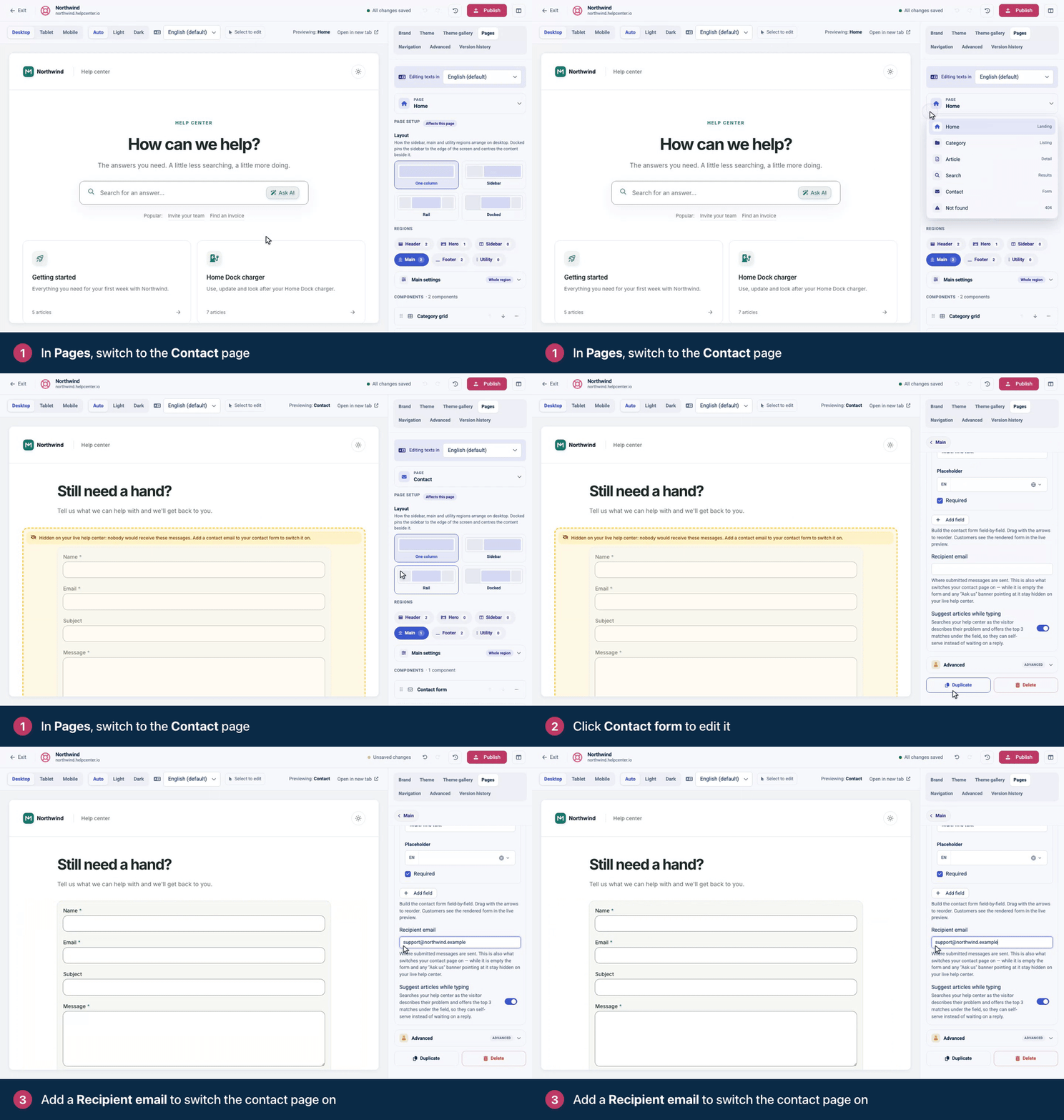
Once you publish, the contact page, links to it, the Contact CTA's button and the widget's message form appear. Messages arrive at that address, and replying goes straight to the visitor.
Read the notice in the preview
In the template editor's preview, a contact component that won't show on your live help center carries a notice that says why:
"Hidden on your live help center: nobody would receive these messages." Add a Recipient email as described above.
"Hidden on your live help center: this button points at your contact page, which is not published yet." The Contact page itself needs a Contact form. A form on another page doesn't count. Open the Contact page, click Add component and add a Contact form with a Recipient email.
"Hidden on your live help center: this button has no destination." The Contact CTA's Button url is empty. Enter
/contactsfor your contact page, amailto:address or a link to another page.
You applied a new theme
Themes come with an empty Recipient email. If Contact page layout was ticked when you applied a theme, your address was replaced and the contact page is hidden again. Add the address again and publish. Next time, untick Contact page layout to keep yours. See Choose a theme.
You haven't published yet
The preview shows your draft. Visitors see the contact page after you click Publish.
Your widget sends people elsewhere
If your website's widget code uses onContactsRequest, the widget opens your own form or chat instead of its message form. That's on purpose. See Handle contact requests yourself on the developer portal.
Still stuck?
Contact our support team with the address of your help center's contact page. See Contact HelpCenter.io support.
Comments
Be the first to comment.