

Keep your name and photo up to date so your team knows who's who. Your profile belongs to your HelpCenter.io account, so it's the same in every help center you work on.
Who can do this: Everyone, for their own account · Plans: All plans
Change your name or photo
At the bottom of the left menu, click your avatar, then Account Settings.
Under Profile Settings, click Select File and choose a photo in PNG, JPG or GIF format.
Change your First Name or Last Name if you need to. Both are required.
Click Update. You see "Account successfully updated."
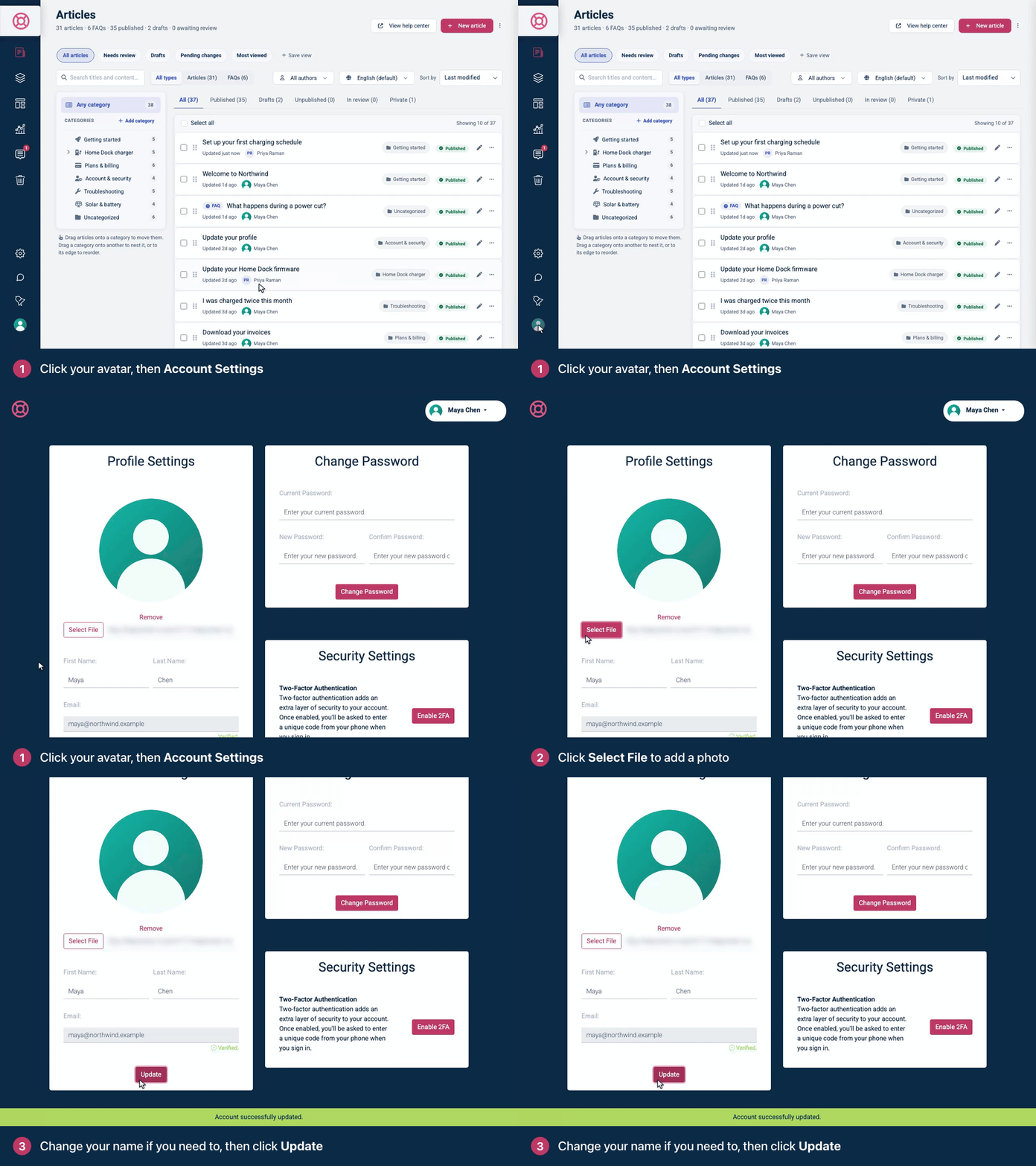
To remove your photo, click Remove under it, then click Update.
SVG files don't work. If you pick one, your photo doesn't change. Save the image as a PNG or JPG first.
Where your profile shows: your name and photo appear in the dashboard, for example on the Users page and next to articles you've written. Your name can also appear as the author on your help center, if your design shows authors. See Show or hide the author, date and reading time.
Your email address
The Email field is locked, because you can't change your email address yourself. Our support team can change it for you. See Change your email, transfer ownership or delete your account.
Verify your email
If you see "Your email has not been verified yet", click Resend, then click the link in the email we send you. Once that's done, the field shows Verified.
You need a verified email to make a help center public and to activate a subscription.
Comments
Be the first to comment.